
General
Settings → General holds the settings that apply to the whole app: defaults for new sessions, notifications, scheduled prompts, worktrees and the archive. The sections are in the same order as in the app.
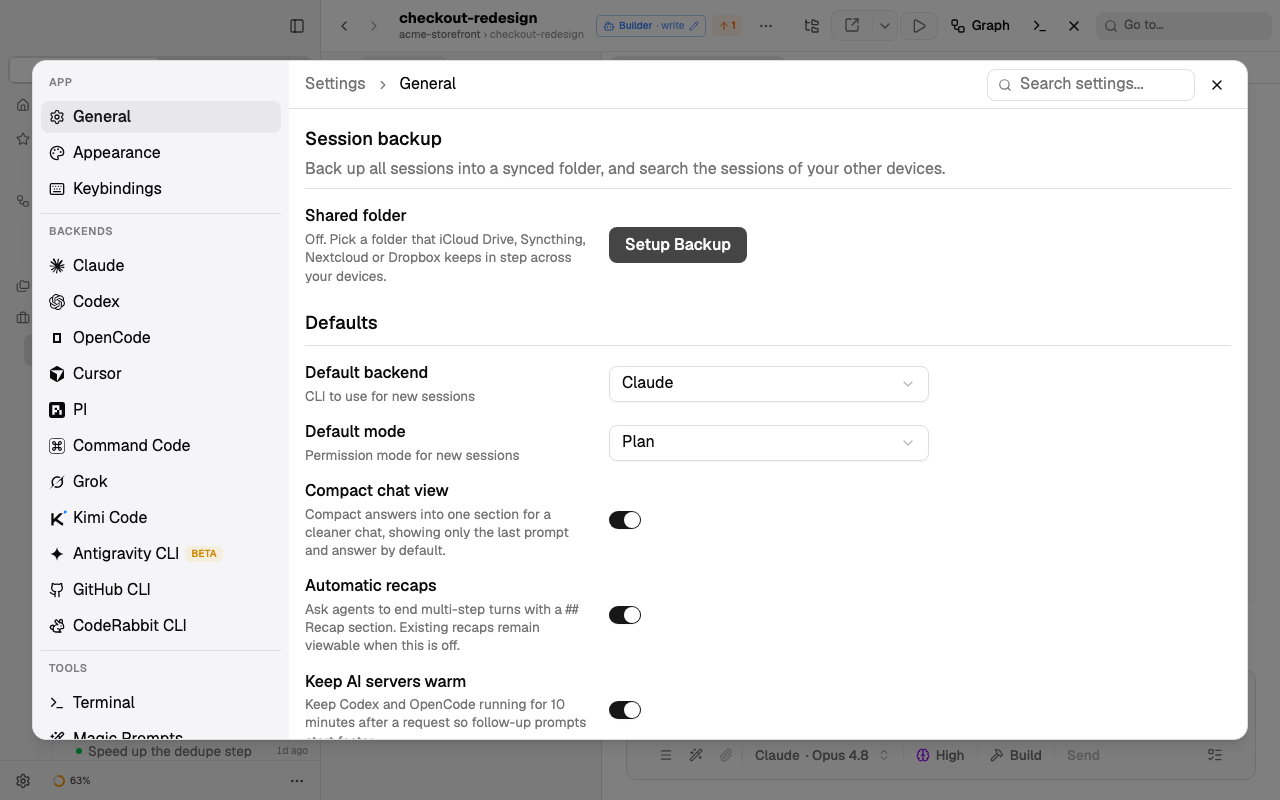
Session backup
The backup copies your session data into a folder that a sync service (iCloud Drive, Syncthing, Nextcloud, Dropbox) keeps in step across your devices. The full guide is Session backup.
Shared folder
Default: off (no folder)
What it does: Setup Backup lets you pick a synced folder. Then Splitkick copies the session data of this device into its own subfolder there: one time at start, every 10 minutes, and about 30 seconds after a run ends. Only new and changed files are copied. A session that you delete on this device stays in the backup. Turn off stops the backup. The files that are already in the folder stay there.
Why change it: turn it on when you use Splitkick on more than one device, or when you want a copy of your sessions outside the app data folder.
Cost: the first backup needs as much free space as your session data (the dialog shows how much). Full chats and tool output go unencrypted into a folder that your sync service uploads.
Device name
Default: the computer name
What it does: your other devices show this name next to the sessions that come from this device. Shown only while the backup is on.
Why change it: give each device a name that you can recognize, for example "MacBook office" and "Mac mini".
Search other devices
Default: on
What it does: the command palette (⌘K → Other devices) and the MCP tool search_sessions also search the sessions that your other devices wrote into the shared folder. A result shows the device and the project. You cannot open it here, because the session is on the other device. Shown only while the backup is on.
Why change it: turn it off when you want search results from this device only.
Status
Not a setting. It shows the last backup (time, number of files, size), or the last error. Back up now starts a backup at once, Stop cancels a running one. Under it, Other devices lists the devices that use the same folder and their last backup.
Full Disk Access (macOS)
Not a setting in Splitkick: macOS keeps it. The section shows if Splitkick has Full Disk Access, and has the buttons Open System Settings and Relaunch now. A running app keeps the state it started with, so after you grant access, relaunch Splitkick.
With Full Disk Access, Splitkick and every program that an agent starts can read all your files, also Mail, Messages and the data of other apps. You get fewer "would like to access data from other apps" prompts. Splitkick works fine without it. Read Permissions → Full Disk Access before you turn it on.
Shown only in the desktop app on macOS.
WSL (Windows)
Shown only in the desktop app on Windows.
Use WSL
Default: off
What it does: Splitkick runs all commands (git, the agent CLIs, gh, npm) in the Windows Subsystem for Linux, through the distribution that you select. The CLIs start in a login shell, so the Linux PATH and the API keys of your shell profile are loaded. When you turn it on, first select a distribution.
Why change it: turn it on when your projects and tools are in WSL. The agent CLIs must then be installed inside the distribution.
Distribution
Default: none
What it does: the WSL distribution to use. Splitkick checks that git is installed in it. Without git, the setting is not saved.
Defaults
Default backend
Default: Claude
What it does: the agent CLI for new chat sessions. The list shows only the CLIs that are installed. A project can set its own Default Backend, which wins. Magic prompts without their own backend also use this value.
Why change it: select the CLI that you use most. See Agent CLIs and modes.
Default mode
Default: Plan
What it does: the mode a new session starts in: Plan (the agent reads and writes a plan first), Build (file edits are approved automatically) or Yolo (all tools are approved automatically). After that, each session keeps its own mode (⇧Tab changes it). Cursor has only Plan and Yolo.
Why change it: select Build or Yolo when you want fewer approval steps. Yolo lets the agent run every command without asking you. See Modes.
Compact chat view
Default: on (per device)
What it does: your prompts, plans, questions and the last answer show in full. The steps between them fold into one activity row that you can open with a click. The chat shows the last 10 prompts and loads 10 more when you scroll up.
Why change it: turn it off when you want to read every step of the agent without a click.
Automatic recaps
Default: on
What it does: Splitkick asks every agent to end a turn that had tool calls, edits or several steps with a ## Recap section: the answer again in short, 2 to 4 bullets, and how to test. Recaps that are already in the chat stay visible when you turn it off.
Why change it: turn it off when you do not want the extra section at the end of each turn.
Cost: a slightly longer system prompt and some more output tokens for each turn with several steps.
Keep AI servers warm
Default: on
What it does: Codex and OpenCode run as a server process. When no session uses the server any more, Splitkick keeps it running for 10 minutes. If you send a new prompt in this time, the answer starts faster. When it is off, Splitkick stops the server at once. Other backends are not affected.
Why change it: turn it off when memory is low.
Cost: an idle Codex or OpenCode process keeps its memory for up to 10 minutes.
Parallel execution prompting
Default: on
What it does: Splitkick adds the Parallel Execution prompt to the system prompt of every chat message, for all backends. It tells the agent to plan for subagents and to start independent subagents at the same time.
Why change it: turn it off when you want fewer subagents, or when a backend does not handle them well. While this is on, the Codex setting Multi-Agent stays on too.
Cost: a longer system prompt on every message. Parallel subagents finish faster but can use more tokens in total.
Build execution
Default: Default (no override)
What it does: the backend, model, thinking level and effort that Splitkick uses when you approve a plan in Build mode.
- When the plan goes to a new session or worktree ("clear context"), the new session uses the backend and model that you set here. Without a model, it uses the default model of that backend.
- When you approve in the same session, the backend cannot change. The model, thinking and effort override apply only when the session already uses that backend.
When you change the backend, the model, thinking and effort go back to Default.
Why change it: plan with a strong model and build with a faster or cheaper one, or the other way around.
Cost: depends on the model that you select.
Yolo execution
Default: Default (no override)
What it does: the same as Build execution, but for plans that you approve in Yolo mode.
Why change it: use a different model for unattended work than for Build.
AI Language
Default: empty (the agent answers in the language of your message)
What it does: when you type a language, for example "French" or "日本語", and click Save, Splitkick puts "Respond to the user in <language>." at the start of the system prompt of every chat message, for all backends. Commit messages, PR texts and session names are not affected.
Why change it: when you want answers in one language, also when you write prompts in another language. The default Global System Prompt asks for Simplified Technical English. If you set a language here, change that prompt too.
Allow web tools in plan mode
Default: on
What it does: in Plan mode, Claude can use WebFetch and WebSearch without a permission prompt, and Codex gets live web search. Other backends are not affected.
Why change it: turn it off when the planner must not go to the internet, for example for private code, or to keep the context small.
Cost: web pages add tokens to the context. A web page can also contain text that tries to steer the agent (prompt injection).
Editor
Default: Zed (per device)
What it does: the app that Open in Editor uses: Zed, VS Code, VSCodium, Cursor, Xcode (macOS), IntelliJ IDEA or Sublime Text. On macOS the list shows only installed apps. Desktop app only.
Terminal
Default: Terminal on macOS and Linux, PowerShell on Windows (per device)
What it does: the app that Open in Terminal uses. macOS: Terminal, Warp, Ghostty, iTerm2. Windows: Warp, PowerShell, Windows Terminal. Linux: Terminal, Ghostty. This is not the terminal panel inside Splitkick (see Terminal). Desktop app only.
Git Client
Default: the first installed client (per device)
What it does: the app that Open in Git Client uses: Tower, Fork, GitHub Desktop or Sourcetree. Shown only when one of them is installed (macOS). Desktop app only.
Open In
Default: Editor (per device)
What it does: what the Open button of a worktree does: Editor, Terminal, Finder, GitHub or Git Client. When the target is not available (for example GitHub without a branch), the button uses the editor. Desktop app only.
New Session
Default: Splitkick Chat
What it does: what ⌘T opens. Splitkick Chat makes a normal chat session at once. Terminal opens a terminal session. A CLI name (Codex, Claude, OpenCode, Cursor, Grok, Kimi Code, Antigravity CLI) opens that CLI in its own terminal interface, not as a Splitkick chat.
Why change it: select Terminal or a CLI when you mostly work in the terminal interface of a CLI. ⌘⇧T always opens the picker with all choices.
Git poll interval
Default: 1 minute
What it does: while the Splitkick window has focus, Splitkick checks the active worktree at this interval: it fetches the base branch from the remote, then updates the ahead, behind and change counts. When the window gets focus again, it checks at once.
Why change it: a shorter interval gives fresher counts. A longer interval saves network traffic and battery.
Cost: one git fetch and some local git commands per interval.
Remote poll interval
Default: 1 minute
What it does: while the window has focus, Splitkick asks GitHub for the status of the pull request of the active worktree at this interval: open, merged or closed, and the CI checks. Other worktrees are checked one after the other every 5 minutes, whatever the value here. Auto-archive on PR merge uses this status.
Why change it: a shorter interval shows CI results and merges sooner. A longer one uses fewer GitHub API calls.
Cost: each check is a GitHub API call through gh, which counts against your GitHub rate limit.
Auto-update AI backends
Default: on
What it does: Splitkick checks for new versions of Claude, Codex, OpenCode, PI, Command Code, GitHub CLI and CodeRabbit 10 seconds after start, then every hour. When this is on, it installs a new version in the background and shows a short message. A CLI that Splitkick manages is reinstalled by Splitkick. A CLI from your PATH is updated with its own update command or package manager. When a session uses the CLI at that time, Splitkick waits for the next check. When it is off, a badge in the title bar shows the update, and you install it yourself. A phone never starts an update.
Why change it: turn it off when you want to keep a CLI version, for example because a new version broke something.
Cost: downloads in the background, and a CLI version can change while you work.
Notifications
Desktop notifications
Default: on (per device)
What it does: Splitkick shows a system banner when a session is finished, fails, or waits for you (a plan approval or a question). The banners for "finished" and "failed" show only when the Splitkick window is in the background. "Waits for you" also shows when you look at another session. A click on the banner opens the session. Desktop app only.
Why change it: turn it off when the banners disturb you.
Web access sounds
Default: on (per device)
What it does: controls if the sounds play in a browser or on a phone with Web Access. The desktop app is not affected.
Why change it: turn it off on your phone: a sound in a mobile browser stops the music that plays on the phone.
Waiting sound
Default: None (per device)
What it does: plays when a session waits for you: a plan approval, a question, or an approval that Codex asks for during a run. Values: None, Work Work, Job's Done. When you select a sound, you hear it once.
Why change it: select a sound when you work in another app and want to know when an agent needs you.
Review sound
Default: None (per device)
What it does: plays when a run is finished. Values: None, Work Work, Job's Done.
Scheduled prompts
These settings belong to Scheduled jobs.
Missed runs
Default: Run once at the next start
What it does: a schedule is "missed" when it is more than 10 minutes late, because Splitkick or the computer was off.
- Run once at the next start: the job runs one time now. A repeating job then goes on with its next time. It never runs one time for each missed time.
- Skip: a repeating job goes on with its next time and shows "Skipped". A one-time job stays in the list, turned off and marked "Skipped".
Why change it: select Skip when a late run is of no use, for example a daily report that is only good in the morning.
Cost: with "Run once", an AI run can start right after Splitkick starts.
Show in menu bar
Default: on
What it does: shows the Splitkick icon in the menu bar (Windows: the system tray). The icon shows the usage of all your Claude accounts and lets you switch the account, open the window or quit. It uses the same usage data as the app, so it makes no extra requests. While a schedule is on, Splitkick keeps running after you close the last window, so the schedule can run. On Windows this needs the icon. On macOS it works also without the icon. Not on Linux, not in Web Access.
Why change it: turn it off when you do not want the icon.
Open at login
Default: off (macOS, Windows or Linux keeps this setting)
What it does: the system starts Splitkick when you log in, with its normal window. Together with Missed runs, repeating schedules also run after a restart. Desktop app only.
Why change it: turn it on when you use scheduled jobs.
Auto-generate
Branch names
Default: on
What it does: with the first message in a new worktree, an AI call makes a short branch name from the message and renames the branch. The worktree folder keeps its name. Not for the base session, for a worktree of a pull request, or for a branch that you selected yourself. It runs one time per worktree and uses the model of the Session Naming magic prompt.
Why change it: turn it off when you want to keep the branch names that Splitkick gives at creation, for example because of a naming rule.
Cost: a small AI call. When session names are on too, one call makes both names.
Session names
Default: on
What it does: with the first message of a session, an AI call makes a session name. If you renamed the session in the meantime, your name stays. One time per session.
Why change it: turn it off when you name your sessions yourself.
Cost: one small AI call per new session. Use a cheap model for Session Naming.
Worktrees
Auto-pull base branch
Default: on
What it does: before Splitkick makes a new worktree, it fetches the base branch from the remote. The new worktree then starts from the newest remote state. Your local base branch does not change: it is a fetch, not a pull. If your local base branch has commits that are not pushed, the worktree starts from your local branch. If the fetch fails, Splitkick goes on.
Why change it: turn it off when you work offline, or when the fetch is slow.
Cost: one network fetch per new worktree.
Auto-save context
Default: off
What it does: after every AI turn that ends normally (not when the session stops to wait for you, for example for a plan approval or a question), and only when the session has at least 3 messages, Splitkick runs the Context Summary magic prompt over the whole session in the background. It writes the summary to a saved-context Markdown file. There is one file per session: the first run makes it, later runs overwrite the same file. It is silent: there is no message, also not when it fails. It uses the backend, model, provider and effort of the Context Summary magic prompt.
Why change it: you always have a summary of each session that is up to date. You can attach it to a new session or a fork, and you do not forget to save it before you archive.
Cost: one extra AI call over the full conversation after each finished turn. On long sessions that is a lot of tokens and usage quota, and the default model of Context Summary is Opus. If you turn it on, select a cheap, fast model for the Context Summary magic prompt.
Restore last session on project switch
Default: on
What it does: when you open a project, Splitkick selects the last session that you used in it and opens its chat. When it is off, Splitkick only selects the card and does not open the chat.
Why change it: turn it off when you want to see the project overview first.
Recent sessions
Default: 30
What it does: how many sessions the Recent tab of the sidebar shows, across all projects (5 to 200). See Sidebar and navigation.
Why change it: a higher number shows more history, a lower one keeps the list short.
Expand tool calls by default
Default: off (per device)
What it does: tool calls in the chat show open, with their full details, not as a short line.
Why change it: turn it on when you always want to see the commands and their output. Long output makes the chat longer, and scrolling in large sessions can get slower.
Archive
See Archived items for the archive itself.
Confirm before closing
Default: on (per device)
What it does: before Splitkick closes a session or a worktree, it asks you. The question follows Removal behavior: archive or delete. An empty session closes without a question.
Why change it: turn it off when you close many sessions and know what the close does.
Archive original session on clear context
Default: on
What it does: when you approve a plan into a new session or worktree, Splitkick archives the planning session. It is never deleted, also not when Removal behavior is Delete. When it is off, the planning session stays open and shows a note under the plan with a link to the new session, and buttons to mark it complete or archive it.
Why change it: turn it off when you want to keep the planning session open next to the new one.
Removal behavior
Default: Archive
What it does: what closing a session or a worktree does. Archive moves it to the archive, and you can restore it. Delete deletes it for good: for a worktree, that is the folder, the branch and all its sessions. Menu items that say Archive always archive. Auto-archive on PR merge also follows this setting.
Why change it: select Delete only when you never want to restore anything.
Cost: with Delete, changes that are not committed are lost, and there is no undo.
Auto-archive on PR merge
Default: on
What it does: when the pull request of a worktree is merged, Splitkick archives the worktree (or deletes it, when Removal behavior is Delete). It waits while a session in the worktree runs, waits for input or has queued messages, or while the worktree has changes, and tries again later. If you added new commits after the merge, it only removes the old PR link. For the base session it only removes the PR link. The merge is found by the Remote poll interval.
Why change it: turn it off when you want to keep merged worktrees, for example for a follow-up change on the same branch.
Auto-delete archives
Default: Never
What it does: at each start of the desktop app, Splitkick deletes archived worktrees and sessions that are older than the time you select (7, 14, 30, 60 or 90 days), with their branches and session data. A message shows how many it deleted.
Why change it: select a time to free disk space automatically.
Cost: deleted items cannot be restored.
Delete all archives
Not a setting: a button. Delete All deletes all archived worktrees and sessions at once, with their git branches and worktree folders. You confirm first. There is no undo.
Troubleshooting
Application logs
Show Logs opens the log folder of the app, with the run logs and crash reports. Desktop app only. See Errors and logs.
Version
Shows the version of Splitkick, the commit of this build and the build time. In a window that is connected to a remote server, it also shows the version of the server.