
Install
Splitkick is a free app for macOS and Windows. On the Mac the download is a signed and notarized DMG for Apple Silicon. On Windows it is an installer for Windows 10 and 11.
What you need
- A Mac with Apple Silicon (M1 or later), or a PC with Windows 10 or 11. Intel Macs and Linux are not supported; see the roadmap.
giton your PATH. On a fresh Mac, rungit --versionin Terminal once and accept the Command Line Tools install.- At least one agent CLI, installed and signed in with your own account: Claude Code, Codex, Cursor, OpenCode, Pi, Command Code, Grok, Kimi Code, Antigravity or CodeRabbit. Splitkick uses your existing plan through the signed-in CLI; it needs no API key of its own.
Steps on the Mac
- Download the DMG from splitkick.app.
- Open the DMG and drag Splitkick to Applications.
- Start Splitkick. macOS checks the notarization on the first start; there is no warning for the signed build.
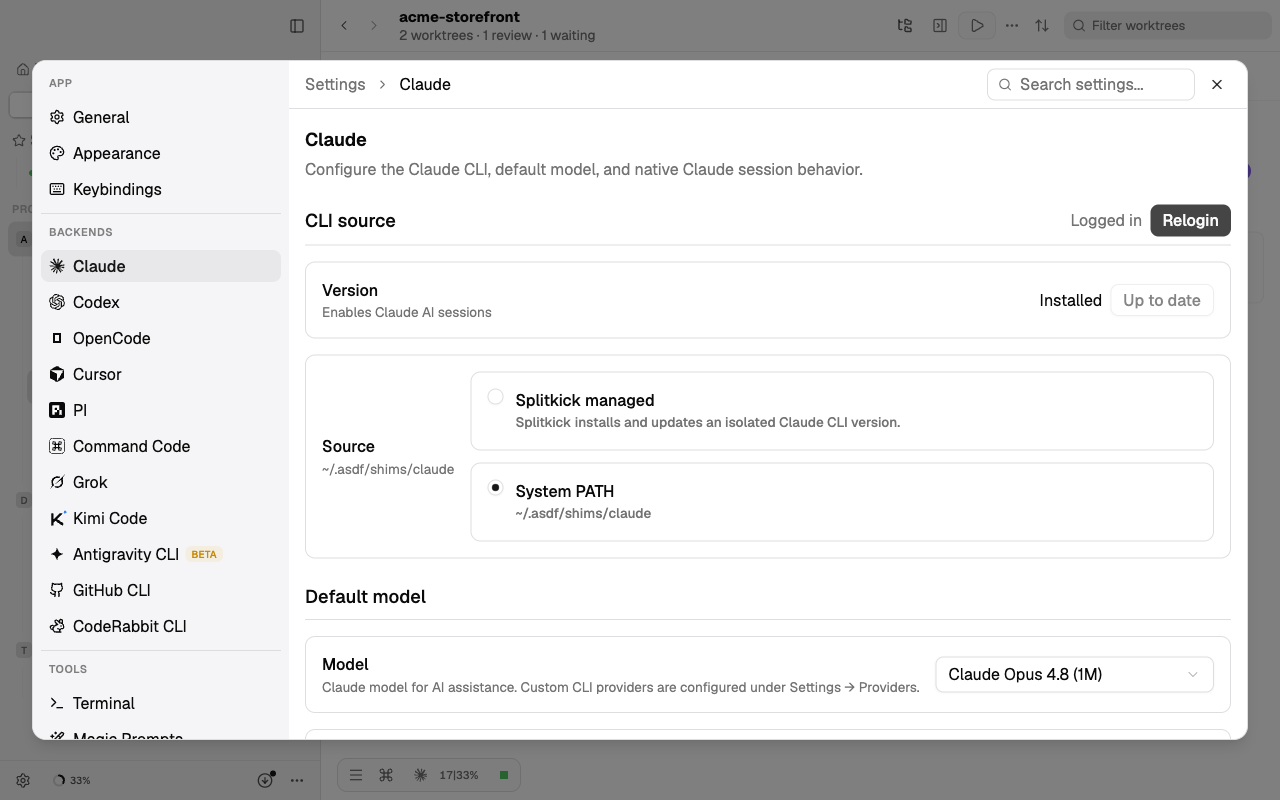
- In Settings, check that your agent CLIs show as found. If one is missing, Splitkick names the binary it looks for.
macOS may later ask you to allow notifications, keychain access or access to folders. See Permissions for each prompt and why it appears. Splitkick does not need Full Disk Access.
Windows New
Every Splitkick release since 1.5.0 has a Windows installer, Splitkick-x64-setup.exe. It is an x64 build for Windows 10 or 11. It also runs on Windows on ARM.
- Download
Splitkick-x64-setup.exefrom splitkick.app. - Start the installer.
- Windows SmartScreen shows a warning. The installer is not code-signed yet. Click More info, then Run anyway.
- Choose where to install:
- Only for you:
%LOCALAPPDATA%\Splitkick. This is the default. - For all users:
C:\Program Files\Splitkick.
- Only for you:
- If your Windows user has admin rights, Windows shows a UAC prompt. This prompt comes on every install and update, also for "only for me".
- Start Splitkick. In Settings, check that your agent CLIs show as found.
What is different on Windows
- An update keeps the install location of the existing install.
- Windows has no menu bar. Check for Updates… is in the more menu (…) in the sidebar footer.
- A click on a notification restores and focuses the Splitkick window. It does not open the session.
- Several Claude accounts: the login for an account other than the root install (
~/.claude) is not offered on native Windows. In WSL mode only the root install works. - Full Disk Access and the Keychain are macOS only. On Windows, Splitkick keeps the tokens of remote connections in the file
remote-connection-tokens.jsoninstead of the Keychain.
Coming from JeanZ or Jean
Splitkick is built on Jean and installs next to it: its own app, data folder, MCP server name and Web Access port, so both can run at the same time. On the first start Splitkick offers to import a copy of your JeanZ or Jean data: projects, sessions, chat history, settings, window layout, remote hosts and browser logins. Where both exist, JeanZ's copy wins. The source is only read. Continue imported sessions in Splitkick only. See Files on disk.
Updates
Splitkick checks for updates on start. It downloads an update first. It installs the update only when you click Restart. If you quit instead, Splitkick offers the update again on the next start. Every release is listed in the changelog with the Jean version it is built on.
To check for an update yourself, use one of these:
- On the Mac: Check for Updates… in the app menu (Splitkick) in the menu bar.
- In the desktop app on every OS: the more menu (…) in the sidebar footer, Check for Updates…. Web Access and the phone do not show this item.
If the check fails, a toast says "Failed to check for updates" with the reason. Splitkick also writes every failed check to the log. See Errors and logs.
After Restart, Splitkick quits, installs the update and starts again. Each restart is written to relaunch.log in the log folder (Help → Show Log). If Splitkick does not start again, open it yourself and check relaunch.log.
macOS asks for an administrator password when the update cannot replace the app in Applications, for example because another user installed it. See Permissions.
Next
Your first project: add a git folder or a plain folder, start a session, review the result.