
Follow-up list
While the agent works, you often think of the next question. Write it on the session's follow-up list and keep reading. Splitkick never sends a note on its own: you decide when it goes into the chat.
Open the list
The follow-up button sits at the far right of the bar under the chat input, also in zen mode. Its badge shows how many notes are open.

The follow-ups button with its count of open notes sits at the far right of the bar under the chat input.
Where the list opens depends on the room you have:
- In a wide window it opens in the free space to the right of the chat.
- When the window, the sidebar, the file browser or the browser pane leaves too little room, it opens above the input.
- On a phone it opens as a bottom sheet.

In a wide window there is room beside the chat, so the follow-up list opens to the right of the chat input.
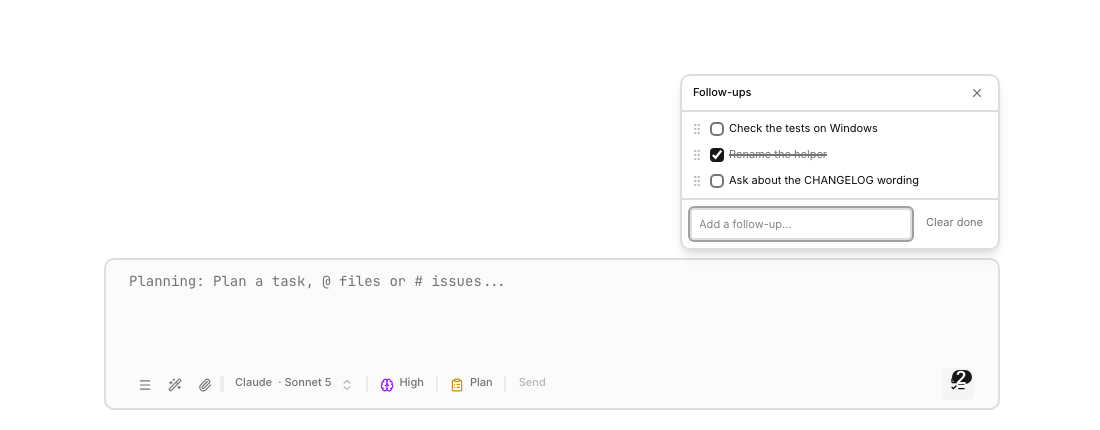
When the window is too narrow for a panel beside the chat, the follow-up list opens above the chat input.
Add a note
- Press ⌘J and type the note.
- Right-click a message and choose Add to follow-ups. Splitkick adds the selected text, or the whole message if nothing is selected.
- Let the agent add one: the MCP server has the tool
add_follow_up.
Work with the notes
- Tick a note when it is done. Clear done removes the ticked notes.
- Edit or delete a note, or drag it to a new position.
- Use in message puts the note into the message box. You can change it there before you send it.
- Queue for after this turn moves the note into the message queue while the agent is still working. It is sent when the turn ends.
Each session has its own list. The list stays after a restart and shows in Web Access, so you see the same notes on your phone.
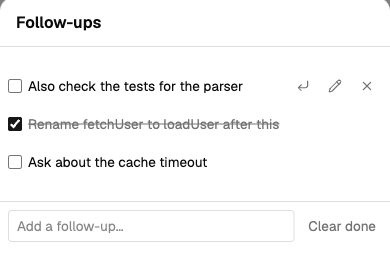
On a phone, the same notes open as a bottom sheet.