Worktrees and sessions
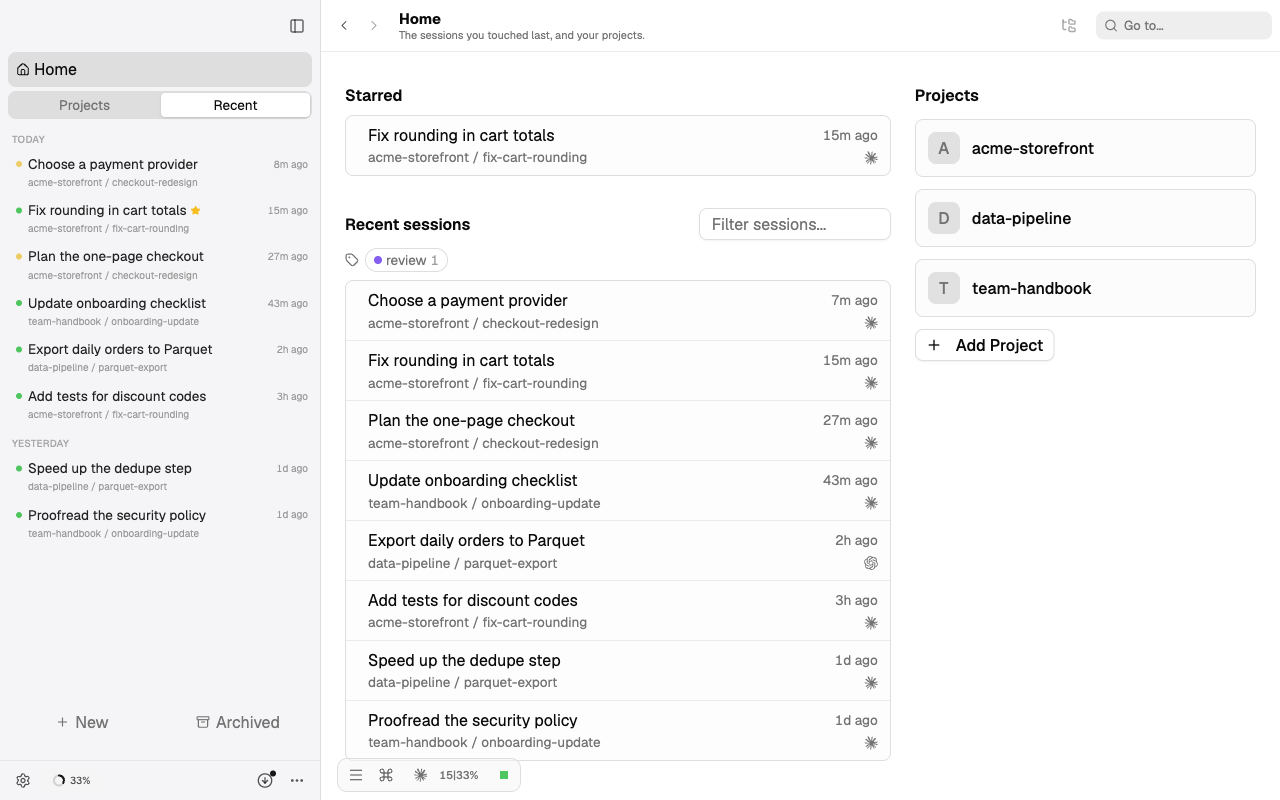
Splitkick is multi-project, multi-worktree and multi-session. Nothing waits for anything else.
Worktrees
A worktree is a git worktree with its own branch, created from the project's base branch. Each task gets one, so agents working on different tasks never touch each other's files.
- Create from the project, or from an existing branch, or import a worktree that already exists on disk.
- Archive when you are done. The folder is kept; restore it later or delete it for good. See Archived items.
- Labels and a rename help you keep many worktrees apart. To rename a worktree, double-click its name, use the command palette, or choose Rename in its right-click menu. Rename is in the menu of the base worktree too.
- A built-in terminal opens in the worktree. Open In opens it in your editor, terminal or git client (Tower, Fork, GitHub Desktop, Sourcetree); pick the apps in Settings. See Sidebar and navigation.
Worktrees live under ~/splitkick/<project name>/ by default; set a different folder per project in its settings.
Sessions
A session is one conversation with one agent inside a worktree. Run several at once in the same worktree, or one per worktree.
- Each session keeps its full history and run log on disk; see Files on disk.
- Sessions have a status (running, waiting for you, done, in review) that shows in the sidebar and on the phone.
- Fork, star, pin, label, pause and search sessions as described in Agents and modes.
- A notification names the session, for example "Session "Fix the relaunch helper" finished", with the project and worktree below. The same goes for failed sessions and sessions that need your input.
- When Claude stops a run with "You've hit your session limit", the session shows an amber lightning icon in the sidebar; its tooltip gives the reset time. The chat shows a banner with Resume (sends "continue") and Resume with message. Both go away when the next run starts.
More you can do with a session:
- See the output and copy images: Session tools.
- Try another direction in a copy: Fork a session.
- Keep notes for the next turns on its follow-up list.
- See and cancel scheduled jobs (beta).
- Let agents start, brief and read other sessions, and see which session started which: Cross-session workflows.
- Move it to another project or worktree, or transfer a copy to another machine.
Many projects
Group projects in folders, link projects so an agent sees both, and use Home or the Recent tab to jump to whatever needs you next, across all projects. Pinned and starred sessions show at the top of their project. See Sidebar and navigation.