
Archived items New
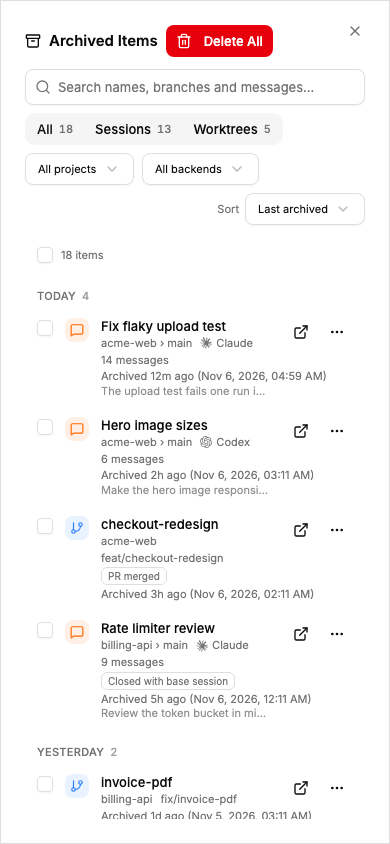
By default, Splitkick archives a session or worktree when you close it. The Archived page lists everything you archived. Open it from Archived at the bottom of the sidebar's Projects tab. It opens in the main area, like Home.
One list, last archived first
Sessions and worktrees show in one list. The last archived item is at the top. Sections group the items by time: Today, Yesterday, This week, This month and Older.
Each row shows:
- the name, and project › worktree
- the backend and the number of messages (for a session)
- the last prompt
- why the item was archived: PR merged, folder missing, or closed with the base session
- when it was archived, as time ago with the full date after it, for example "2h ago (Nov 6, 2026, 03:11 AM)"
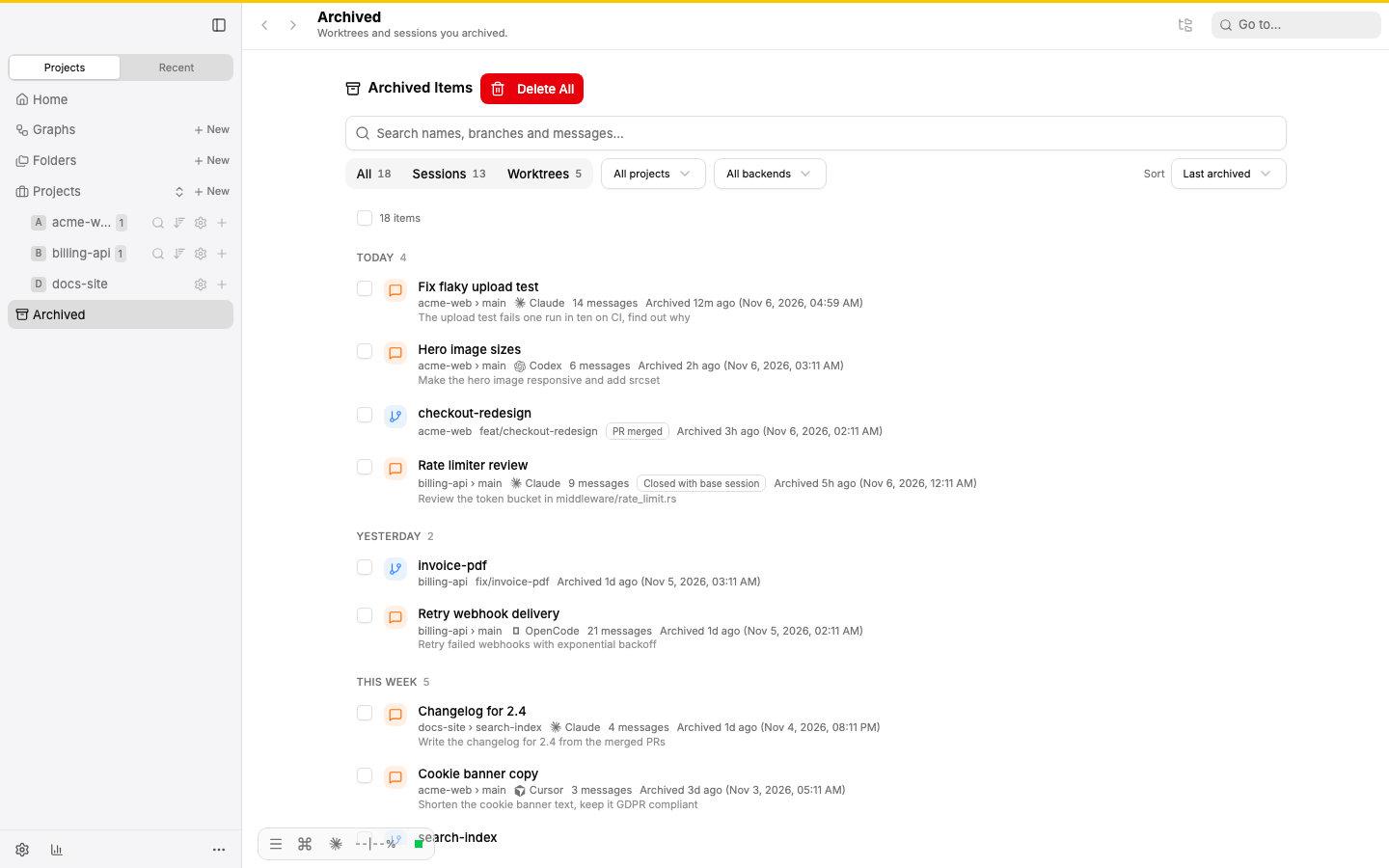
Sessions and worktrees in one list, last archived first. Each row shows project › worktree, backend, message count, the last prompt, the archive reason and the time.
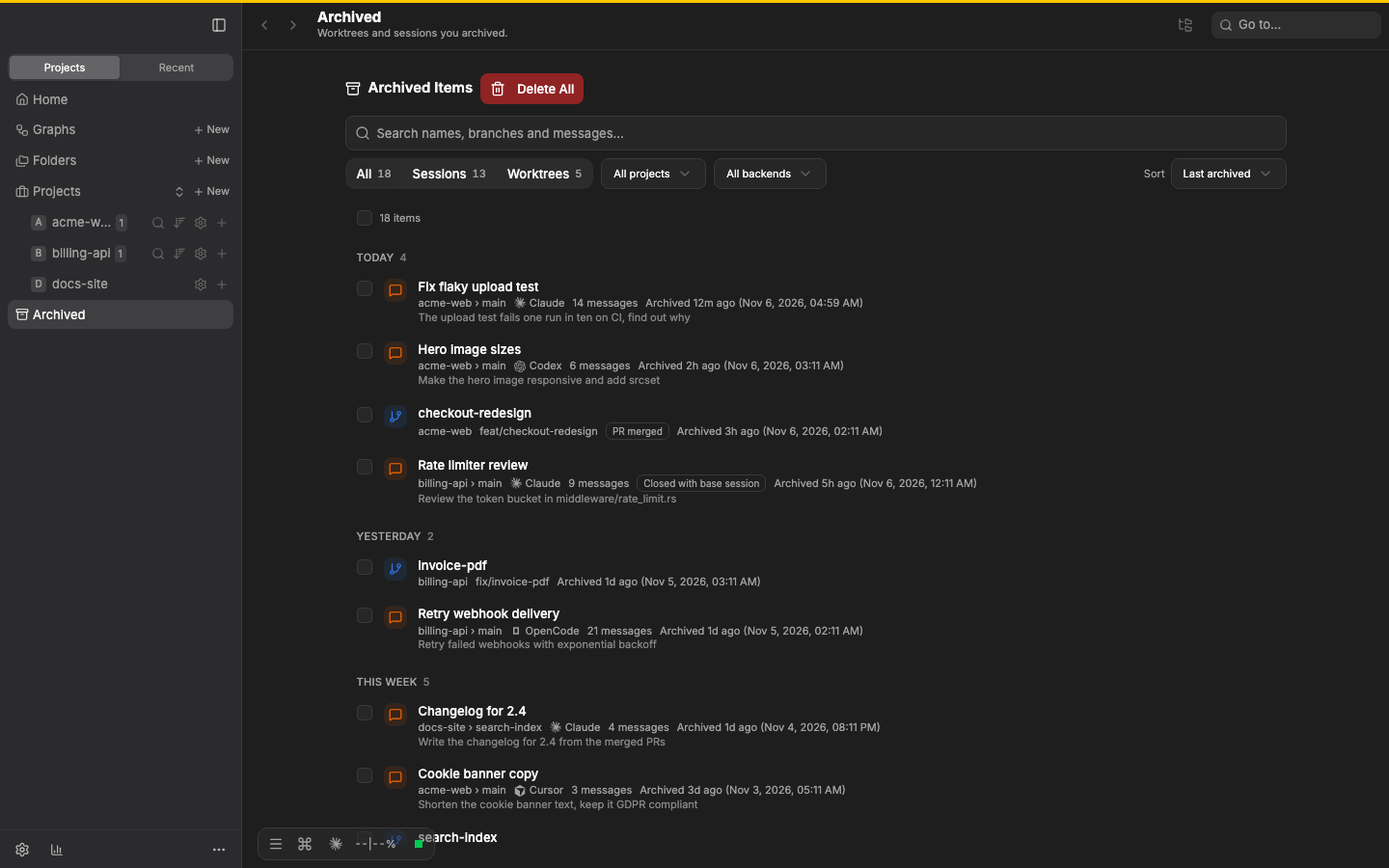
The same page in the dark theme.
Sort, filter and search
- Sort by Last archived (the default), Name or Project. Splitkick remembers your choice.
- Filter by Sessions or Worktrees, by project and by backend.
- The search field finds names and branches. It also finds text in the messages.
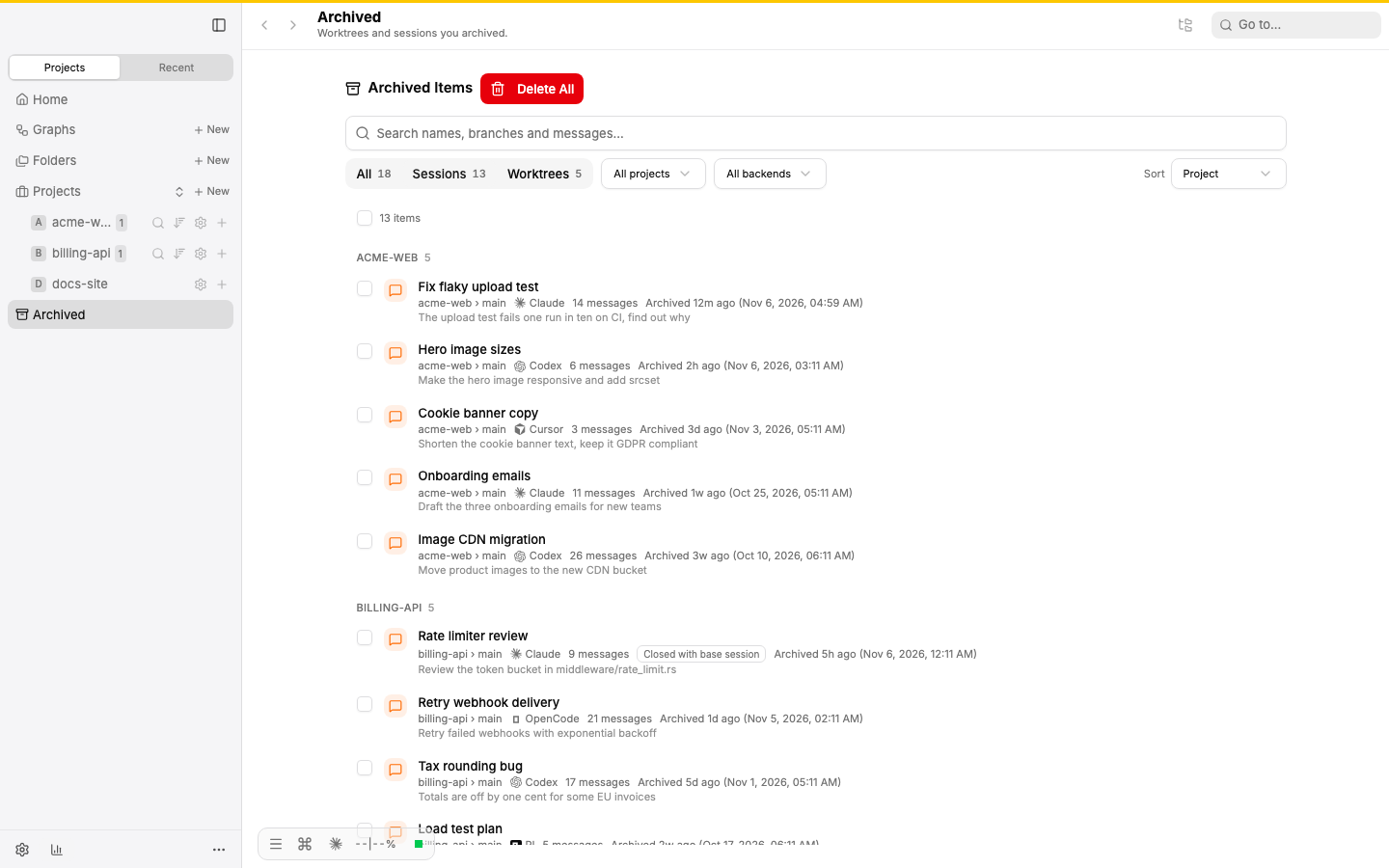
Sorted by Project and filtered to Sessions: one heading for each project.
Restore and delete
- Restore & open on a row restores the item and opens it.
- Select several rows with their check boxes. A bar above the list then offers Restore, Copy links and Delete….
- Copy links copies the Splitkick links of the selected items.
- Delete… deletes the selected items for good, after you confirm.
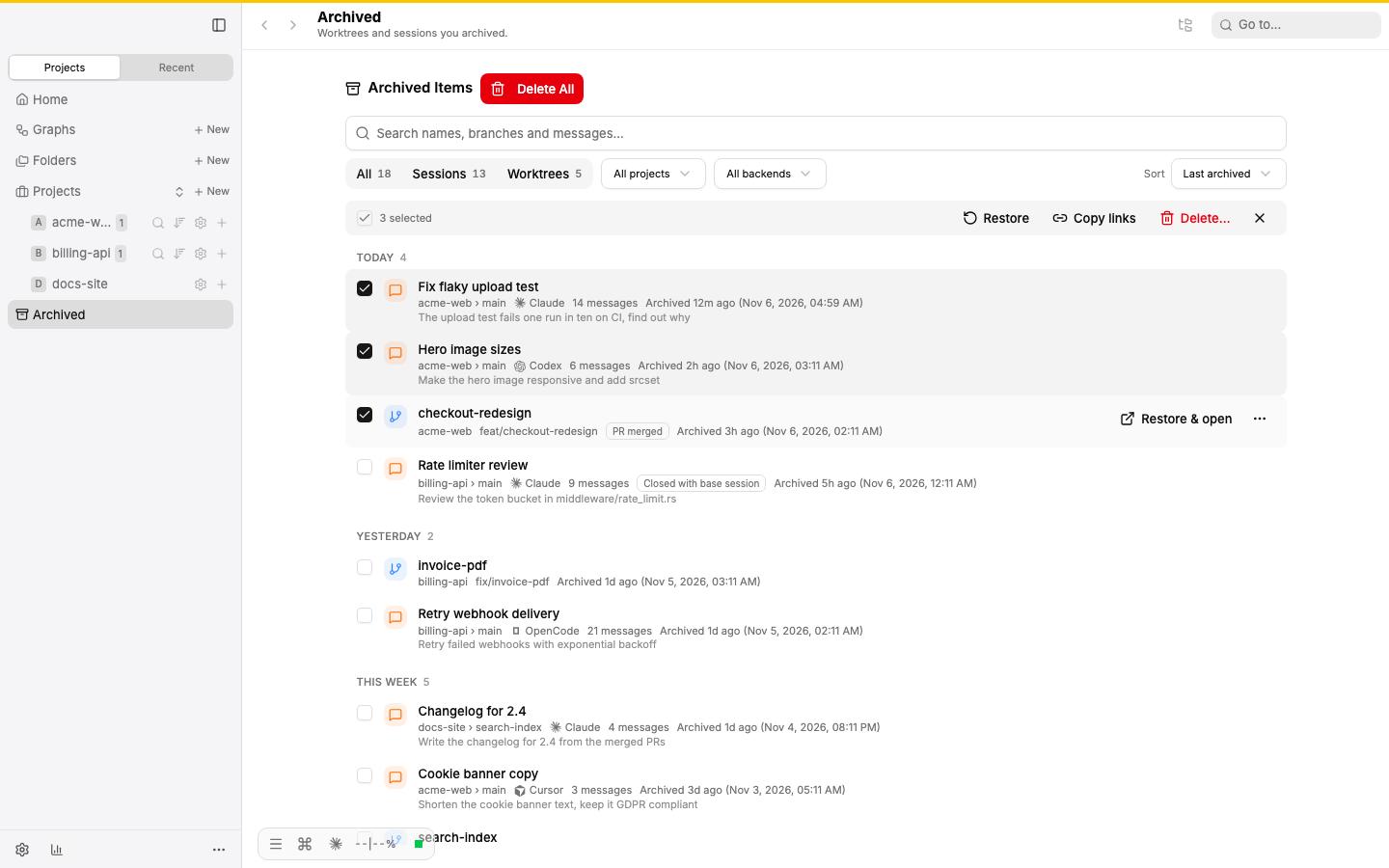
Three rows are selected. The bar above the list offers Restore, Copy links and Delete… for all of them.
To restore the item you archived last from anywhere in the app, press ⌘⇧⌥T. See Keyboard shortcuts.
Keys
In the desktop app, the list also works with the keyboard: the arrow keys, Space, Enter and Delete.
On a phone
On a phone the page opens full screen, in one column. The row actions show without hover.
How long archived items stay
On a new install, archived items stay for ever. To change this, use Auto-delete archives in Settings → General. Never (keep forever) keeps them.
Agents
Agents archive and restore through the MCP server: archive_session, unarchive_session, archive_worktree, unarchive_worktree and list_archived_worktrees. The server tells agents to ask you before they archive anything.