
Sidebar and navigation
The sidebar shows every project, worktree and session. A switch at the top changes between two tabs: Projects and Recent.
The Projects tab
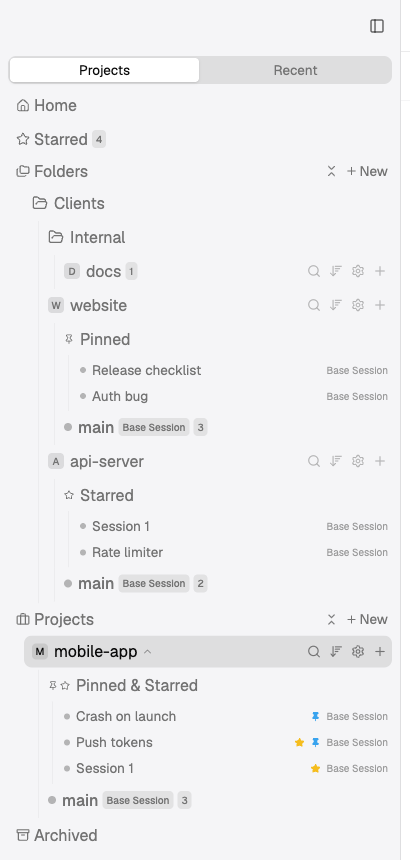
The Projects tab: Home and Starred on top, then Folders, Projects and Archived. Each project lists its pinned and starred sessions at the top.
From top to bottom:
- Home and Starred stay in place. Home opens in the main area; Starred lists your starred sessions from all projects.
- Folders and Projects hold your projects. Each header has its own + New button.
- Archived opens the archived items in the main area, like Home. See Archived items.
Click a section header to fold it. Splitkick remembers which sections are folded. Inside a worktree, sessions are grouped by status (In progress, Waiting, Review, Idle, …).
Headers stay in view
All sections scroll in one list. When you scroll past a section header, it stays at the top, above the next one. The folder, project and worktree rows stay too, so you always see where the sessions on screen belong. Click a header that is stuck at the top to go to the start of its section. A thin line marks the bottom of the stuck rows. In a short window the headers get smaller.
Pinned and starred sessions
Each project has a top section, in the sidebar and on the project canvas. It lists the project's pinned and starred sessions, the most recent first. Pin or star a session from its menu (right-click): Pin to Project or Star.
The label of the section shows what is in it: Pinned, Starred or Pinned & Starred.
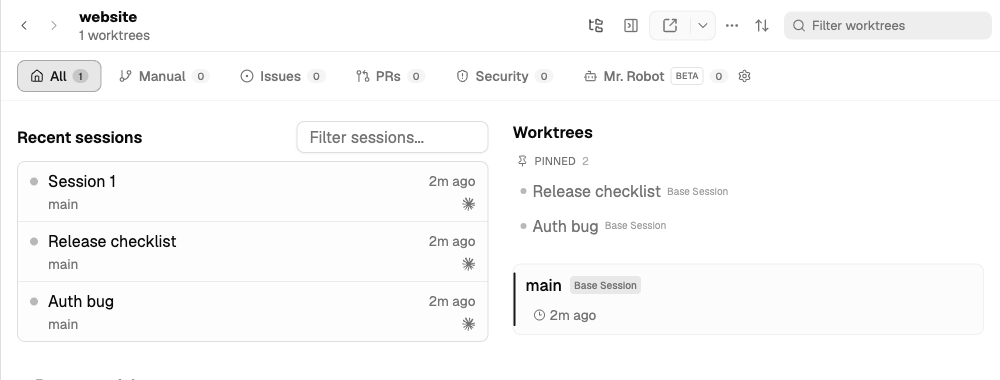
On the project canvas, a project with only pinned sessions shows the section as "Pinned" with a pin icon.
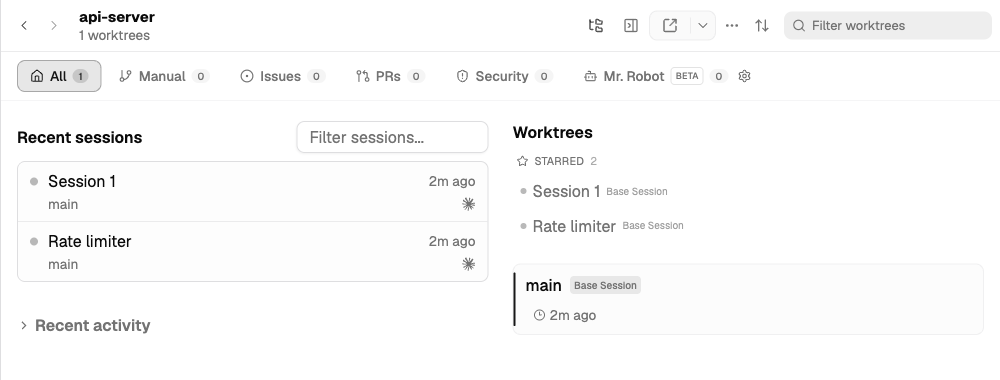
A starred session also shows at the top of its project without a pin; a project with only starred sessions shows the section as "Starred" with a star icon.
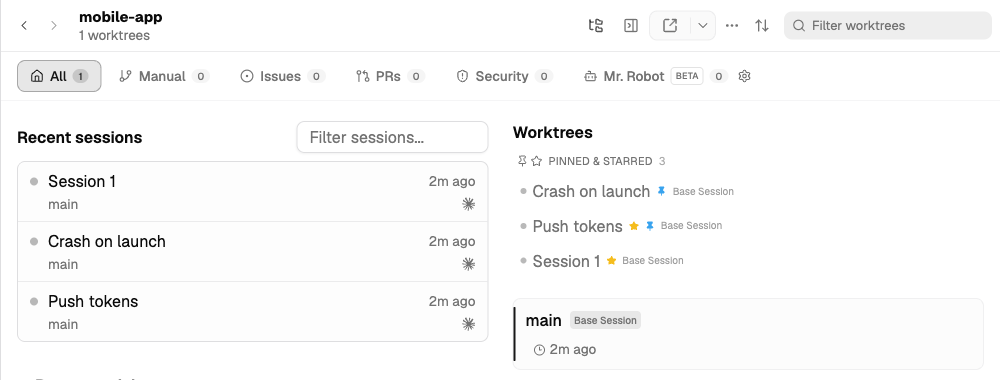
When a project has both pinned and starred sessions, the section reads "Pinned & Starred", and each row shows its own pin or star glyph so you can see why it is there.
Beside Pinned and Starred, a project can have a Graphs row. It lists the graphs of the project and the graphs that its sessions serve. The row shows only when the project has such graphs. See Graphs in the sidebar.
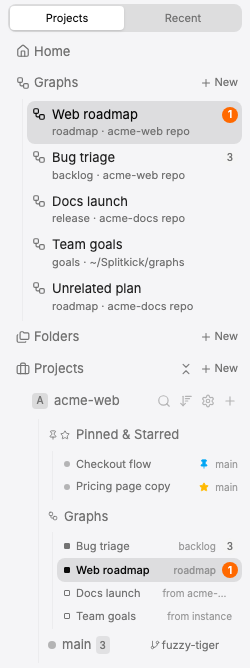
Under the project, the Graphs row lists the graphs of the project first, then the graphs from another project or the instance ("from …"). The open graph is highlighted.
The Recent tab
Recent lists the latest sessions from all projects. Set how many in Settings → General → Worktrees → Recent sessions (5 to 200, default 30).
When you open a session from Recent, the Projects tree opens its project and worktree and scrolls the session into view. Recent stays the active tab; when you switch to Projects, the session is already there.
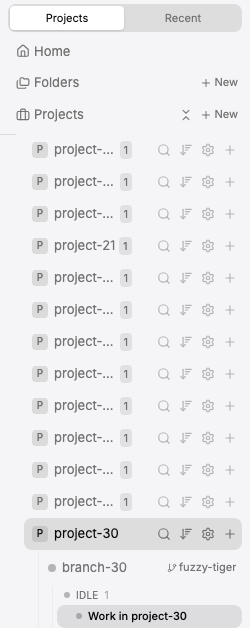
The Projects tree has already opened the project and worktree and scrolled the open session into view below the rows that stay at the top.
The command palette
Press ⌘K to go to a project or session by name, or to run a command. When you pick a project or session while the Recent tab shows, the sidebar switches to Projects and shows it there.
The Other devices tab searches the sessions of your other devices. It needs a session backup. For all shortcuts, see Keyboard shortcuts.
Open in other apps
The Open button, Open In (key C) and the worktree and project menus open the folder in your editor, terminal or git client. Choose the apps in Settings → General:
- Editors: the usual editors and Sublime Text. Files open at the line.
- Git clients: Tower, Fork, GitHub Desktop and Sourcetree. Tower opens through its
gittowercommand when it is installed.
On macOS, Settings show only the apps that are installed. The app you chose stays in the list.