
Artifacts New
An artifact is a file or a link that an agent produced and that you should look at. Examples are a report, a screenshot, an HTML page or a preview URL. Each session has its own list of artifacts. Artifacts are new in Splitkick 1.5.3.
How an artifact gets on the list
The agent registers it with the MCP tool add_artifact. The tool description tells the agent to register outputs that are worth opening, not every source file it edited. Splitkick does not add more instructions to the system prompt, so an agent does not always register its outputs.
To be sure, ask for it in your prompt. For example: "Write the report to out/report.html and register it with add_artifact."
The agent needs the Splitkick MCP server. See The MCP tool below.
The Artifacts tab
The artifacts are in the Artifacts tab of the side panel, left of the chat. The tab shows the number of artifacts. The newest change is at the top.
Each item shows its title, its note, its path or URL and when it was added or updated.
When a session has artifacts, a button with the same number shows next to the follow-ups button in the composer. Click it to open the Artifacts tab. Click it again to close the panel.
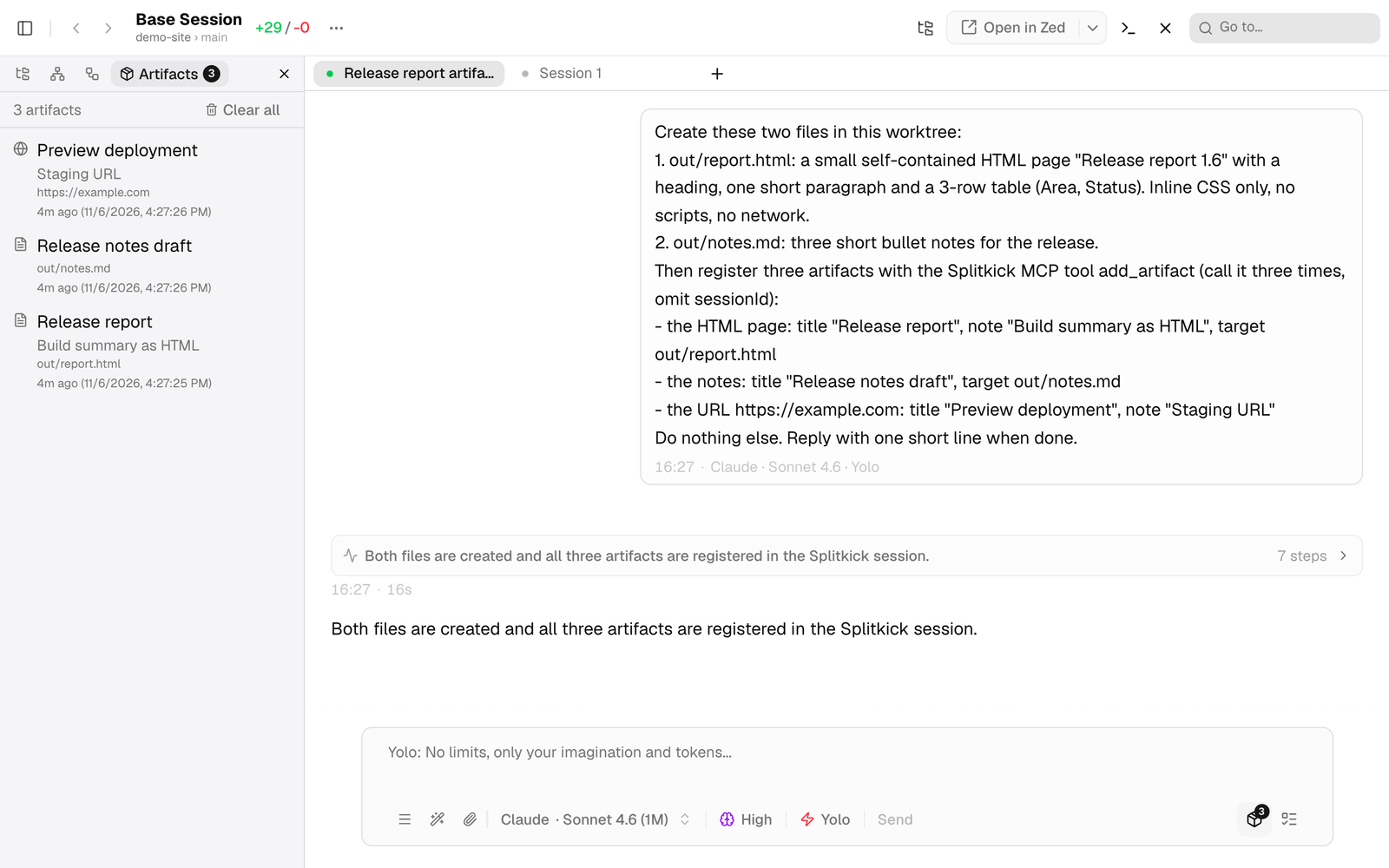
The Artifacts tab lists what the agent registered with add_artifact, newest first. The button with the same number next to the follow-ups button opens it.
Open an artifact
Click an item to open it in Splitkick:
- HTML and SVG files open in the sandboxed preview of the file viewer. See HTML and SVG preview.
- Other files open in the file viewer.
- URLs open in the in-app browser.
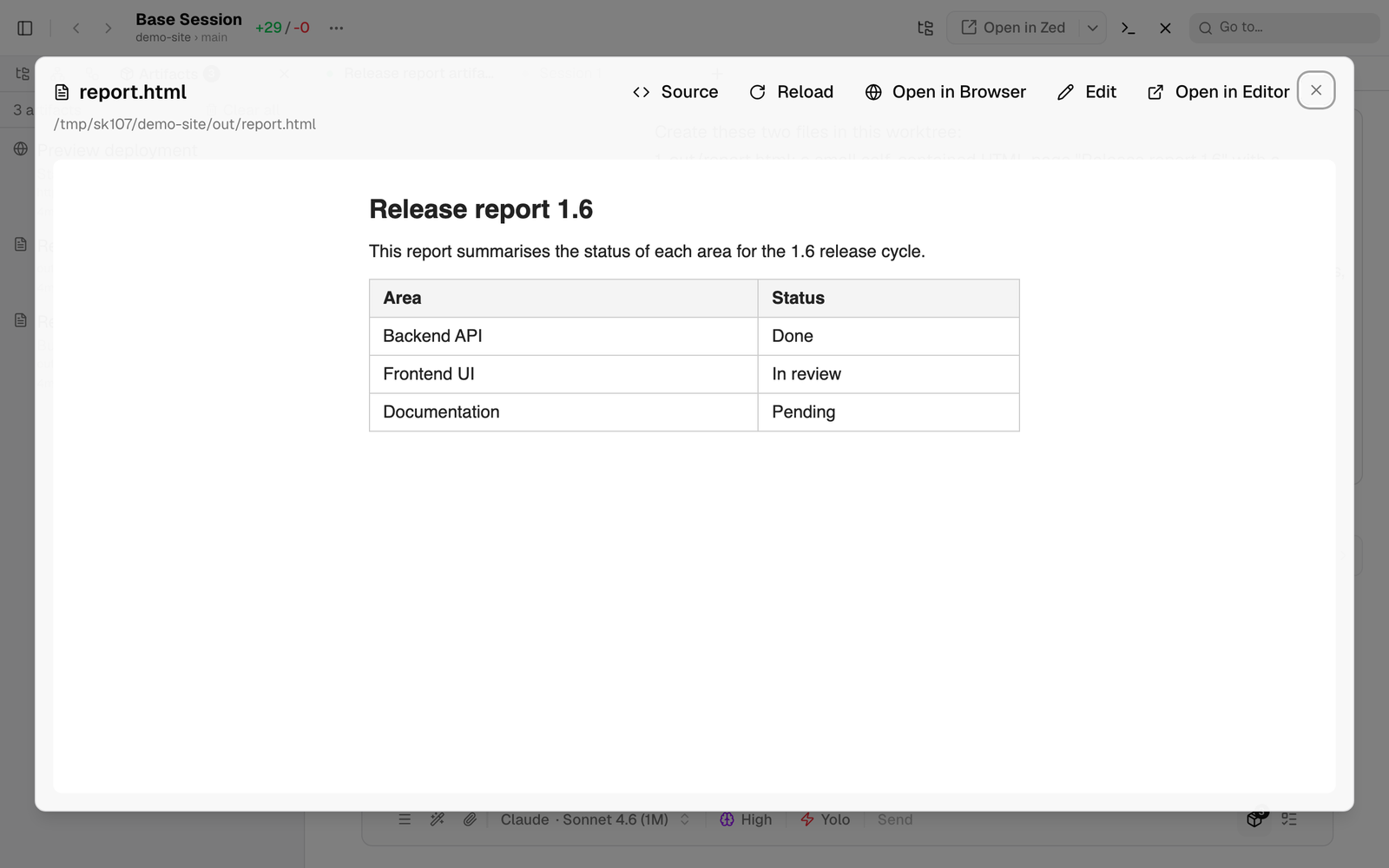
An HTML artifact opens in the sandboxed preview of the file viewer.
Each item also has two buttons:
- The external button opens the item outside Splitkick: a file in its default app, a URL in the system browser.
- The remove button (×) removes the item from the list.
Clear all at the top of the tab removes all items.
Versions
When the agent registers the same target again after it changed the file, Splitkick keeps a copy of the file as a new version. The agent can add a short note on what changed.
- Unchanged content adds no version.
- An older version keeps its old content, also after the file is changed or deleted.
An artifact with more than one version shows its newest version number, for example v4. Click it to show or hide the history of that artifact. Every history starts hidden.
Each version in the history shows its change note and its time:
- Open opens that version from its own copy.
- The compare button (for example v3 next to v4) compares the version with the one before.
- Compare versions… at the end of the history lets you pick any two versions.
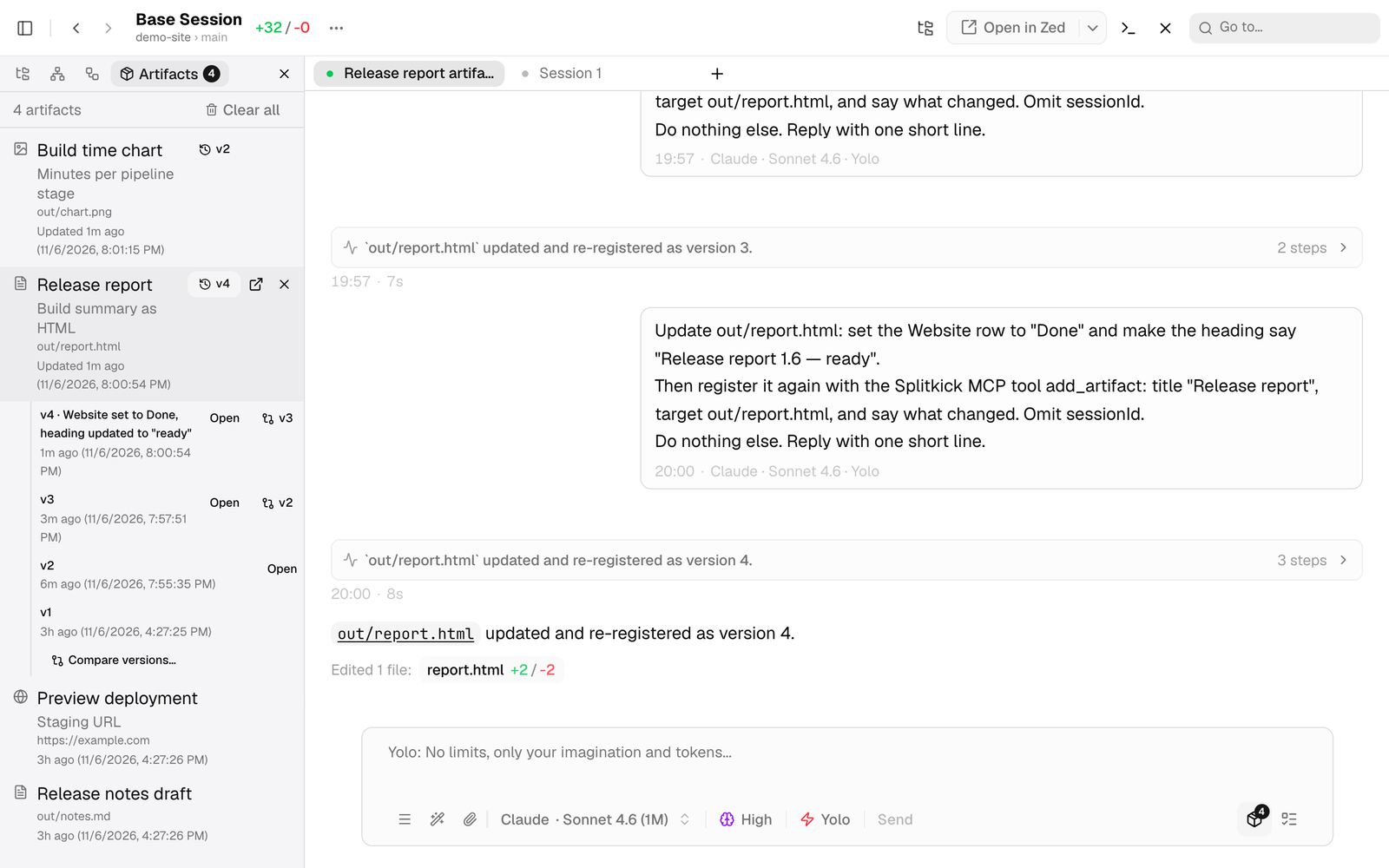
An artifact that the agent registered four times shows "v4". The history lists each version with what changed.
Each artifact has its own version history: click the version button (for example "v4") to expand or collapse it, and compare a version with the one before (Splitkick, light theme, 960 × 700 window, demo data).
Compare two versions
What the compare view shows depends on the file:
| File | Compare view |
|---|---|
| Text, HTML, SVG and Markdown | A line diff of the source |
| Images | The two images side by side |
| Other files | The sizes of the two versions |
The From and To pickers choose the two versions. A URL has no content to compare.
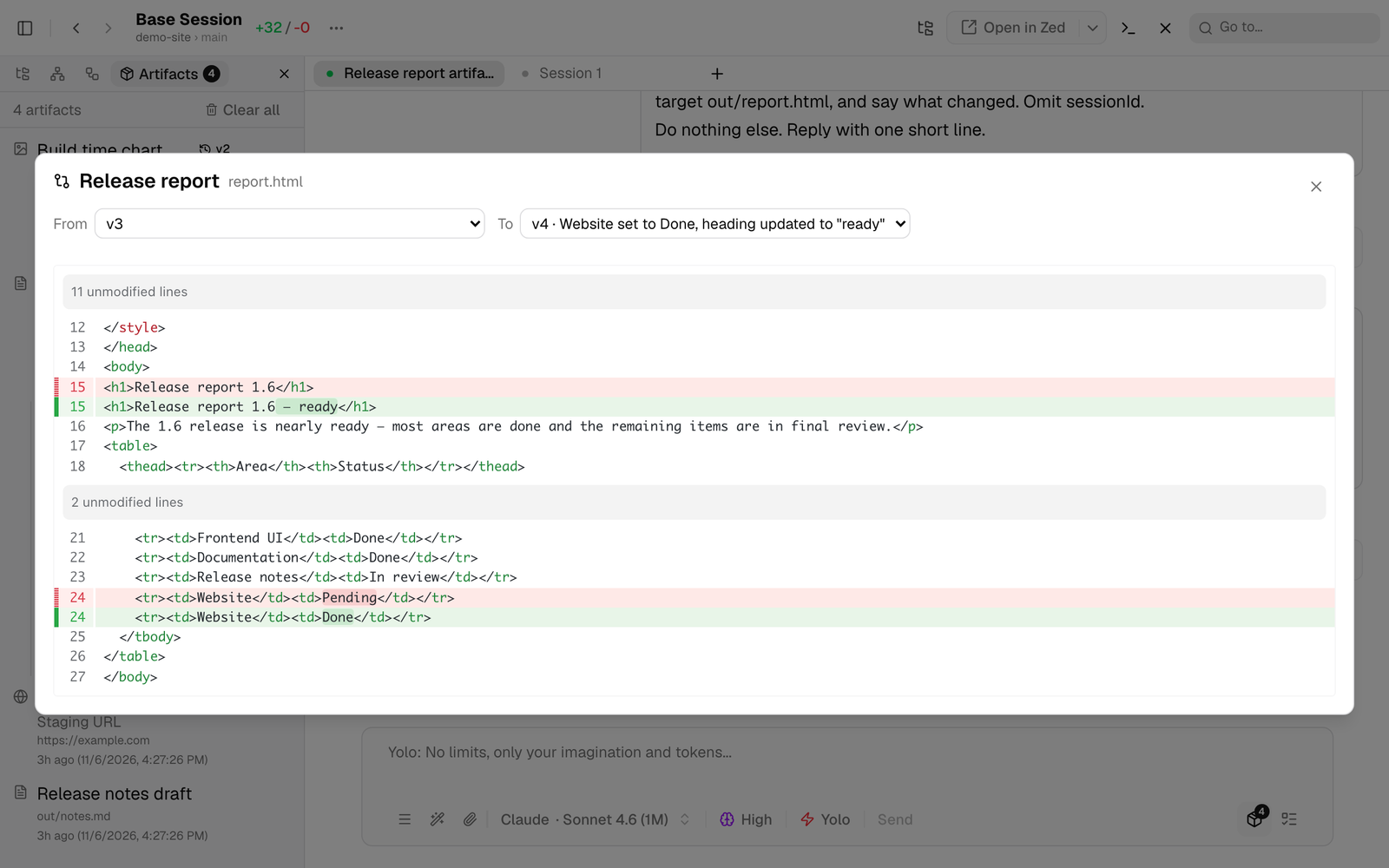
Two versions of an HTML artifact: a line diff of the source.
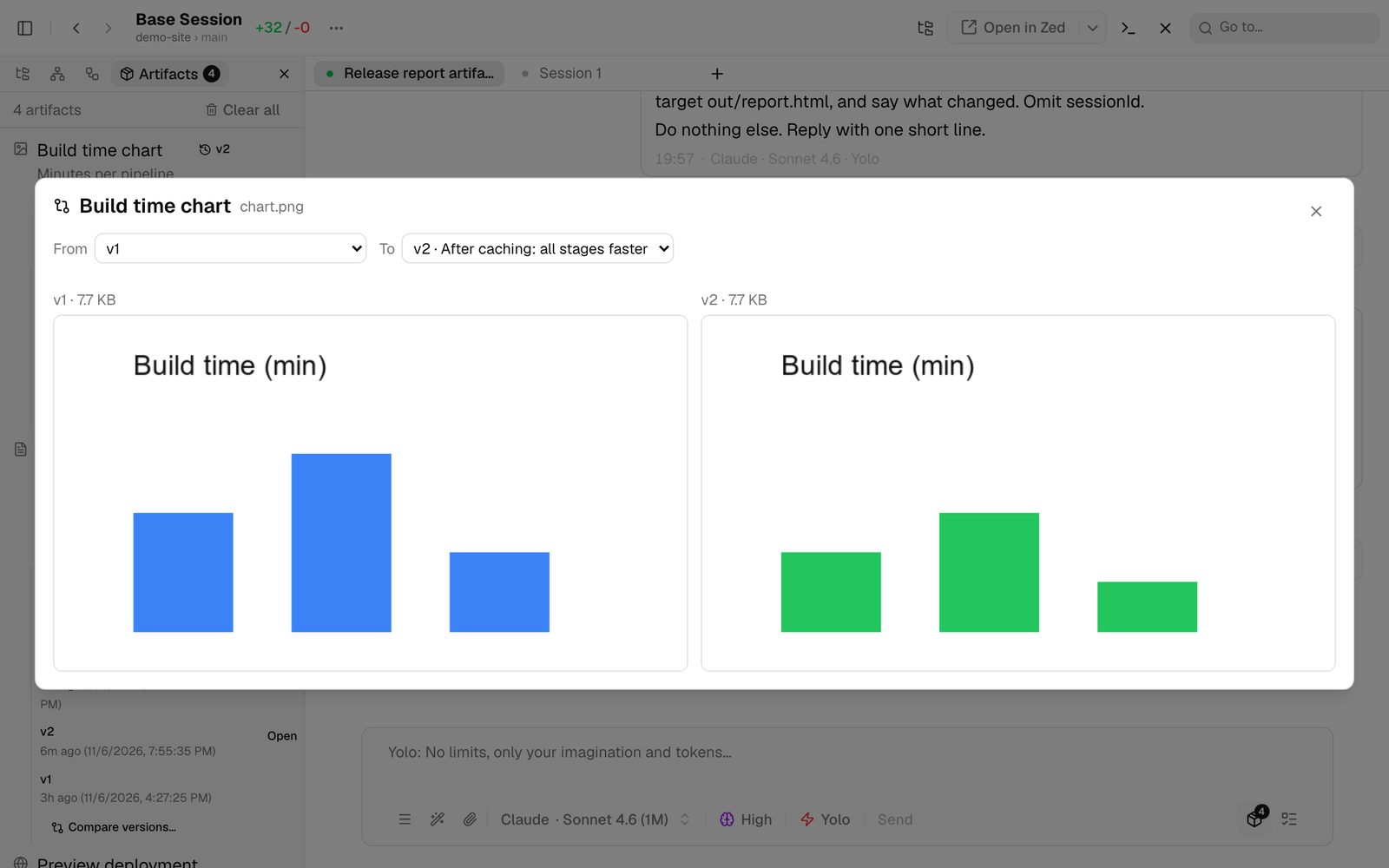
Two versions of an image, side by side with their sizes.
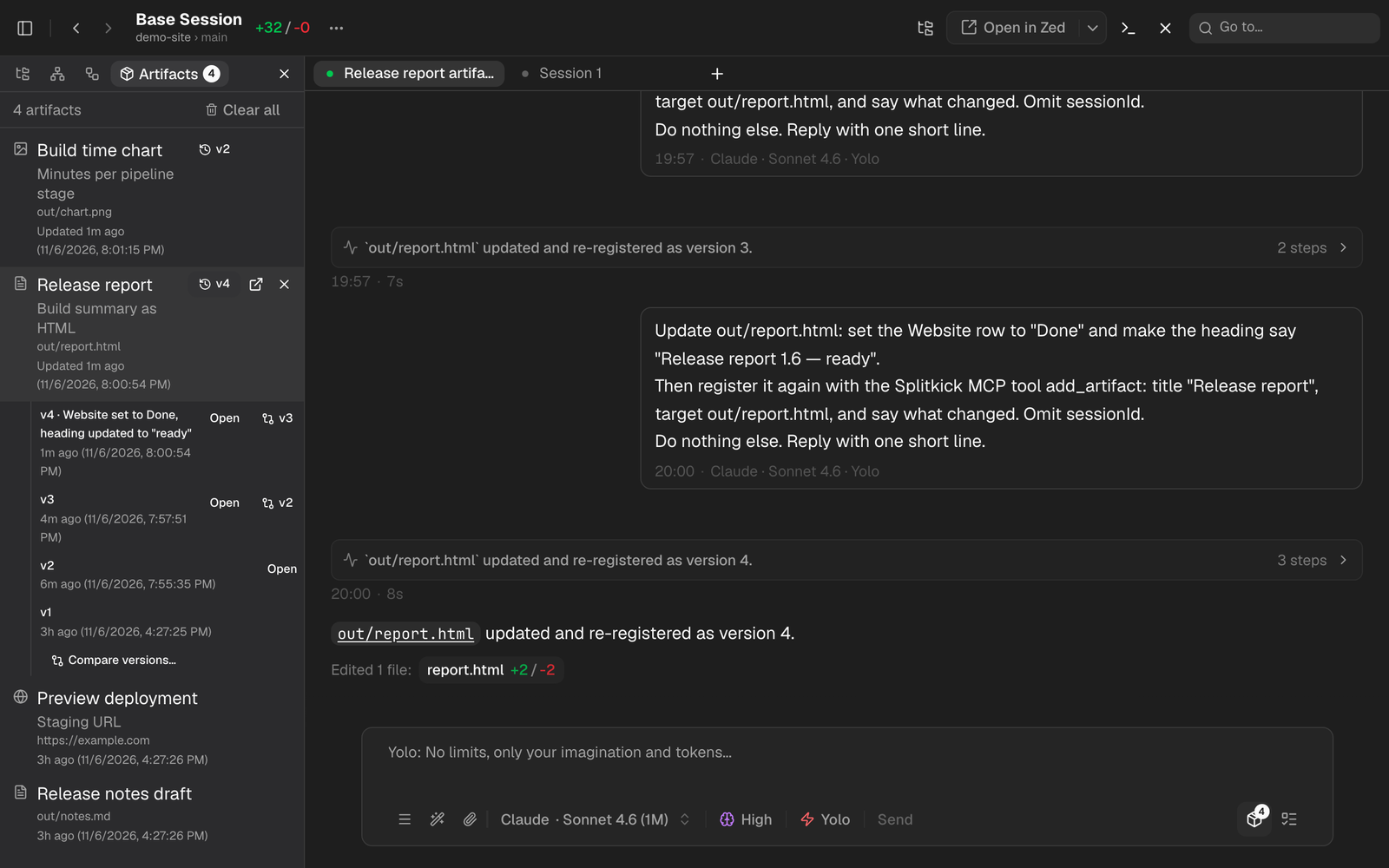
The version history in the dark theme.
Artifacts stay with the session
The list and the saved versions go along when you:
- fork the session,
- move it to another worktree or project,
- transfer it to another machine.
After a transfer, a local file path still points to the file on the first machine. The saved versions still open.
Web Access and phone
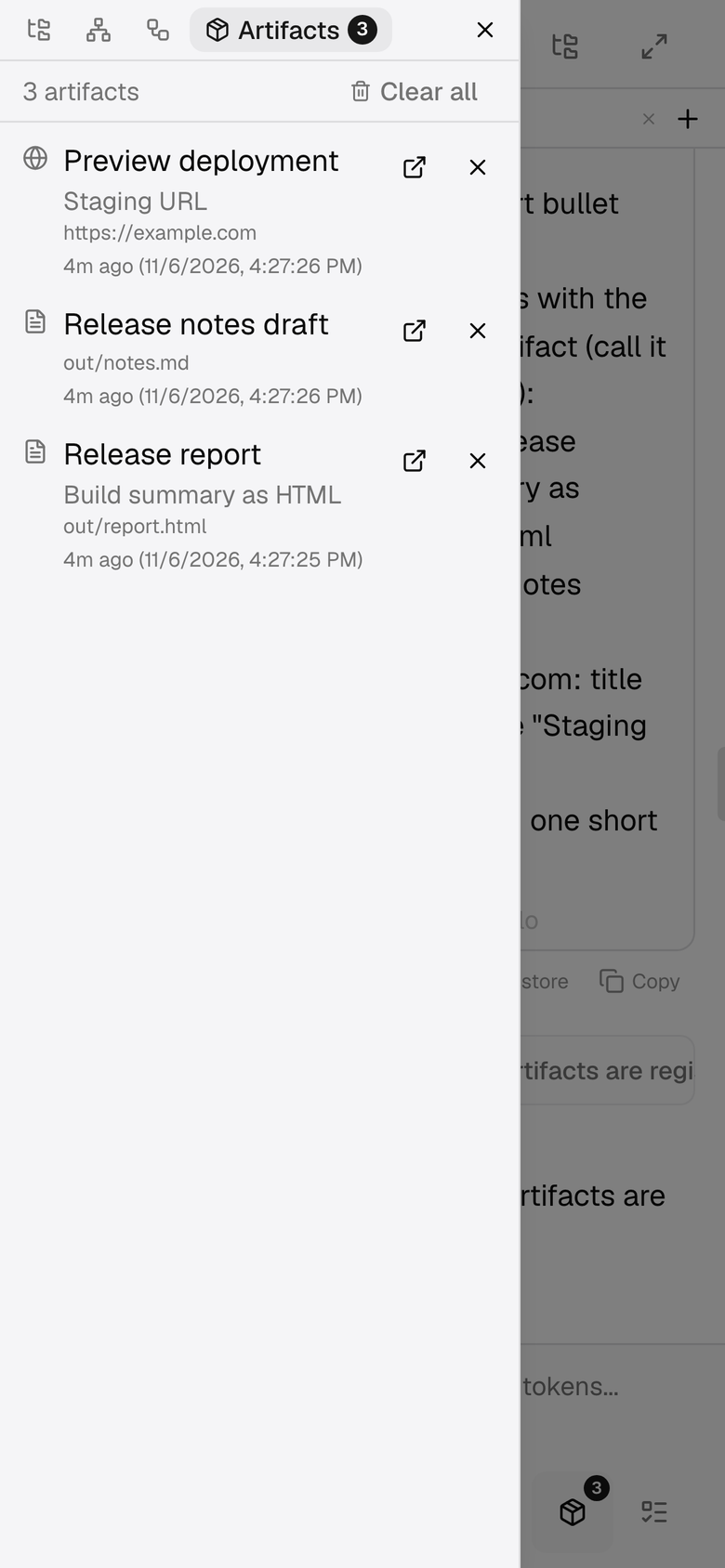
The Artifacts tab also shows in Web Access. On a phone it is a tab in the side drawer.
Limits
- The file viewer opens files up to 10 MB. Splitkick keeps larger versions, but you cannot open or compare them in the app.
The MCP tool
add_artifact registers a file or URL in the Artifacts tab of a session. It is a tool of the Splitkick MCP server.
| Parameter | Required | What it is |
|---|---|---|
title | yes | Short name shown in the list. |
target | yes | Absolute path, path relative to the worktree, or an http(s) or file URL. |
note | no | What the artifact is, in one line. Omit it for a new version: the current note stays. |
change | no | What changed since the last version, in one short line. For a URL, it also adds a version. |
sessionId | no | The session whose list gets the artifact. Default: the calling session. |
Register the same target again to add a version. The tool returns the session id and the artifact with its versions.