
Non-code projects
Splitkick is not code-only. An Obsidian vault, a documentation folder, a data directory or a research project all work. In a git repository you get worktrees, diffs and review. A folder without git works too, as a plain project.
Why worktrees for documents
An agent rewriting twenty Markdown files is as risky as one rewriting twenty source files. In a worktree the rewrite is a branch: read the diff, keep it or drop it. Several agents can draft alternatives in parallel.
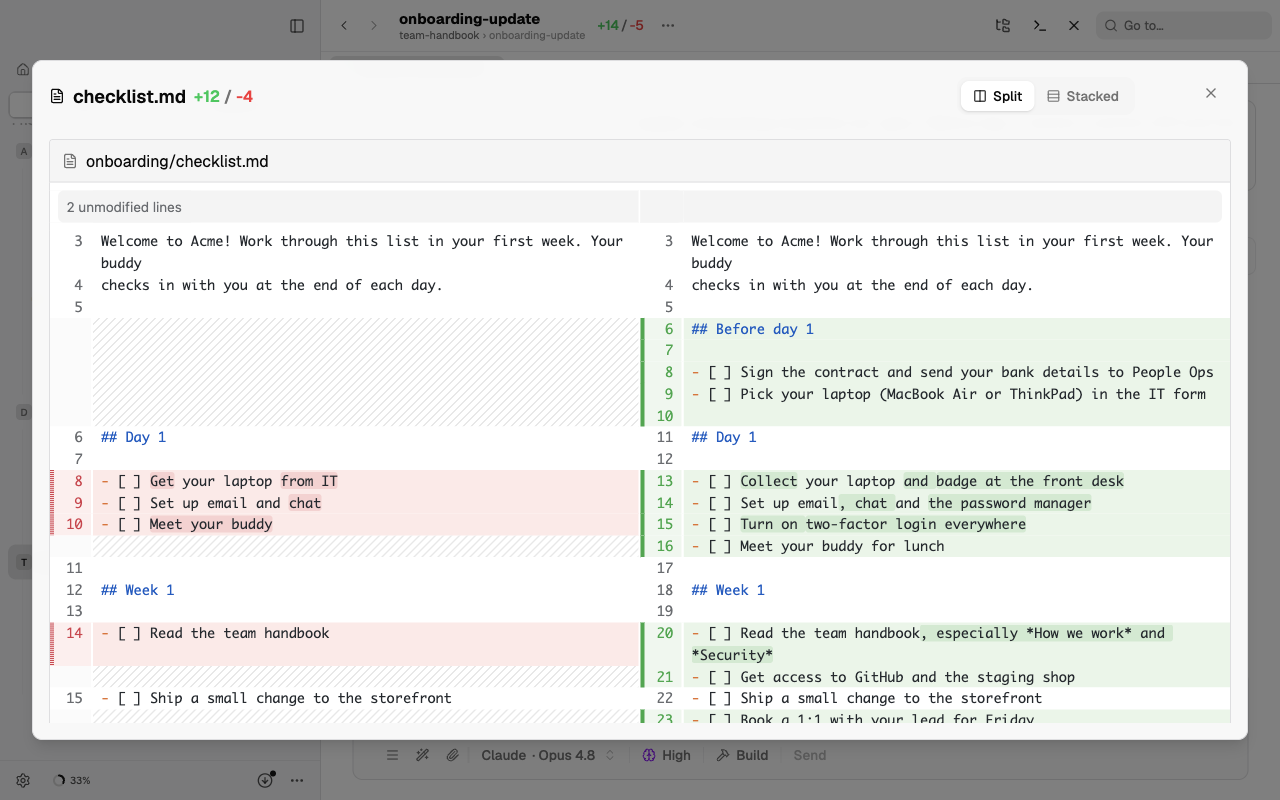
See the output
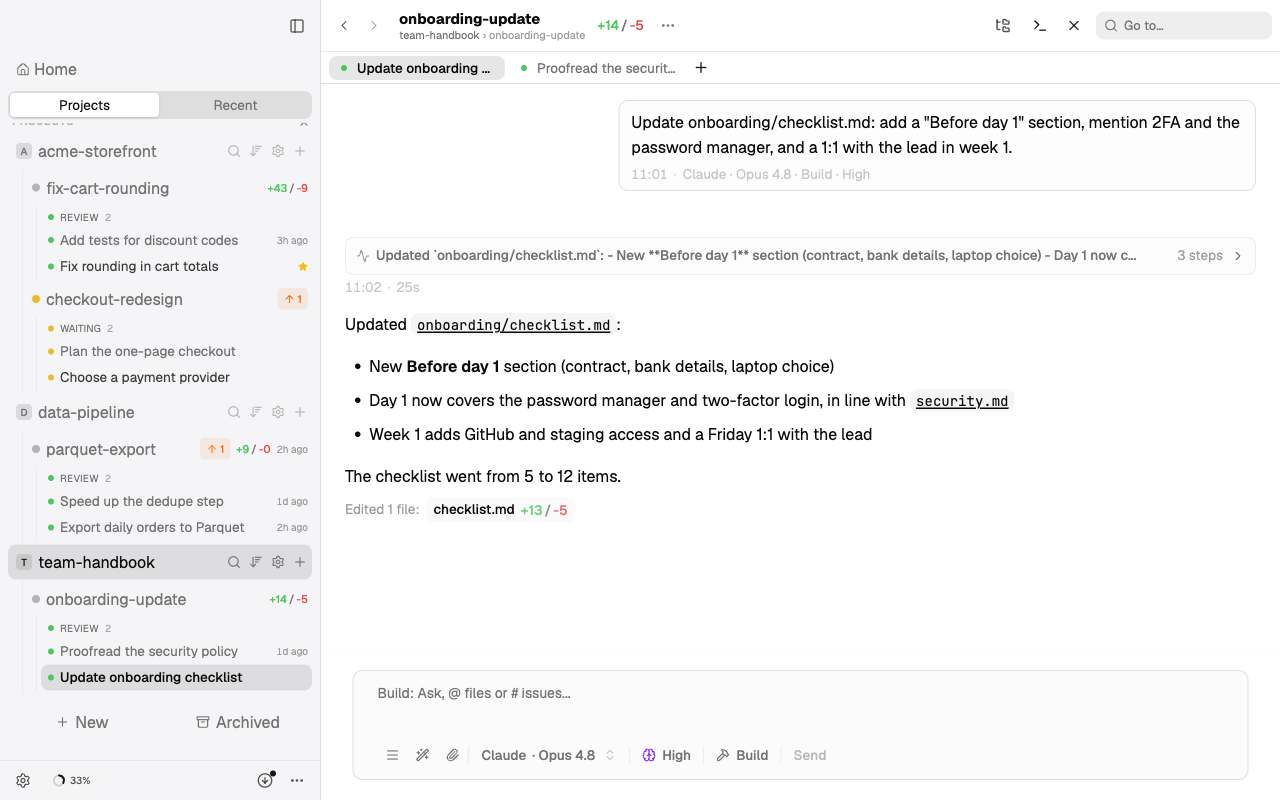
The pane next to the chat renders Markdown, so you read a document as a document, not as source. Images, PDFs, video and HTML pages open there too, and every file name in an answer is a link. See Session tools.
Plain projects (without git) New
A plain project is a project folder without git. Use it for paperwork, notes, research, a shared folder or a NAS.
Add a folder without git
Click Add project and pick a folder that has no git. The dialog This folder has no git offers two choices:
- Add without git adds the folder as a plain project. Splitkick writes nothing into the folder.
- Initialize Git makes the folder a git repository. See Initialize Git.
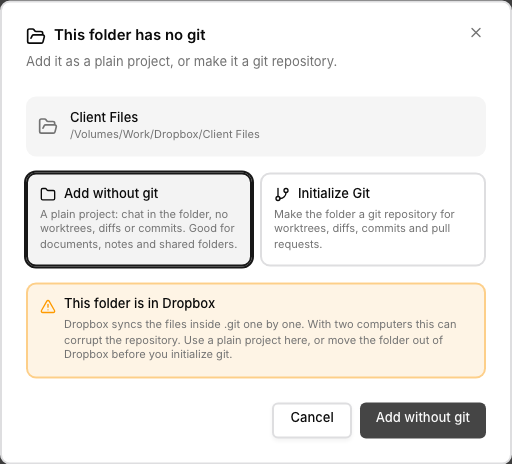
Adding a folder without git offers Add without git or Initialize Git. A warning shows when the folder is in a sync service such as Dropbox.
What a plain project has
A plain project has only its base session. The base session runs in the project folder and has the name of the folder. Chat, files, artifacts, graphs and links work as usual.
All git features are off:
- worktrees and branches
- git status, diffs and checkpoints
- commits, push, pull and pull requests
- the GitHub, Linear and Sentry badges and lists
When you try to create a worktree, a message tells you why it is not possible. The git tools of the MCP server return an error for a plain project. list_projects shows the kind of each project: git, plain or folder.
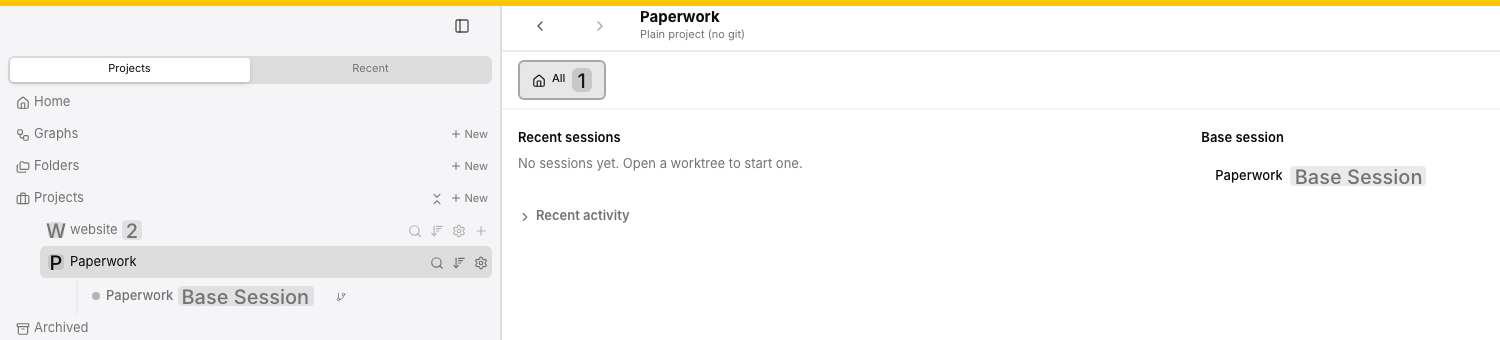
A plain project has only its base session. It has no New worktree button, no GitHub badges and no filter tabs. The git project next to it keeps them.
Initialize Git
Initialize Git does these steps:
- It runs
git init. - It writes a
.gitignorewhen the folder has none. The file covers OS junk and temp files, with a section for large binaries that you can turn on. - It makes the first commit.
The dialog shows how many files the first commit adds, and their size. Untick Commit all files now to make an empty first commit instead.
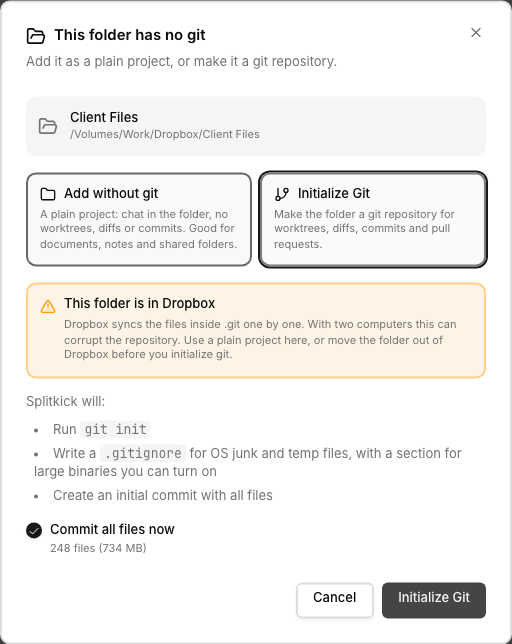
Initialize Git lists what happens and shows how many files the first commit adds. Untick Commit all files now for an empty first commit.
Folders in a sync service
Splitkick warns when the folder is in iCloud Drive, Dropbox, OneDrive or Google Drive. These services sync the files inside .git one by one. With two computers, this can corrupt the repository. Use a plain project there, or move the folder out of the sync service first.
Switch between plain and git
Open Project Settings → General → Project Kind:
- Initialize Git... makes the folder a git repository.
- Switch to git project works when the folder has a
.gitfolder. - Convert to plain project works when the project has no worktrees except the base session.
When a plain project's folder gets a .git folder later, Splitkick offers Switch to git project. Splitkick never switches a git project to plain by itself, also when its .git folder is gone.
Project preset
Project Settings → General → Project Kind → Project Preset has the choices Coding and Non-coding. A Non-coding project gets the global system prompt without the rule to search GitHub issues.
The default is Automatic: git projects are Coding, plain projects are Non-coding.
Large files in git
In a git project, large binary files follow the normal git rules. Use Git LFS where you would anyway.