
Move and transfer sessions
A session belongs to one worktree. You can take it somewhere else in two ways:
| Move | Transfer | |
|---|---|---|
| Target | Another project or worktree on the same Splitkick | A worktree on another Splitkick (a saved connection) |
| The session here | Leaves the old worktree | Stays as it is; the other machine gets a copy |
| History | Kept | Copied |
Move a session
- Right-click the session in the sidebar, in the tab bar or on the canvas and choose Move to…. Or press ⌘K and run Move Session to… for the open session.
- Pick a project, then a worktree. Nothing is preselected.
- Click Move.
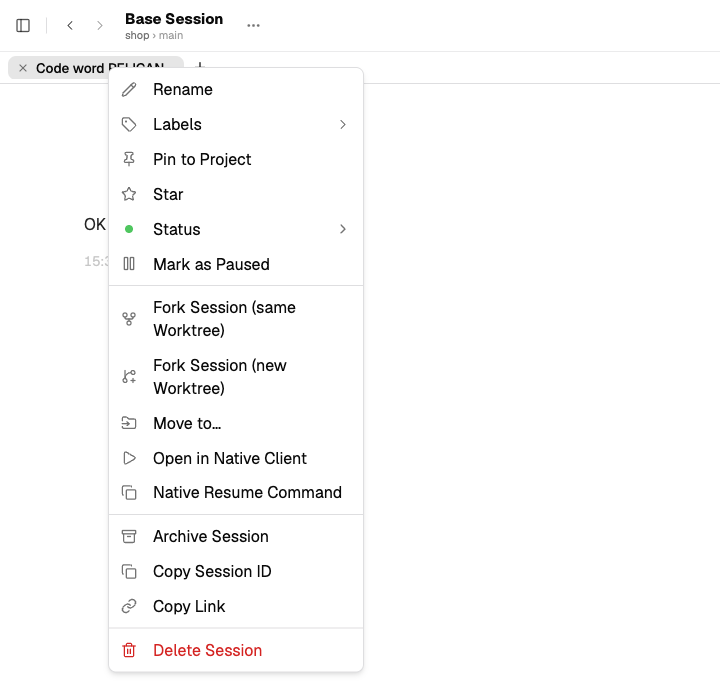
Right-click a session tab (or a session row in the sidebar or canvas) and choose Move to… to move the session to another project or worktree.
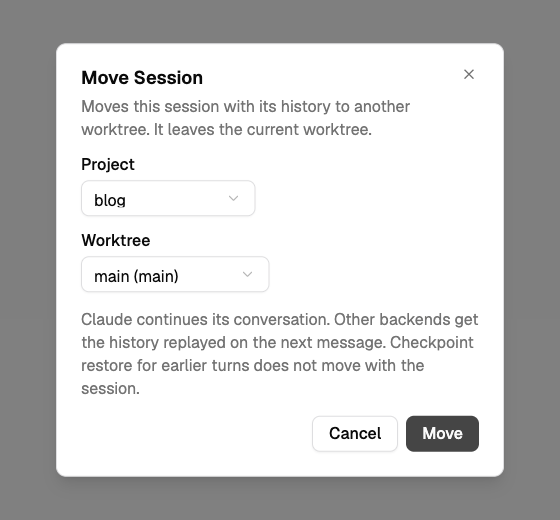
The Move Session dialog: pick a project, then a worktree; the note explains that Claude continues its conversation while other backends get the history replayed.
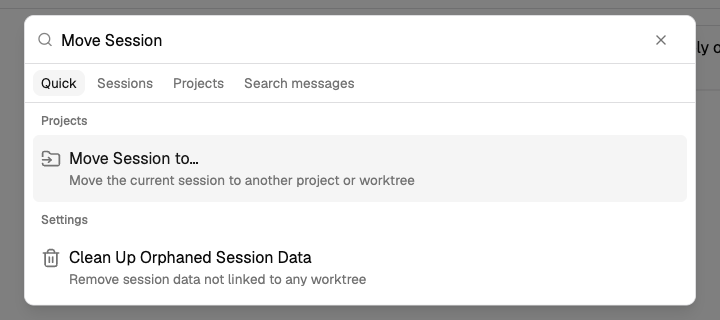
The same dialog opens from the command palette (⌘K) with Move Session to… for the current session.
The session keeps its history. Claude continues its own conversation in the new folder; other agents get the history replayed with the next message. The artifacts of the session and their saved versions move along (since 1.5.3). Checkpoint restore for earlier turns does not move with the session.
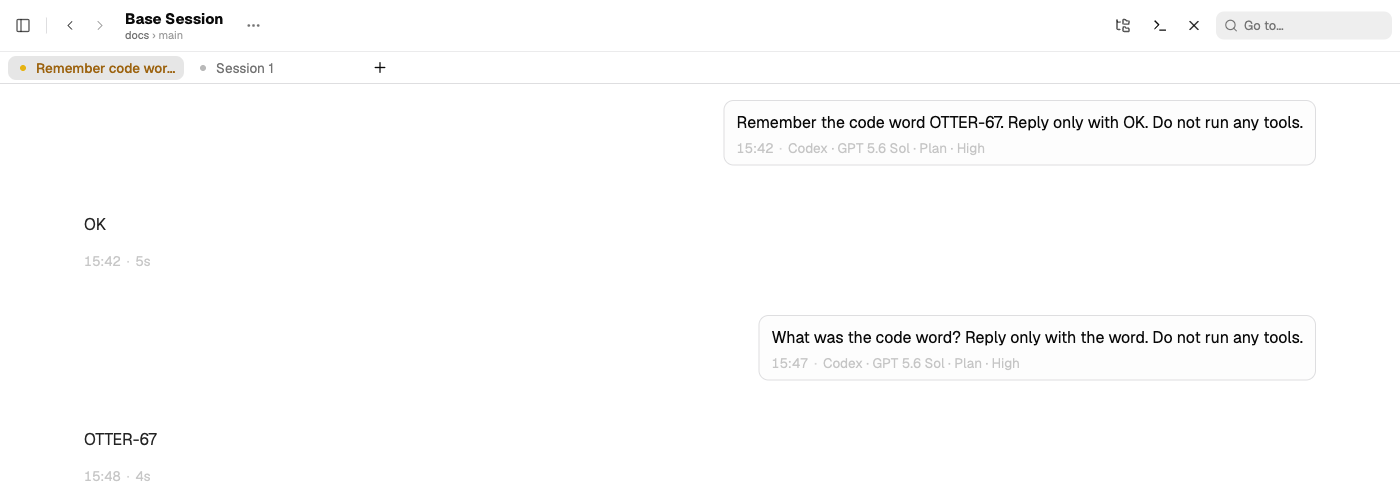
After the move the session opens in its new project and answers from its earlier history: it still knows the code word from before the move.
A session that is running or has queued messages cannot move. Wait until its turn ends and the queue is empty. An agent can also move a session with the MCP tool move_session.
Transfer a session to another machine
A transfer copies a session, with its whole conversation, to another Splitkick that you saved as a connection. Continue the work there; the session on this machine does not change.
Before you start
- Save the other machine as a connection.
- The other machine needs the same code. Push your branch, then pull it there, or create a worktree for that branch there.
- Both instances need Splitkick 1.1.0 or later. An older instance shows "Update Splitkick on <name>".
Steps
- Right-click the session in the sidebar, the tab bar or a pinned row and choose Transfer to Remote Splitkick…. Or press ⌘K and run Transfer Session to Remote Splitkick….
- Choose the connection, the project and the worktree. Splitkick preselects the project with the same name and the worktree on the same branch.
- Click Transfer. A message shows the progress. When it is done, click Open to go to the other machine's window.
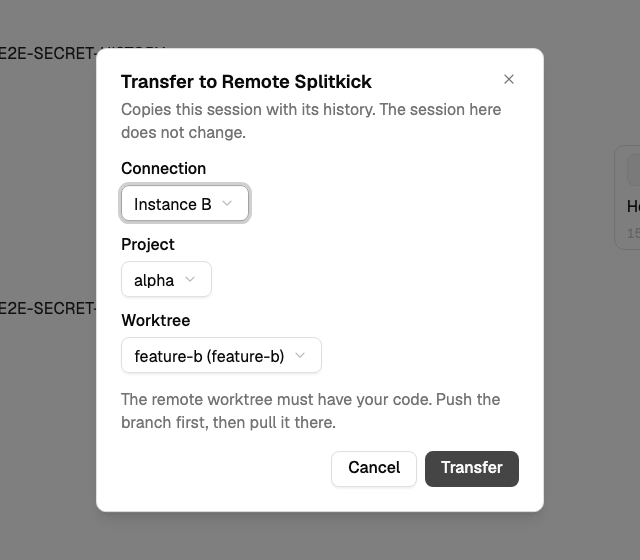
The Transfer to Remote Splitkick dialog sends the open session to another instance.
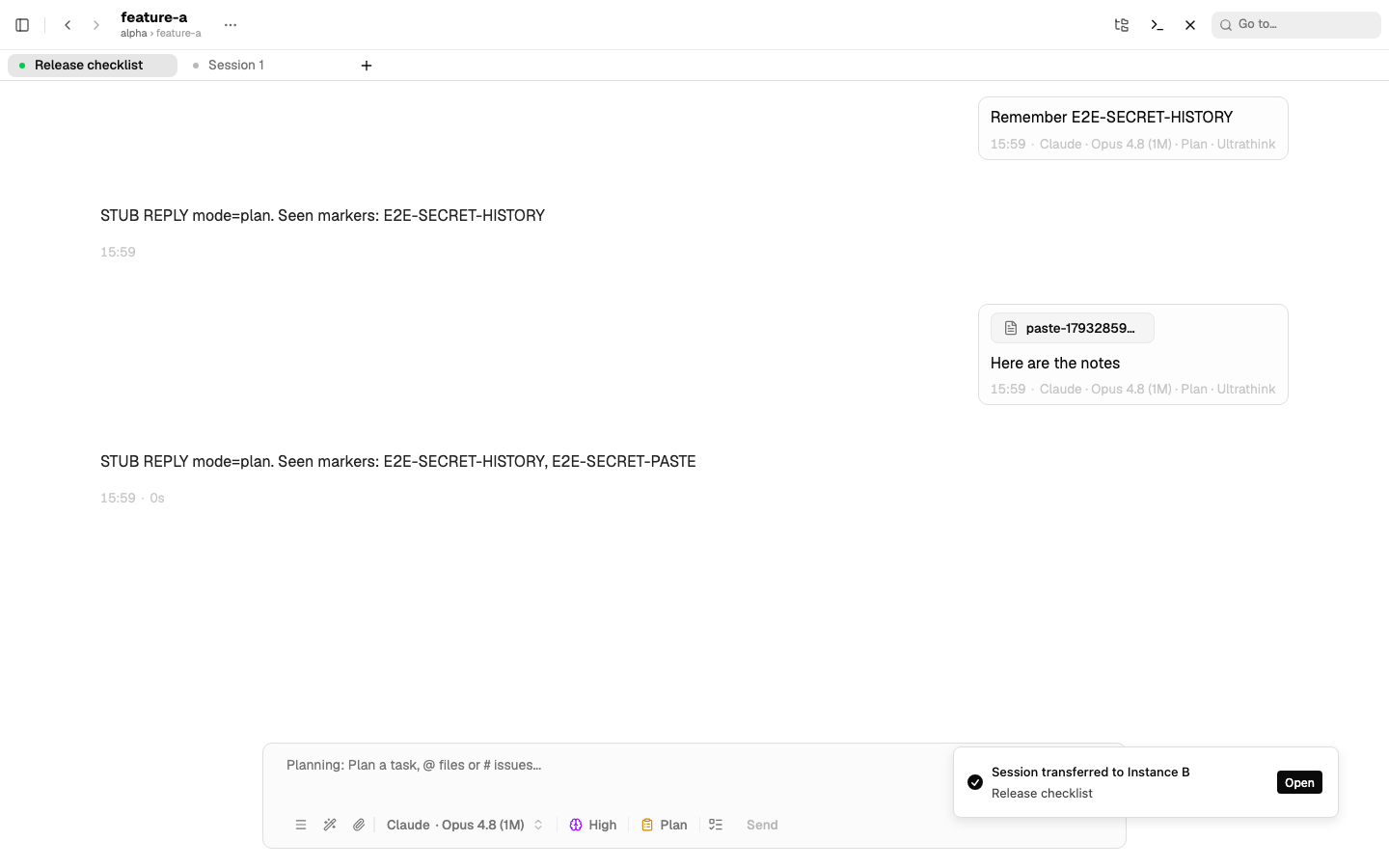
After the transfer, instance A keeps its session and a message confirms the copy on Instance B.
The new session is the active tab of the worktree you chose. From your first message there, the agent knows the earlier conversation.
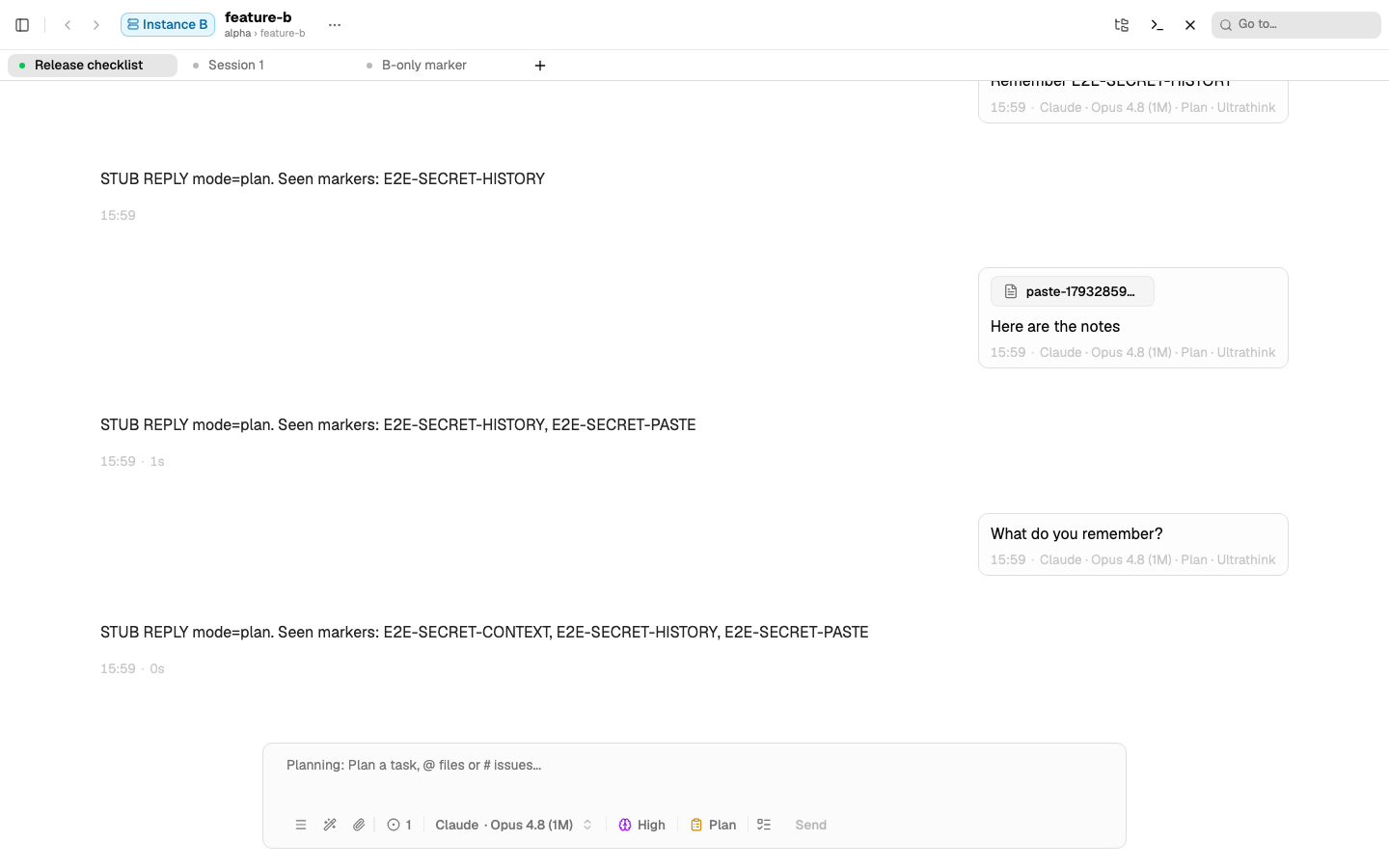
On Instance B, a new message in the transferred session gets an answer that knows the history, the pasted text and the saved context (test instances with a stub agent).
What goes along
- The conversation, the agent, the model, the thinking or effort level and the mode.
- Images and text files that you pasted into the conversation.
- Saved contexts that you attached to the session.
- The artifacts of the session, with all their saved versions (since 1.5.3). A local file path still points to the file on this machine; the saved versions open on the other machine.
What does not go along
- Your code. Push and pull the branch yourself.
- Attached GitHub, Linear and Sentry issues or pull requests. Attach them again.
- Checkpoints.
- A turn that is still running. The transfer starts from the last finished answer.
Transfer from Web Access
Transfer also works in Web Access in a browser. Then the target must allow the address of the page: start the target with JEAN_ALLOWED_ORIGINS=<address of this page>, for example https://splitkick.example.com. If it does not, the transfer fails with "Could not reach …" and the error names the setting. The desktop app needs no setting.
The menu item shows only when you have a connection other than the one this window shows.