
Troubleshooting
Each section names a symptom and says what to do. For error messages and the log file, see Errors and logs.
Window and display
The window is empty or white after sleep
macOS can suspend Splitkick or end its display process when memory is low. The window can then stay empty. Your sessions keep running in the background.
Splitkick repairs this itself. It reloads the window when the display process ends. After a wake, on window focus and once a minute it also checks that the window still answers. After two missed answers in a row, it reloads the window. A window that answers is never reloaded.
After the reload:
- You see the same project, worktree and session.
- A toast says "Splitkick recovered from a display crash". Click Copy details to copy what happened, for example for a bug report.
- Running sessions, terminals and run environments keep running.
If the window stays empty, quit Splitkick and start it again.
Splitkick uses a lot of memory
Every 5 minutes Splitkick writes one line about its memory to the log. The first line comes one minute after the start. The line shows the memory of the main process and of the display processes, the number of child processes, and the size of internal lists. Above 4 GB the line is a warning.
Choose Help → Copy Memory Report to copy the same numbers. Put them in your bug report. See Report a bug.
Windows: the window shows the wallpaper or is blank
The window frame stays, but the content is gone. This happens when WebView2, the display engine on Windows, crashes. Splitkick reloads the page when the WebView2 page process ends. It restarts itself when the WebView2 browser process ends.
If it still happens:
- Quit Splitkick and start it again.
- Update the WebView2 Runtime through Windows Update.
Text is blurry on an external monitor
- Open Settings → Appearance and set Desktop zoom level to 100%, or press ⌘0. For larger text, change the font size instead of the zoom.
- In the same place, turn off Window transparency if it is on.
- In System Settings → Displays, choose the native resolution of the monitor, or an option marked HiDPI.
Install and updates
Windows SmartScreen blocks the installer
The Windows installer is not code-signed yet, so SmartScreen warns on the first start. Click More info, then Run anyway. See Install on Windows.
Splitkick does not start again after an update
After Restart, Splitkick quits, installs the update and starts again. If it does not start again, open it yourself.
Each restart is written to relaunch.log in the log folder. Open the folder with Help → Show Log (on Windows: Settings → General → Show Logs). Add relaunch.log to your bug report.
"Failed to check for updates"
The toast shows the reason after the title. Splitkick writes every failed check, manual or automatic, to the log. Check your network connection and try again with Check for Updates…. See Updates.
A Keychain dialog names security
Splitkick reads the logins of Claude Code and Codex through the macOS security tool. So the dialog can name security instead of Splitkick. Select Always Allow to stop the dialog. See Keychain.
Projects and folders
"This folder has no git" when you add a folder
The folder is not a git repository. Choose one of these:
- Add without git: Splitkick adds a plain project. You can chat in the folder, but you get no worktrees, diffs or commits.
- Initialize Git: Splitkick makes the folder a git repository.
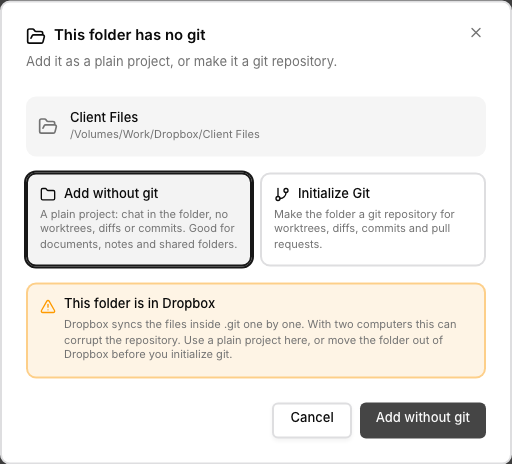
The dialog offers "Add without git" or "Initialize Git", and warns when the folder is in a cloud-sync service such as Dropbox.
See Non-code projects.
macOS blocks the worktree folder
Splitkick checks the folder before it sends a message. It then says what to do: restart Splitkick (needed after an update), or allow access in System Settings → Privacy & Security. Your prompt goes back into the input. See Errors and logs and Permissions.
"Would like to access data from other apps" comes back again and again
macOS keeps this permission for each program, not for Splitkick as a whole. So Allow does not stick. Full Disk Access stops it.
Sessions
A session has a red alert icon
The last run of the session failed. The chat shows what went wrong, with a way to go on:
| What happened | What you can do |
|---|---|
| An API error (for example "API Error: 500") or a crash | Resume or Resume with message |
| The message was not sent | Retry or Edit message |
| The login expired | Log in |
The icon and the banner go away when the next run starts.
Claude says "You've hit your session limit"
The session shows an amber lightning icon. Wait for the reset time, then click Resume or Resume with message. See Sessions.
"No conversation found" with several Claude accounts
Claude keeps each conversation only in the config folder of its account. A Claude run with another account folder cannot find it and says "No conversation found with session ID".
Splitkick keeps the account of a session for resume, forks and moves. Resume in terminal (claude --resume) still uses the root install (~/.claude). For a session of another account, continue the session in Splitkick. See Several Claude accounts.
MCP server
Agents get "connection refused" from the Splitkick MCP server
Before 1.3.0, a second Splitkick that used the same data folder could delete the MCP socket of the running app. 1.3.0 fixed this.
Check these:
- Splitkick is 1.3.0 or later. See Updates.
- Settings → MCP Servers → Enable Splitkick MCP is on.
- Restart Splitkick. This restarts the MCP socket.
The socket is splitkick-mcp.sock. Release builds link the old name jean-mcp.sock to it, so MCP entries in other tools that use the old name keep working.
An agent gets an error from another Splitkick instance
These errors come from remote_tool:
| The error starts with or contains | What to do |
|---|---|
Unknown Splitkick instance '<name>' | Use a name from the list in the error, or from list_instances. |
is unreachable at <url> | Check that the other instance runs and that its address is reachable from this machine. |
rejected the access token | The token of the connection is wrong. Check it in the Server connections dialog (the server icon in the sidebar footer). |
is too old for remote MCP calls | Update the other instance to 1.5.1 or later. |
without a valid response | Something in front of the other instance, for example a login proxy, answered instead of Splitkick. |
[<instance name>] <message> | The tool failed on the other instance. Read its message. |
The other instance must also have its Splitkick MCP server on.