
Browser for agents New
Your agents can use a web browser: open pages, read them, click, and fill in forms. Splitkick adds the browser as an MCP server to every agent CLI you installed: Claude, Codex, OpenCode, Cursor, Grok, Kimi and Antigravity. You do not edit their config files yourself.
Open Settings → MCP Servers → Browser for agents and choose an engine.
Choose an engine
| Engine | What the agent drives | Use it for |
|---|---|---|
| Off | Nothing. Splitkick removes the browser server that it added. | |
| Agent Browser | A Chromium with a login profile that Splitkick keeps (agent-browser). | Servers, and logins that you make once in that profile. |
| Playwright | Its own browser window and profile (Playwright MCP). | Tests of your web app, and pages without a login. |
| Playwright with your Chrome | Your real Chrome, with all your logins, through the Playwright extension. | Work in tools where you are already signed in. |
When you change the engine, Splitkick writes the new server into the config of each CLI and removes the old one. Each change keeps a backup of the config file next to it (….bak.<time>).
Sessions that already run keep the old engine. Start a new session to use the new engine.
Playwright with your Chrome
Agents act in your real browser
With this engine, agents can act in your real, logged-in Chrome. They can read your mail and click buttons on every site where you are signed in. Use it only with agents and prompts that you trust.
When you choose this engine, Splitkick asks you first. Click Use my Chrome to confirm, or Cancel.
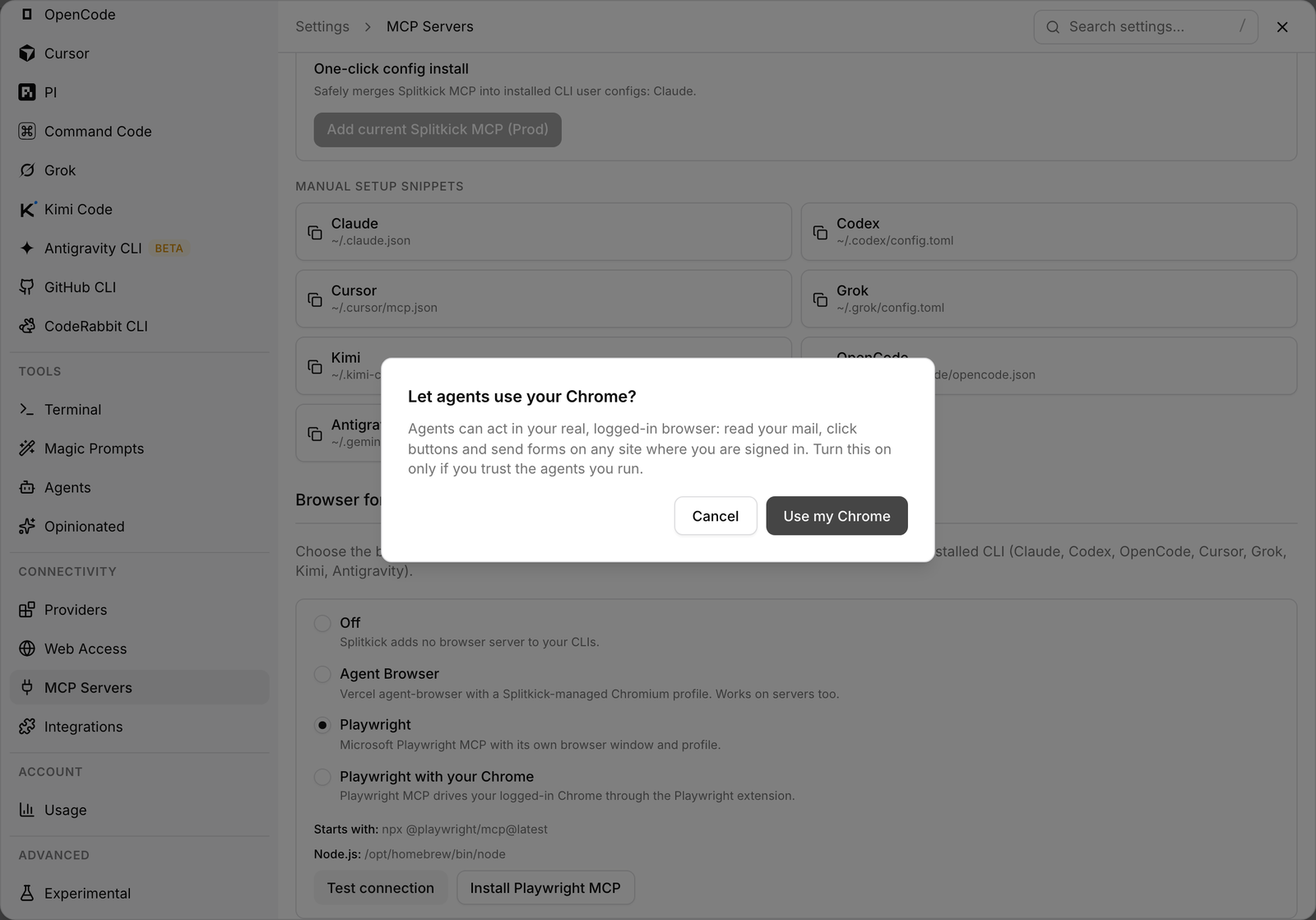
Splitkick asks before agents get your Chrome.
To set it up:
- Install the Playwright extension in Chrome. The settings have the link Get the Playwright extension.
- Click the extension icon in Chrome. It shows the connection token. Copy the token.
- In Splitkick, choose Playwright with your Chrome and confirm the warning.
- Paste the token and click Save token.
- Click Test connection. Chrome opens a Playwright tab, and Splitkick shows your open tabs.
Without a token, the extension asks you to approve each connection in Chrome.
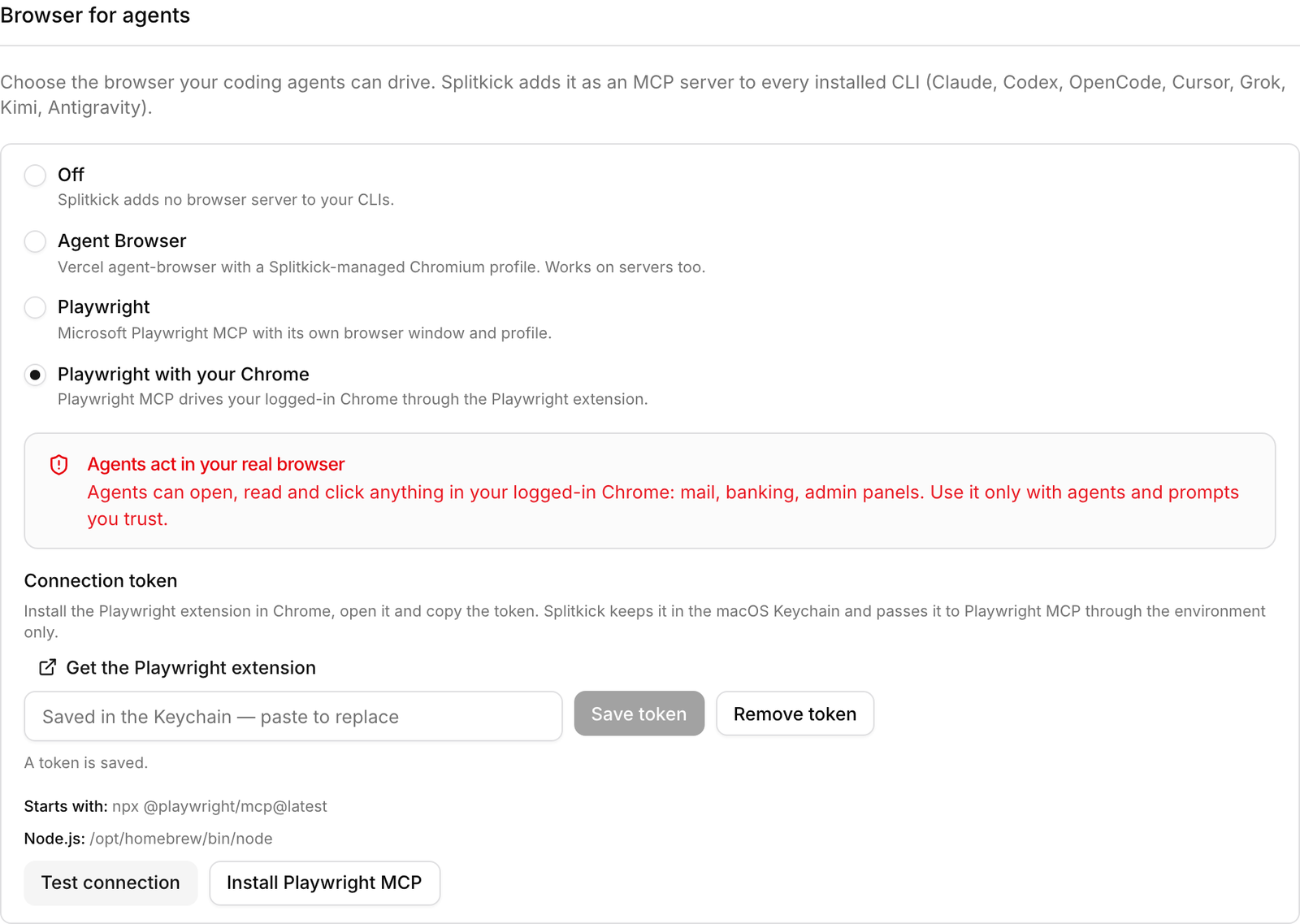
The engine Playwright with your Chrome: the warning, the extension link and the token field. The saved token is never shown.
Where the token is kept
- Splitkick keeps the token in the macOS Keychain, in the item Splitkick Playwright extension token. The token is never in a config file.
- When an agent starts the browser server, Splitkick reads the token and gives it to Playwright MCP through its environment only. The token is never on a command line.
- Web Access never gets the token.
- To use a new token, click Generate new token in the Chrome extension. Then save the new token in Splitkick.
- Remove token deletes the saved token.
Playwright (own browser)
Playwright opens its own Chrome window. It keeps one profile for each project folder, so logins stay from one session to the next. You need Node.js 18 or newer.
By default, Splitkick starts Playwright MCP with npx @playwright/mcp@latest. Click Install Playwright MCP to install it into Splitkick's data folder. Then the browser server starts faster and works offline.
Test connection starts Playwright MCP the same way an agent does and lists the open tabs. The test stops after 45 seconds.
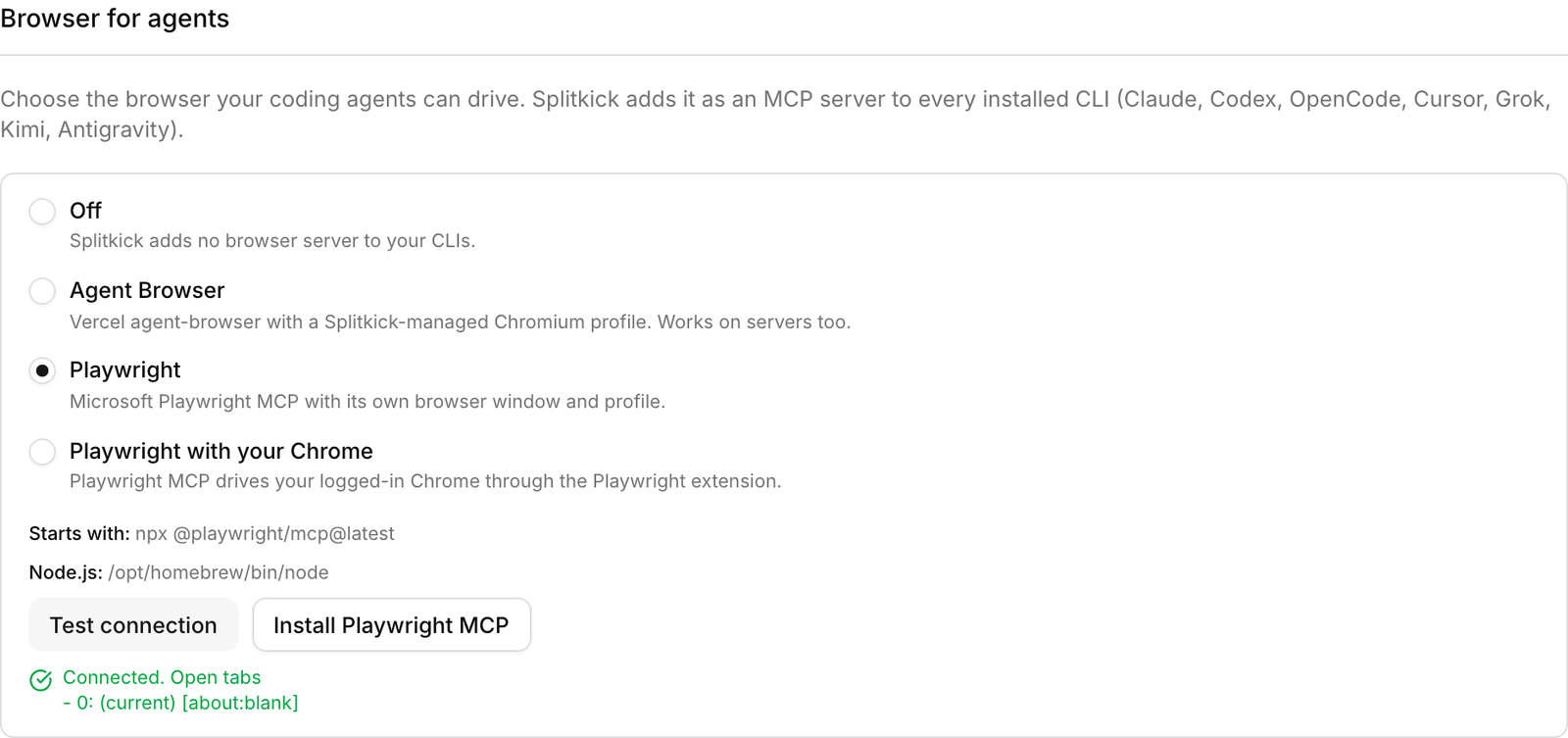
Test connection with the engine Playwright: the connection works and Splitkick lists the open tabs.
A Playwright server that you set up yourself
A CLI config can already have a Playwright server, for example playwright in ~/.claude.json. Then Splitkick does not add a second one. The settings list those servers under You already set up Playwright yourself.
Click Take over to let Splitkick manage them. Splitkick removes your entry and writes its own. The backup of the config file keeps your old entry. After that, remove the token from your old setup, for example from ~/.zshenv, if no other tool needs it.
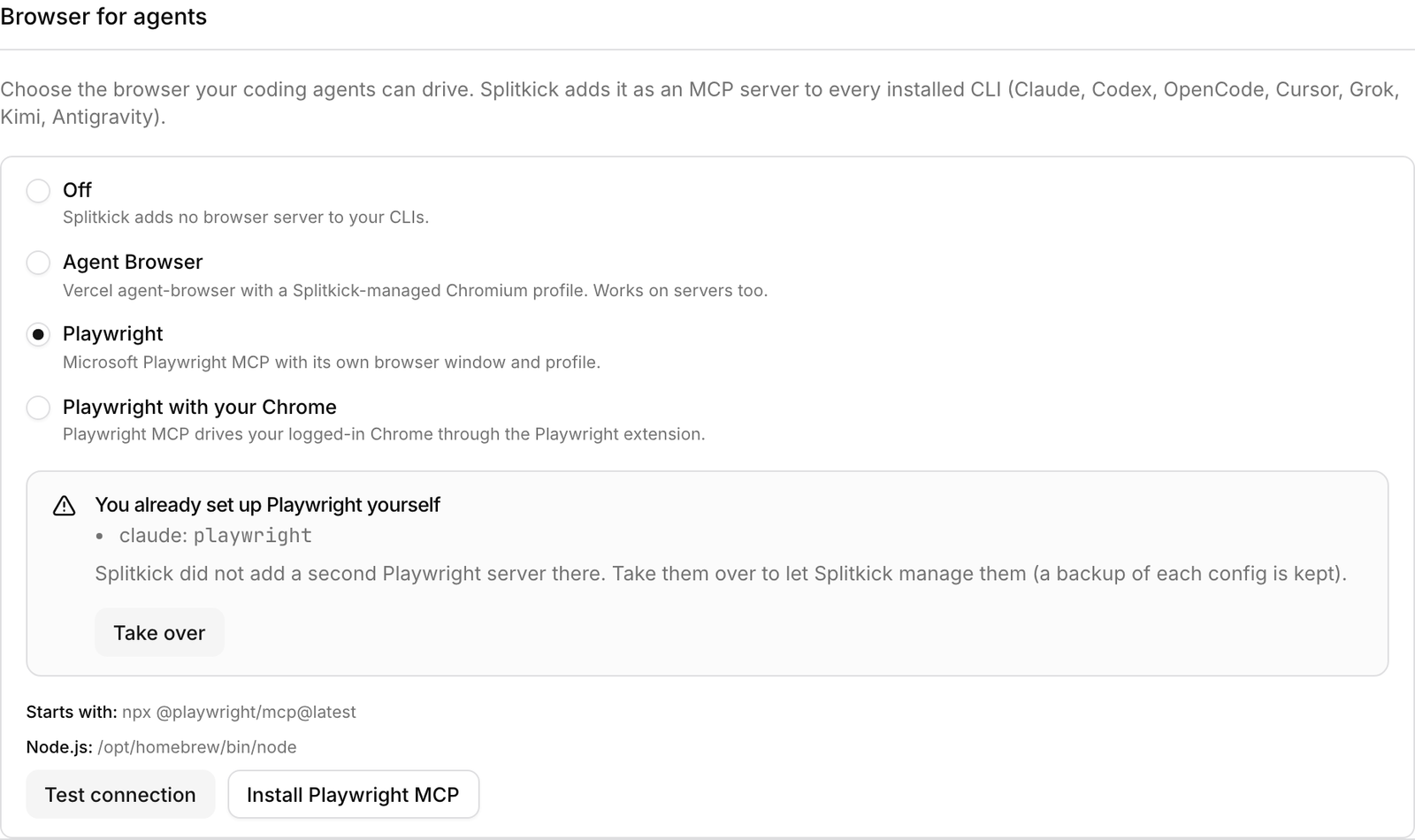
Splitkick found a Playwright server that you set up by hand. It adds no second one and offers Take over.
Agent Browser
Agent Browser drives a Chromium with a login profile that Splitkick keeps. You log in by hand once, and later sessions use the same cookies.
- Click Install agent-browser. It installs the npm package and Chromium into Splitkick's data folder. You need
npmon your PATH. - Choose Agent Browser. Splitkick adds it to your CLIs. You can also copy the Claude snippet or the Codex snippet and paste it yourself.
- For the first login, run the browser with a window and sign in by hand.
- In a chat, ask the agent to use the browser. It uses the same profile.
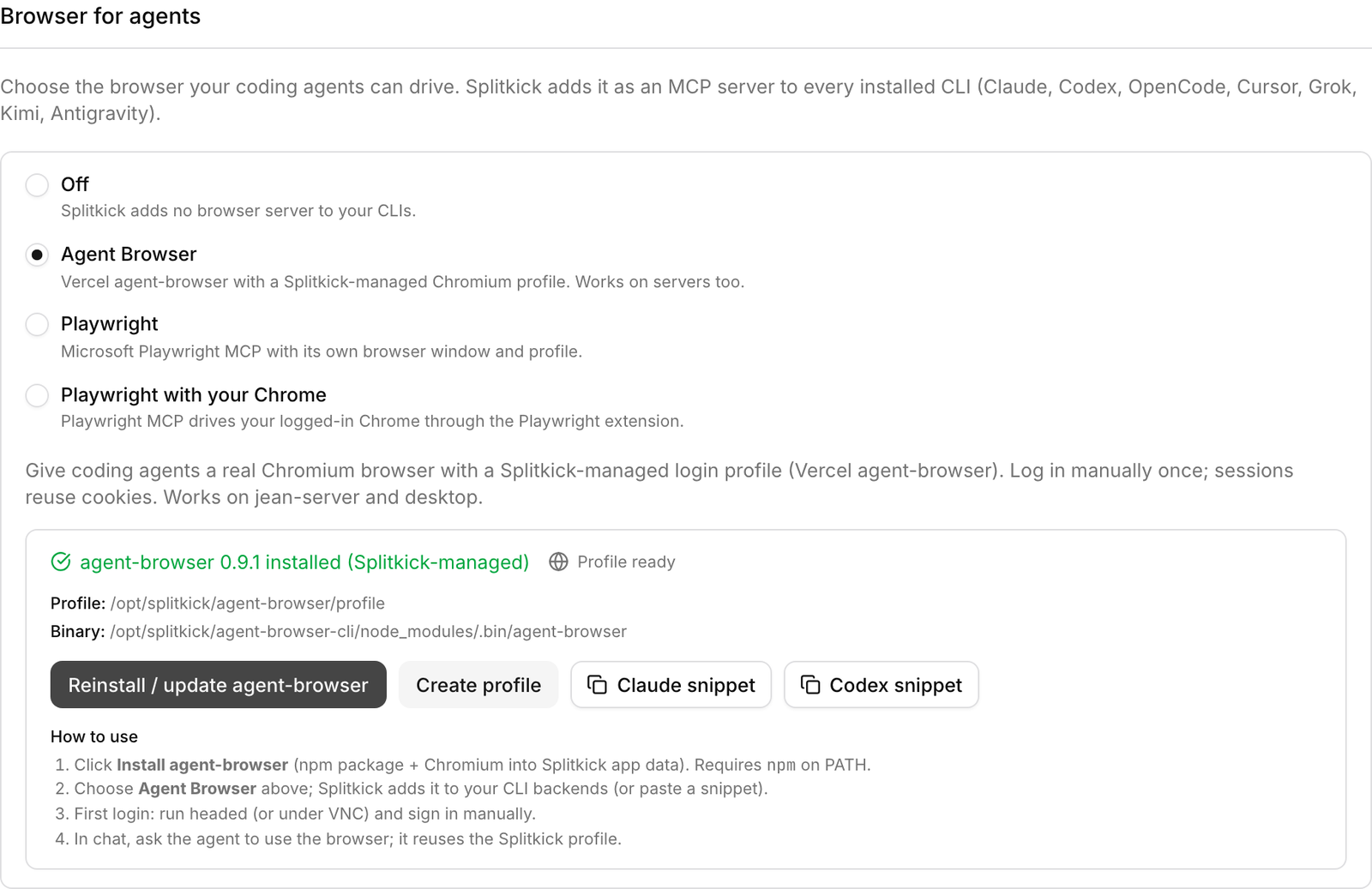
The engine Agent Browser, with its install status, profile and snippets.
The profile holds your logins. Protect it like a password manager.
Web Access and remote windows
In Web Access, and in a desktop window that is connected to another Splitkick, the setting is read-only. You see the engine and whether a token is saved, but not the token. Change the engine in the desktop app on the host.
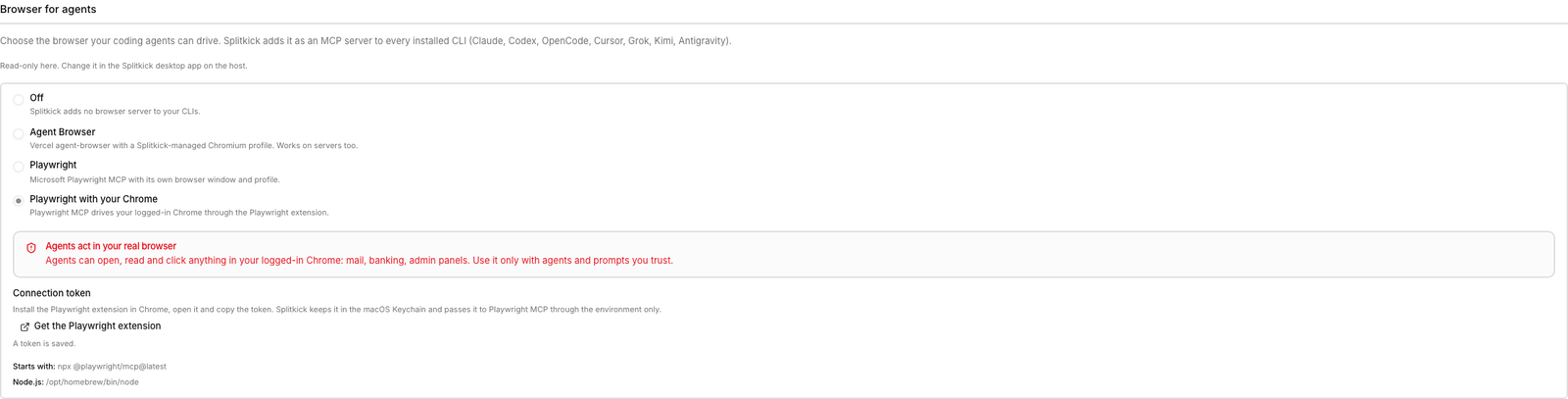
In Web Access the setting is read-only. You see whether a token is saved, never the token.
On a server
On a server without a screen, use Agent Browser. It works on the headless jean-server too (see Run it on a server).
- Install it from Settings → MCP Servers → Browser for agents → Agent Browser. The server needs
npmon its PATH. - To install it by hand, run
npm install -g agent-browser, thenagent-browser install. On a Linux server without a screen, runagent-browser install --with-deps. - For the first login, run Chromium under a virtual display (Xvfb), for example with noVNC. Later agent runs use the same profile.