
Scheduled jobs Beta
A scheduled job is a prompt that Splitkick sends into a session at a set time, once or again and again. Splitkick sends it itself: no window has to be open, also on a host without a screen. The job uses the session's saved model and mode.
Beta
Scheduled jobs are new in Splitkick 1.1. They work, but the way you make and manage them may change. In the app they are still called "scheduled prompts".
Where jobs come from today
Today a job comes from the agent: Claude's ScheduleWakeup tool asks Splitkick to continue the session later, up to one hour ahead. Each session has at most one such wakeup; a newer one replaces the older. Splitkick already runs and shows one-off and repeating jobs, but a form to make your own is not in the app yet; see the roadmap.
See and cancel a job
A bar above the messages shows each pending job of the session: when it runs (for example "in 2h", with date and time) and the prompt. Click the X to cancel it. A session can have more than one job; the soonest shows first.
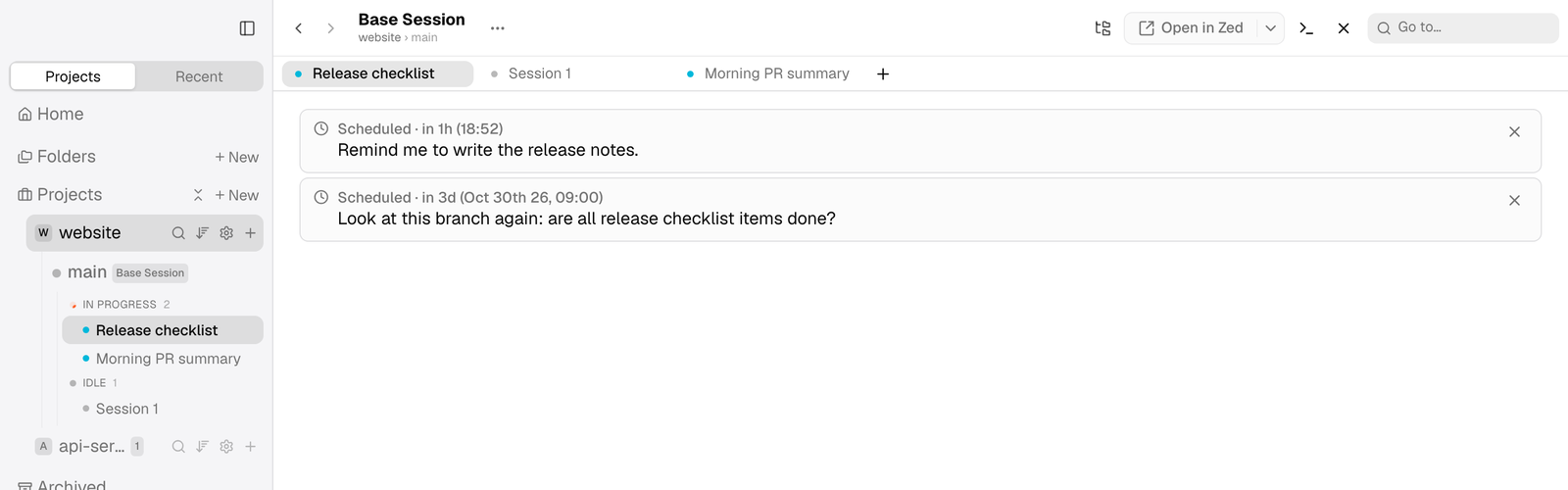
One session can hold several one-off schedules; they show soonest first, today's with the clock time and later ones with the full date.
Repeating jobs
A job can repeat: every hour, daily at a time, on weekdays, weekly, or by a cron pattern. The bar then shows the rule, the next time and the last run.
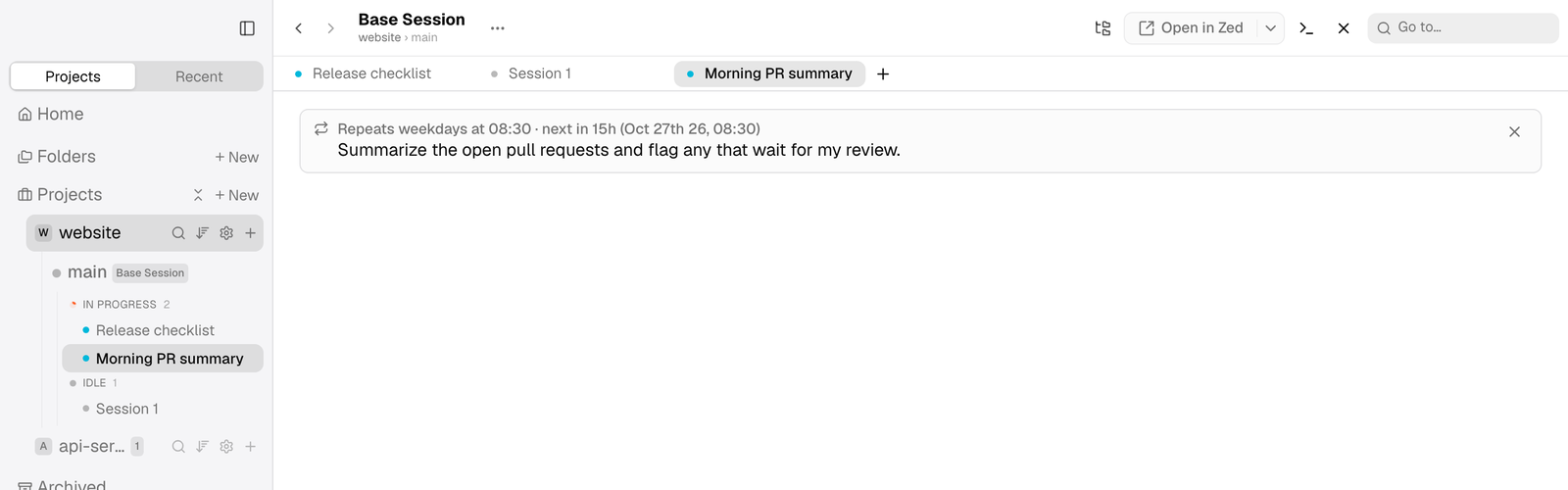
A repeating schedule in a chat: the bar shows the rule, the next run and the prompt, with an X to cancel it.
Splitkick reads the time in the job's own time zone. "Daily at 09:00" stays at 09:00 when the clocks change.
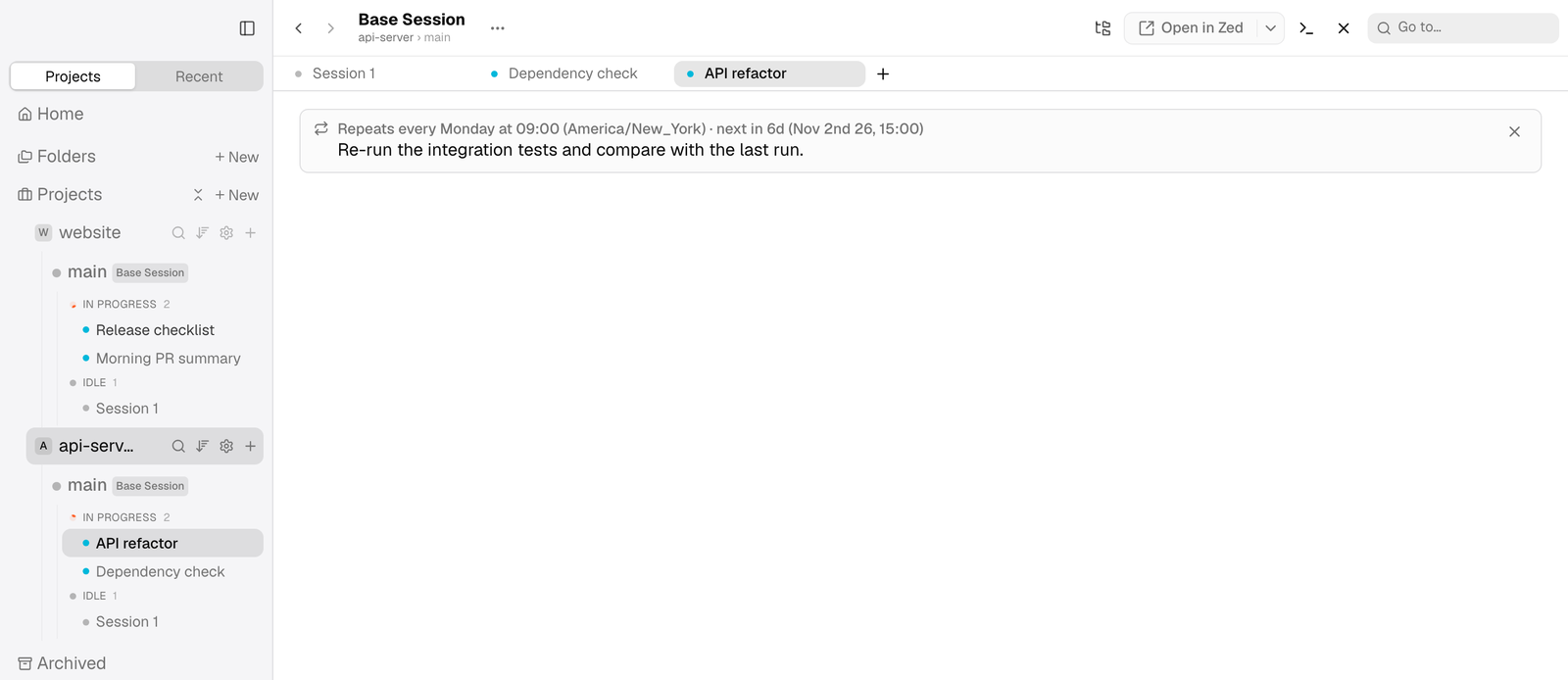
A schedule keeps its own time zone: "every Monday at 09:00" in New York shows the next run in local time.
Missed runs
When a job comes due while Splitkick or the computer is off, Settings → General → Scheduled prompts → Missed runs decides what happens:
- Run once at the next start (the default).
- Skip. The job moves to its next time, and the bar shows "(skipped)" for the last run.
A repeating job never runs once for each missed time; it runs at most once.
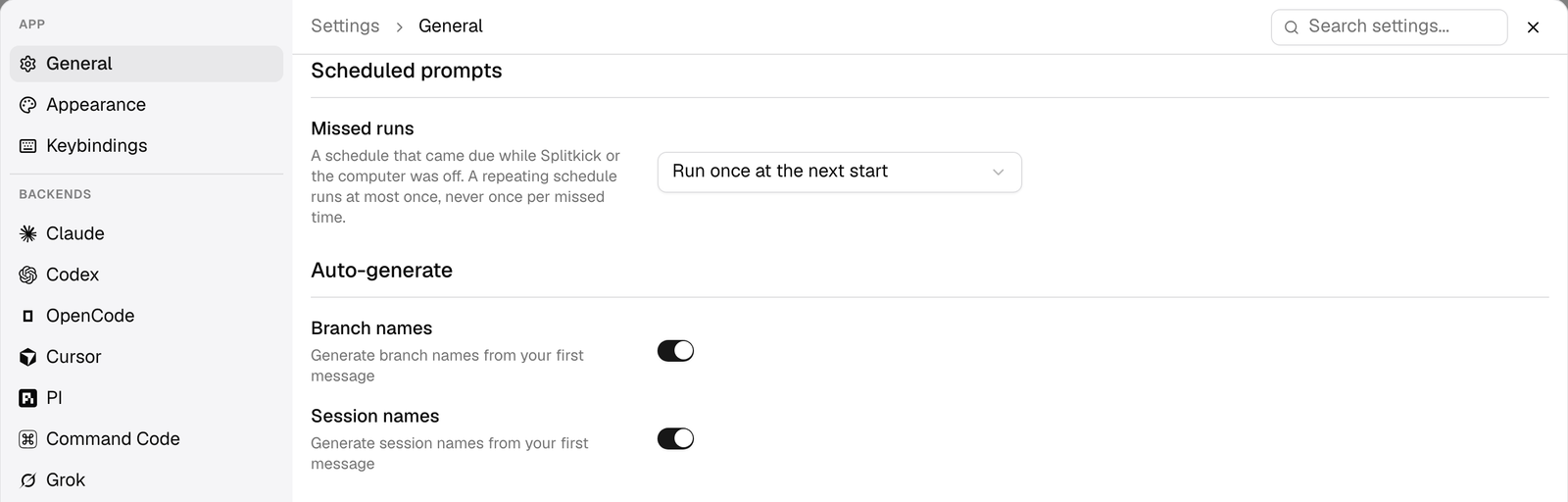
Missed runs decides whether a schedule missed while the app or computer was off runs once at the next start (default) or is skipped.
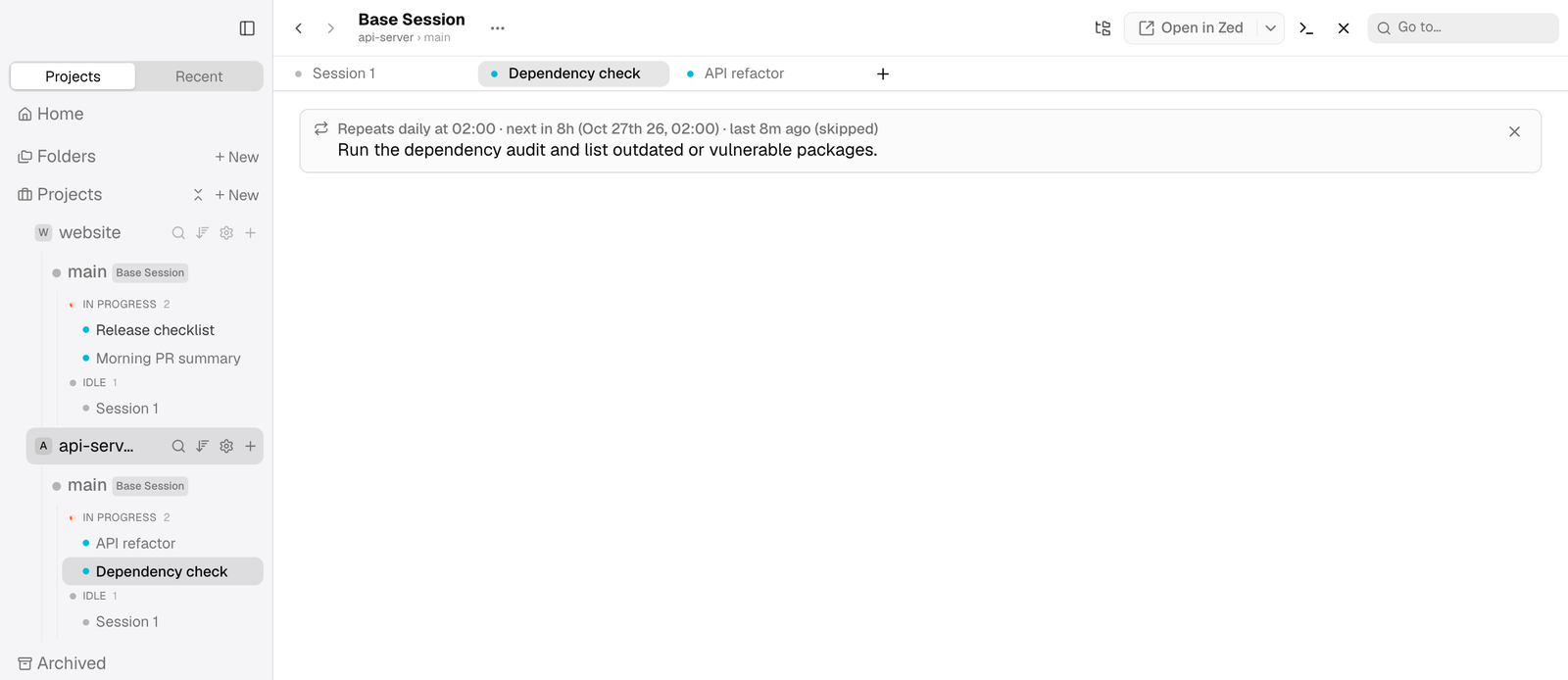
A daily schedule that came due while the app was off: with Missed runs set to Skip it did not run, moved to its next time and shows "(skipped)".
Where jobs are kept
All jobs are in one file, schedules.json, in the app data folder. See Files on disk.