
Errors and logs
When something fails, Splitkick tells you what went wrong and keeps the message until you have read it. This page says where errors show and how to send one with a bug report. For symptoms and what to do, see Troubleshooting.
Error messages
Most messages in the corner of the window go away by themselves. An error message stays until you close it with ✕, so you can read all of it. Right-click it (long-press on a phone) and choose Copy error: Splitkick copies the title and the text as plain text.
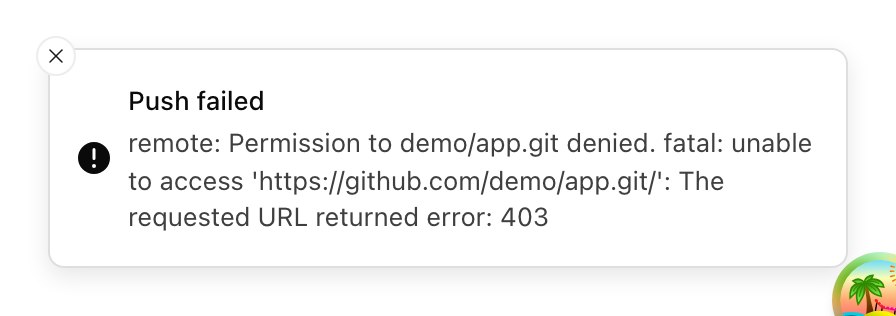
An error message stays on screen until you close it with the ✕ button.
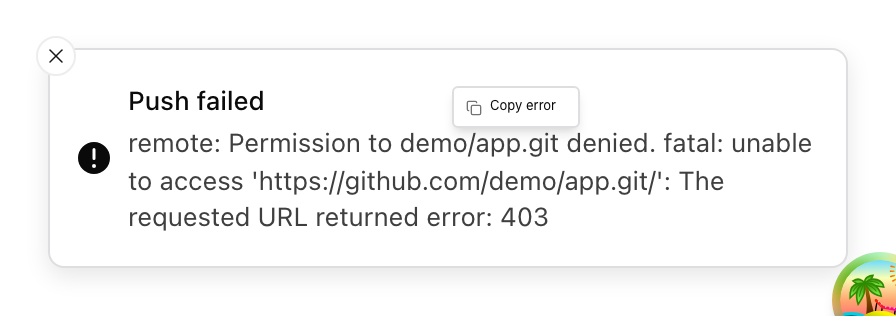
A right-click on an error message opens the "Copy error" menu.
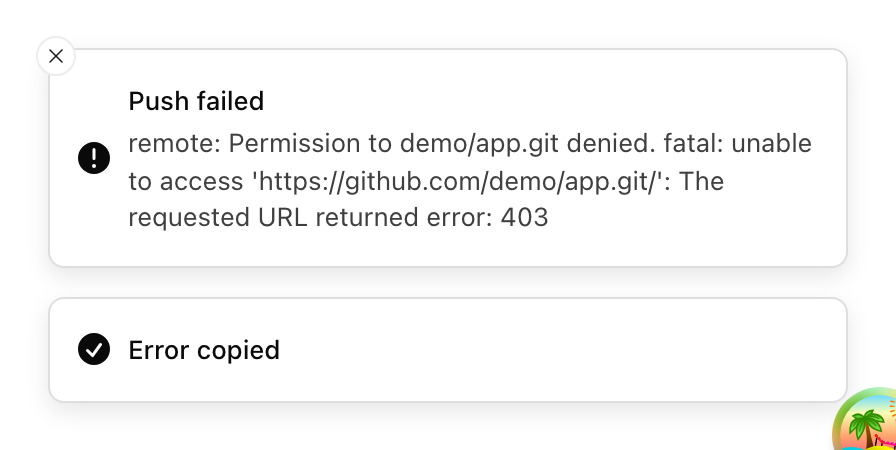
After "Copy error", the title and the text are on the clipboard as plain text, and a short "Error copied" message confirms it.
Where else errors show
- A message that could not be sent. The error stays above the chat input until you close it or send again, also after a restart. Your prompt goes back into the input.
- macOS blocks the worktree folder. Splitkick checks the folder before it sends and says what to do: restart Splitkick (needed after an update) or allow access in System Settings → Privacy & Security.
- Claude's session limit. The session shows an amber lightning icon and the chat a banner with the reset time, Resume and Resume with message. See Worktrees and sessions.
- A remote connection drops. The window reconnects by itself as soon as the server answers again. The "Couldn't connect" screen shows only when the server stays away for about 20 seconds.
- A list cannot load. For example the Recent tab says so and offers Retry, instead of "No sessions yet".
- The file viewer cannot show a file. It shows the error with a Reload button and keeps your unsaved changes.
The log
Help → Show Log opens Splitkick's log file in Console. Errors are written there, also errors that the window does not show. Each restart after an update is written to relaunch.log in the same folder.
Every 5 minutes the log also gets one line on Splitkick's memory. Help → Copy Memory Report copies the same numbers.
Report a bug
- Right-click the error message and choose Copy error.
- Open Help → Show Log and copy the lines from the time of the error.
- If Splitkick was slow or the window went empty, choose Help → Copy Memory Report.
- Put all of it in the report, with what you did just before.