
Session backup
Splitkick can copy your session data into a folder that a sync service keeps in step across your devices, for example iCloud Drive, Syncthing, Nextcloud or Dropbox. Each device writes its own backup there. Each device can then also search the sessions of your other devices.
Set up the backup
- Open Settings → General and go to Session backup.
- Click Setup Backup.
- Pick a synced folder.
- Give this device a name. The default is the computer name.
- Start the first backup.
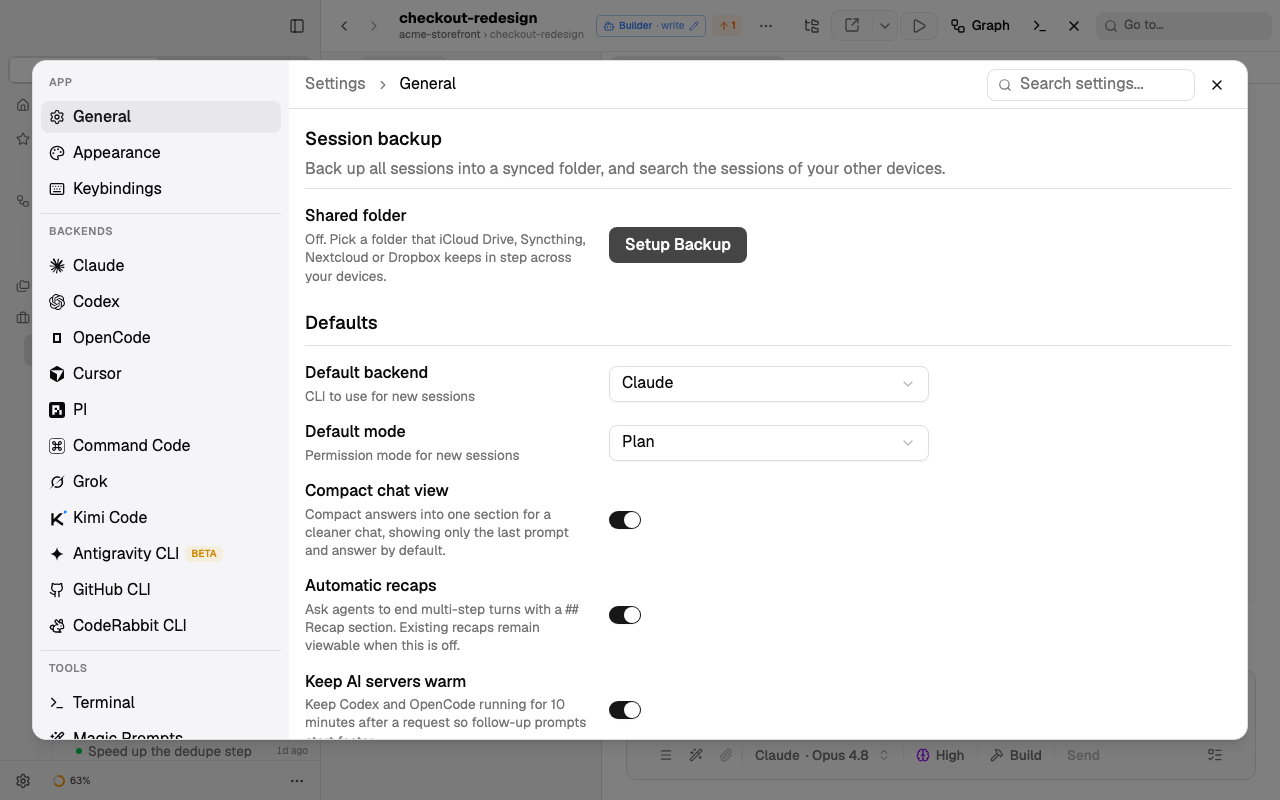
With no backup yet, Shared folder says Off. Setup Backup starts the set-up.
The first backup copies all session data. It needs as much free space as your session data. The dialog shows how much.
During the first backup, the dialog shows its progress and you cannot use the app. The dialog has no close button, and Escape and the app's shortcuts do nothing. Only Stop ends it early. Files that were copied before you click Stop stay in the backup, and the next backup skips them.
In Web Access, the dialog shows the folders of the server, because the backup runs on the server.
After the first backup
Later backups run in the background, without a dialog. They copy only new and changed files. A backup runs:
- when Splitkick starts
- every 10 minutes
- 30 seconds after a run ends, is cancelled or crashes
When you turn the backup on or off, you do not have to restart Splitkick.
To start a backup at once, click Back up now in Settings → General → Session backup. The same place shows the time of the last backup and how many files it copied.
Only changes are copied
Only the first backup copies everything. Each backup after it copies only the files that are new or changed since the last backup:
- Splitkick compares the size and the change time of each file with its copy in the backup folder. An unchanged file is skipped.
- A changed file is copied in full. This is cheap: session files are small, and the log of a run is written once, when the run ends.
- A run that is still busy is not copied. A long run is copied once, when it ends, not every 10 minutes.
- The search data of a session is updated only when one of its files changed.
- Stop loses nothing. Copied files stay, and the next backup continues with the rest. The time of the last backup changes only when a backup is complete.
With normal use on one Mac, the backups after the first one copied about 136 MB per day.
What the backup keeps
The backup never deletes. A session that you delete or archive on this device stays in the backup as it was.
The backup does not copy pasted images and texts, checkpoints, the trash, your preferences or the UI state.
Each device writes into its own folder, splitkick-backup/instances/<instance id>/ in the synced folder. Because only one device writes to each folder, the sync service never sees a conflict.
iCloud Drive: Keep Downloaded
iCloud Drive can remove the local copy of files to save space. A search must then download them first, which makes it slow. In Finder, mark the backup folder Keep Downloaded.
Search your other devices
Press ⌘K. Next to Search messages, the Other devices tab searches the backups of your other devices. Both tabs search at the same time, and each tab shows its number of results.
A session from another device opens on that device only. When you pick one, Splitkick shows a message and does not open it.
Splitkick matches a session from another device to your own project with the same git remote. Without a match, the result keeps the project name from the other device.
Another device sees a change when the sync service has delivered the files.
Without a backup folder, the Other devices tab shows a Setup Backup button.
Agents
The MCP tool search_sessions also finds sessions on your other devices. Each such result has the device name and no link. See MCP server.