
Use Splitkick from your phone
Your Mac keeps doing the work. Your phone is a window onto it: see every session, answer an agent's question, approve a plan, look at the output.
TIP
Nothing goes through a Splitkick server. Your phone talks straight to your Mac.
1. Connect the devices
Install Tailscale on the Mac and on the phone, and sign in with the same account. Splitkick finds the Tailscale address by itself and lists it first.
2. Turn on Web Access
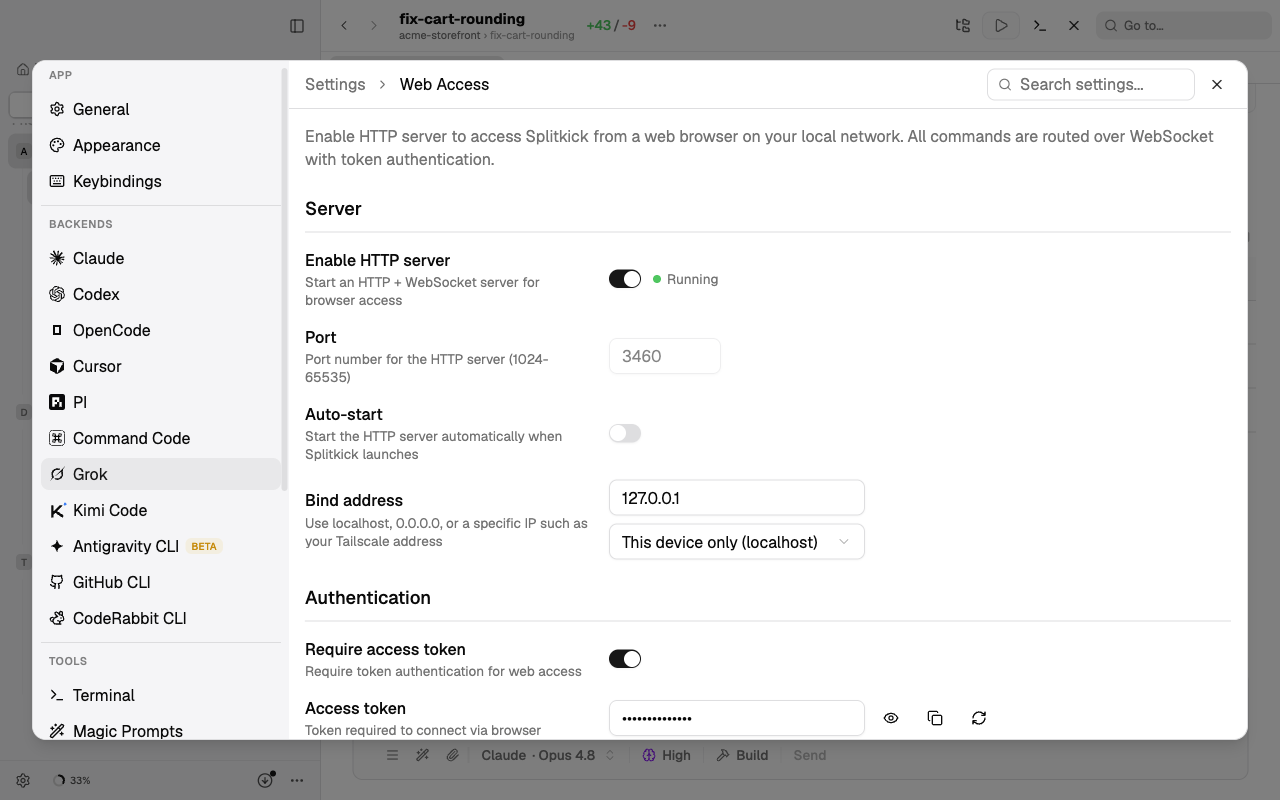
In Splitkick open Settings → Web Access and switch it on. Splitkick shows a link with a token:
http://100.64.0.10:3460/?token=••••••••••••Keep the token switched on for every address that is not 127.0.0.1. The port is 3460 by default and can be changed in the same place.
3. Add it to the home screen
Open the link in Safari on the iPhone, tap Share → Add to Home Screen. Splitkick now opens like an app, with the phone layout and its own icon. There is no offline mode: the Mac must be on and reachable.
The Home Screen app uses the whole screen, down to the bottom edge. When you come back to it from the background, it connects again by itself: if the Mac does not answer within 12 seconds, it tries again, so sessions do not stay on "Loading".
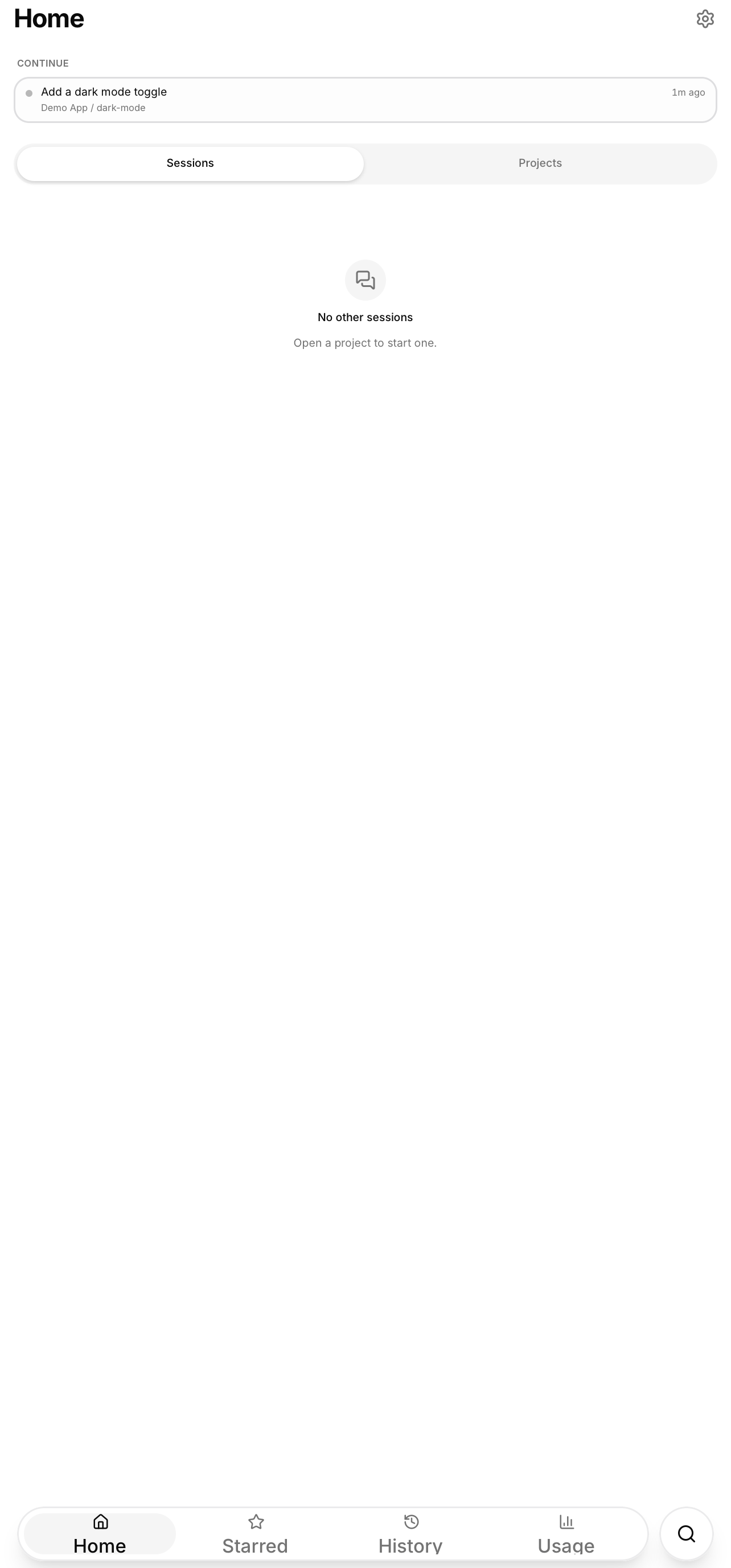
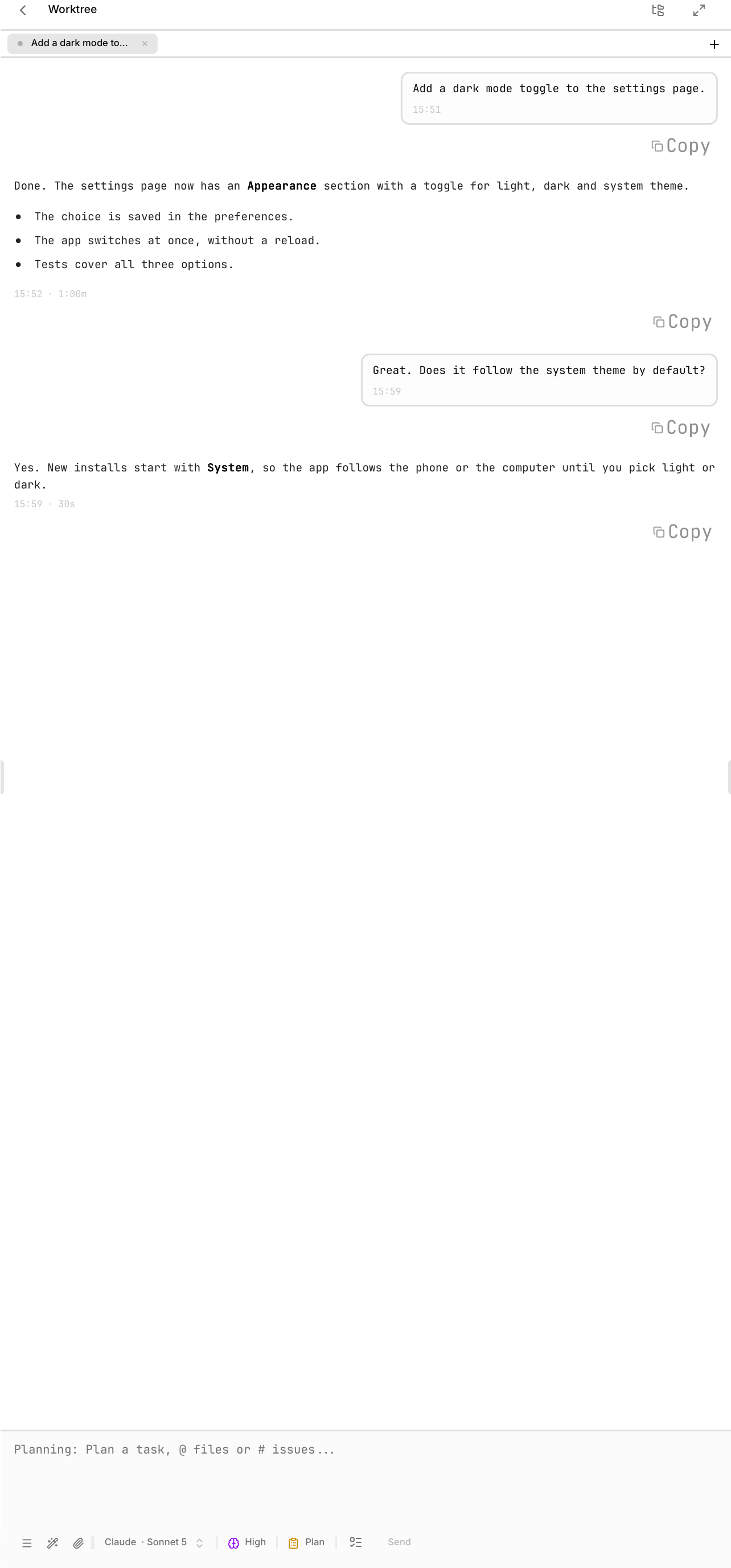
Left: the Home tab fills the whole screen down to the bottom edge, with the tab bar at the bottom. Right: a session opened in the phone layout shows its messages instead of "Loading".
What works on the phone
All sessions and their status, agent questions and plan approvals, the composer, the output viewer with pinch-zoom, plan usage per agent, and the Settings panes that make sense on a phone. The terminal and the diff viewer are desktop only.
The phone layout has four tabs: Home (continue where you left off, unread, recent, projects), Starred, History and Usage, plus a search button that opens the command palette.
- Projects on Home sit under their folders, in the order of the sidebar. A chevron on each worktree row opens its sessions under the row.
- The gear menu in the composer has Pin to Project and Star for the open session.
- The follow-up list opens as a bottom sheet.
- An error message stays until you close it. Long-press it and choose Copy error to copy the text.
- With the keyboard open, the session header stays at the top and the composer sits right above the keyboard.
- The side panel opens as a drawer from the left, with the tabs Files, Network, Graph and Artifacts. See Cross-session workflows, The Graph tab in a session and Artifacts.
- The image viewer shows Open in browser and Copy image.
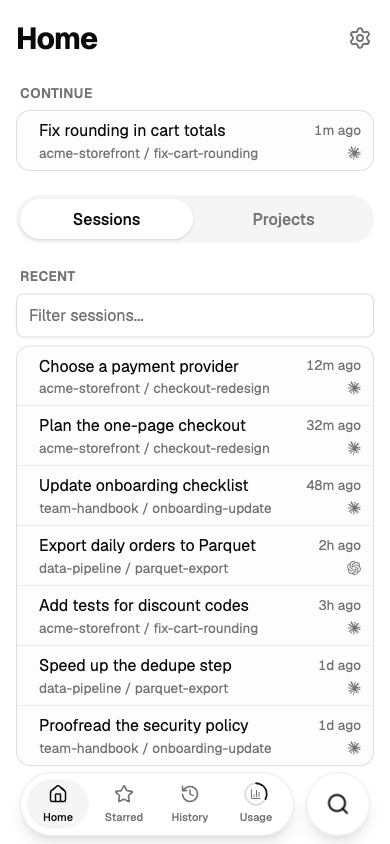
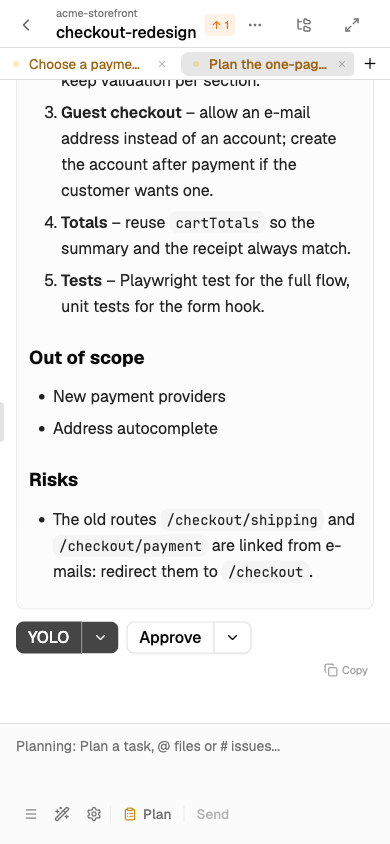
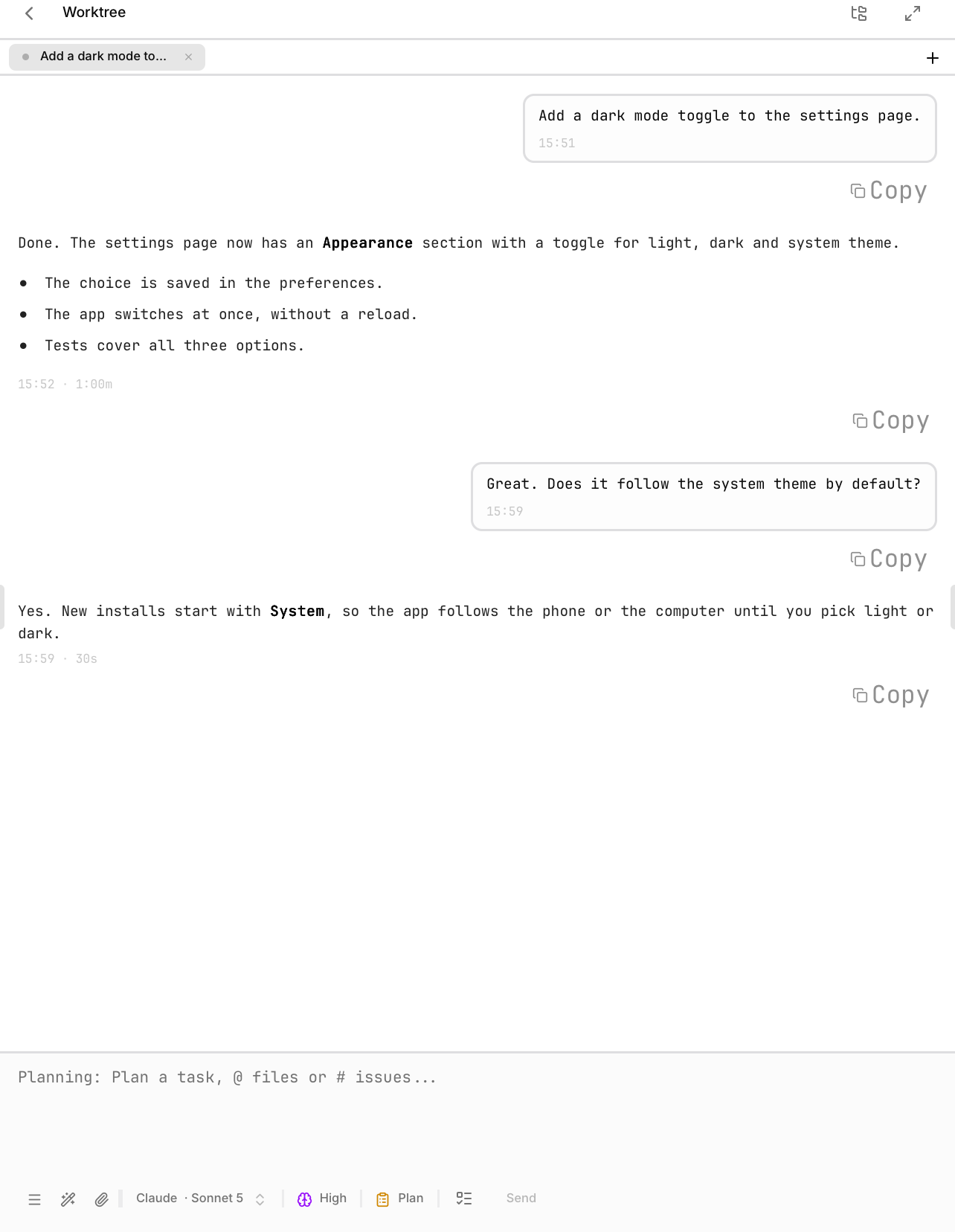
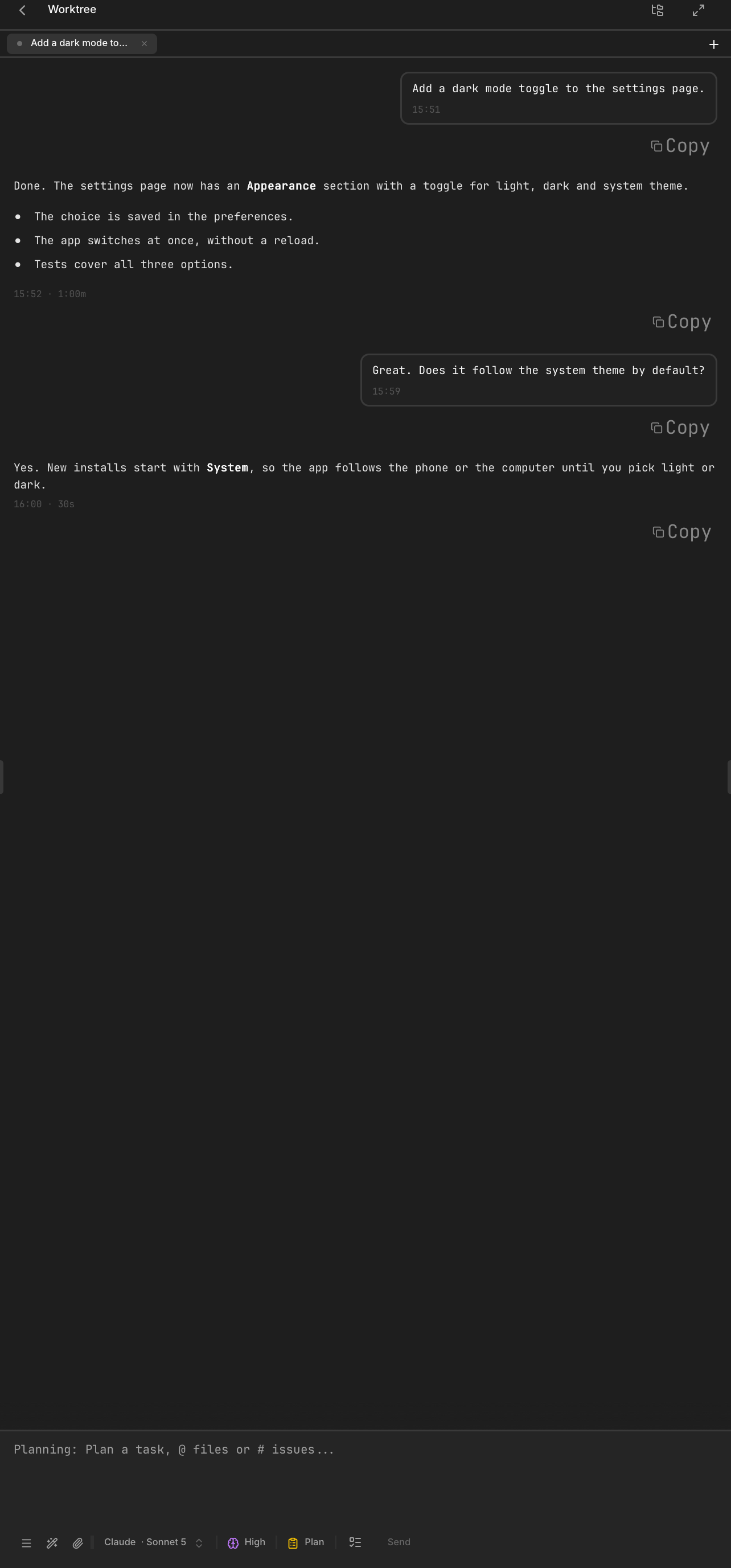
Left: with the keyboard open, the session header stays at the top and the composer sits right above the keyboard (the image shows only the area above the keyboard). Right: the same session in the dark theme.
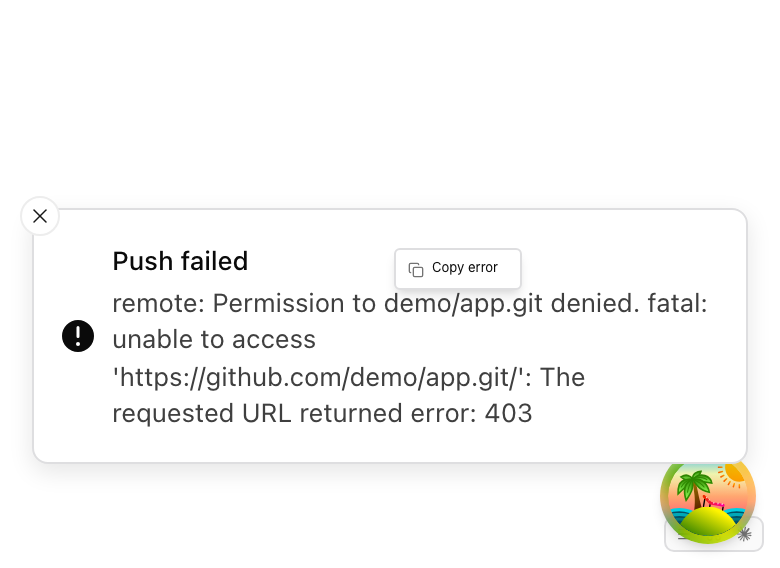

In Web Access, the image viewer shows Open in browser and Copy image.
Actions that need the host 1.5.1
Some actions open something on the Mac that runs Splitkick: Reveal in Finder, Open in Terminal, an editor, the worktrees folder. From your phone, they would open on the Mac, where nobody looks. So in Web Access these actions show disabled, with the text Host only.
When you open Web Access on the Mac itself, on localhost, the actions work. Copy Path and Open on GitHub work everywhere.
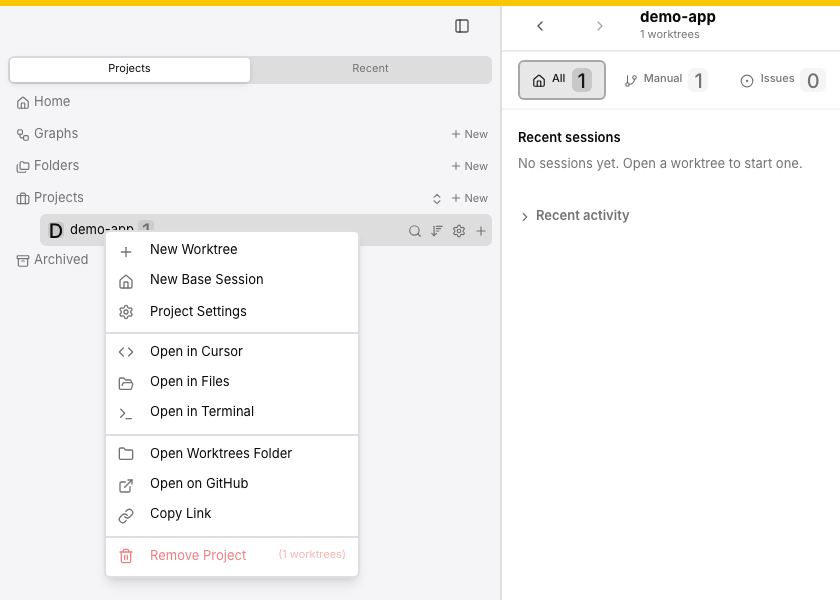
Web Access on localhost on the host: you sit at the Mac, so the actions that open on it stay on.
Remote windows of the desktop app follow the same rule; see Run it on a server.
Without Tailscale
On the same Wi-Fi, use the LAN address Splitkick lists. Web Access is plain HTTP; do not open the port to the internet without a reverse proxy that adds TLS.
Several Macs
Each Mac has its own Web Access link; add each one to the home screen. The desktop app can also connect to several hosts, each in its own window.