
Appearance and terminal
All settings on this page are kept per device. Each app window, browser and phone has its own theme, fonts, zoom, terminal settings and shortcuts.
Appearance
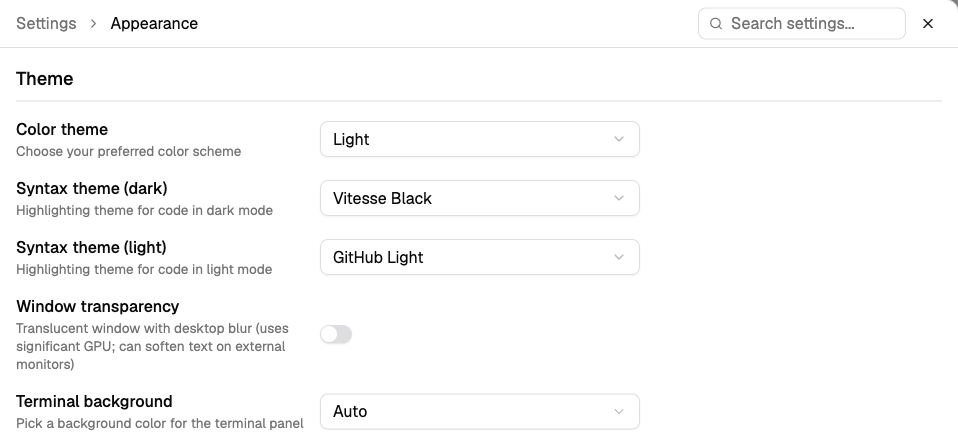
Color theme
Default: System
What it does: Light, Dark or System. With System, Splitkick follows the theme of the operating system and changes when the system changes. The terminal background (Auto) and the syntax theme follow it.
Syntax theme (dark)
Default: Vitesse Black
What it does: the colors for code in dark mode: in the file viewer, the diff, the Commits tab and the Checkpoints tab. You can select from 14 themes, for example GitHub Dark, Dracula, Nord, Catppuccin, One Dark Pro, Tokyo Night and Rosé Pine.
Syntax theme (light)
Default: GitHub Light
What it does: the same for light mode: GitHub Light, Vitesse Light, Catppuccin Latte, One Light or Rosé Pine Dawn.
Window transparency
Default: off
What it does: makes the window translucent, with a blur of the desktop behind it. Shown only on macOS, and it works only in the desktop app.
Why change it: for the look.
Cost: it uses a lot of GPU power, and text can look soft on external monitors.
Terminal background
Default: Auto
What it does: the background of the terminal panel. Auto uses the background of the app, so it follows the theme. Light and Dark are fixed, each with its own text colors, so that all colors stay easy to read. Custom color lets you select any color. Open terminals change at once.
Why change it: for example a dark terminal in a light app.
Custom terminal color
Default: none (dark grey)
What it does: shown when Terminal background is Custom color. Select a color, or type a hex value such as #1e1e2e. Splitkick selects light or dark text to go with it.
UI font
Default: Geist
What it does: the font of the interface: Inter, Geist, Roboto, Lato or System Default.
Chat font
Default: Geist
What it does: the font of the chat messages: JetBrains Mono, Fira Code, Source Code Pro, Inter, Geist, Roboto or Lato.
Why change it: a monospace font makes code and tables in answers line up.
Font weight
Default: Normal
What it does: Light, Normal or Medium, for the interface and the chat. Light makes bold and medium text less heavy. Normal text does not get thinner.
Why change it: Light is calmer for long reading, mostly in dark mode. Medium helps on screens where text looks thin.
UI font scaling
Default: 16 px
What it does: the size of the interface text, from 12 to 24 px. The line height grows with it.
Chat font scaling
Default: 16 px
What it does: the size of the chat text, from 12 to 24 px.
Why change it: a larger chat font for reading, with a small interface font to see more.
Sync desktop and mobile scaling
Default: on
What it does: while it is on, the mobile zoom is always the same as the desktop zoom.
Why change it: turn it off when a browser must use a different zoom on a narrow screen (narrower than 768 px) than on a wide one.
Desktop zoom level
Default: 100 %
What it does: the size of the whole interface, from 50 to 200 %. You can also use ⌘+ and ⌘-, and ⌘0 to go back to 100 % (Ctrl in a browser). These keys are fixed and are not in Keybindings.
Cost: on external monitors with a normal (not Retina) display, a zoom that is not 100 % can make text soft.
Mobile zoom level
Default: 100 %
What it does: the zoom for a screen narrower than 768 px. Used only when Sync desktop and mobile scaling is off.
Terminal
These settings apply to the terminal panel inside Splitkick. The app for Open in Terminal is in General → Terminal.
Embedded terminal renderer
Default: xterm.js (stable)
What it does: the engine that draws the terminal. Ghostty Web is experimental. It loads one time when you first use it. The change applies to new terminal tabs. Open tabs keep their engine.
Why change it: try Ghostty Web when you want to test it. Go back to xterm.js when something looks wrong.
Terminal font
Default: JetBrains Mono
What it does: JetBrains Mono, Fira Code, Source Code Pro, SF Mono / Menlo or System Monospace. Open terminals change at once.
Terminal font size
Default: 13 px
What it does: from 11 to 24 px. Open terminals change at once.
Keybindings
The list shows all shortcuts in three groups: Chat, Navigation and Git. The defaults are on Keyboard shortcuts. Desktop only: a phone does not show this pane.
- Change a shortcut: click it, then press the new keys. The first key that is not a modifier ends the recording. Esc or a click outside cancels.
- Remove a shortcut: click it, then press Backspace. It then shows "Not set".
- Conflict: when another action already uses the keys, Splitkick shows the name of that action in red and saves nothing.
- Reset: the reset icon next to a changed shortcut goes back to the default.
In the macOS desktop app, ⌘ is the main modifier. Shortcuts with only Ctrl go to the terminal, for example Ctrl+R. In a browser, Splitkick uses Ctrl, because the browser keeps the ⌘ shortcuts. On macOS, the menu bar shows your own shortcuts.
Shortcuts without a modifier (for example P or /) do nothing while you type in a text field.