
Connectivity
Providers
A provider sends the requests of a CLI to another endpoint or account, for example OpenRouter or a model from another vendor that speaks the Anthropic API. There are three sections: Claude CLI, Codex and PI.
Claude CLI: custom provider profiles
Default: none
What it does: a profile has a name, a settings JSON in the format of the Claude CLI settings.json (mostly an env block with the endpoint, the key and the model names), and the switch Supports thinking/effort levels. There are templates for OpenRouter, MiniMax, Z.ai and Moonshot, and Custom. Splitkick writes each profile to its own file in ~/.claude and starts Claude with that file. The key does not show in the process list. When Supports thinking/effort levels is off, the chat toolbar hides the thinking and effort selector for sessions on this profile.
Why change it: use Claude Code with another model vendor or an API key, or keep a second billing account apart.
Cost: the API key is in a plain text file, not in the Keychain. When you rename a profile, the old file stays.
Default Provider (Claude)
Default: Anthropic
What it does: shown when you have a profile. New Claude sessions use this provider, unless the project has its own Default Provider or you select another one in the session. Commit messages, PR texts, reviews and saved contexts also use it.
Why change it: when most of your Claude work must go through the profile.
Codex: custom providers
Default: none
What it does: a Codex model_provider with a display name, provider ID (for example openrouter), base URL, env key (the name of the environment variable that holds the API key) and Wire API. There is a template for OpenRouter. Splitkick gives the provider to Codex per session. It does not change your ~/.codex/config.toml, and it does not store the key: Codex reads it from the environment variable.
Why change it: use Codex with another endpoint.
The environment variable must be set in the environment of Splitkick. A variable that you set only in your shell profile can be missing when you start Splitkick from the Dock.
Default Codex Provider
Default: Default (OpenAI / ChatGPT)
What it does: shown when you have a Codex provider. New Codex sessions use it, unless you select another one in the session. There is no project setting for it.
PI: custom providers
Default: none
What it does: a PI provider with a provider id, base URL, API type (openai-completions, openai-responses, anthropic-messages or google-generative-ai), an optional API key env and one or more models. There are templates for OpenRouter and Ollama. Splitkick writes the provider into PI's models.json and keeps your other providers. Only the name of the environment variable is written, never the key. The models then show in the PI model list as provider/model.
Why change it: use PI with a local model (Ollama) or another vendor.
Web Access
Web Access lets you use Splitkick in a browser, also on your phone. The full guides are Use it from your phone and Run it on a server.
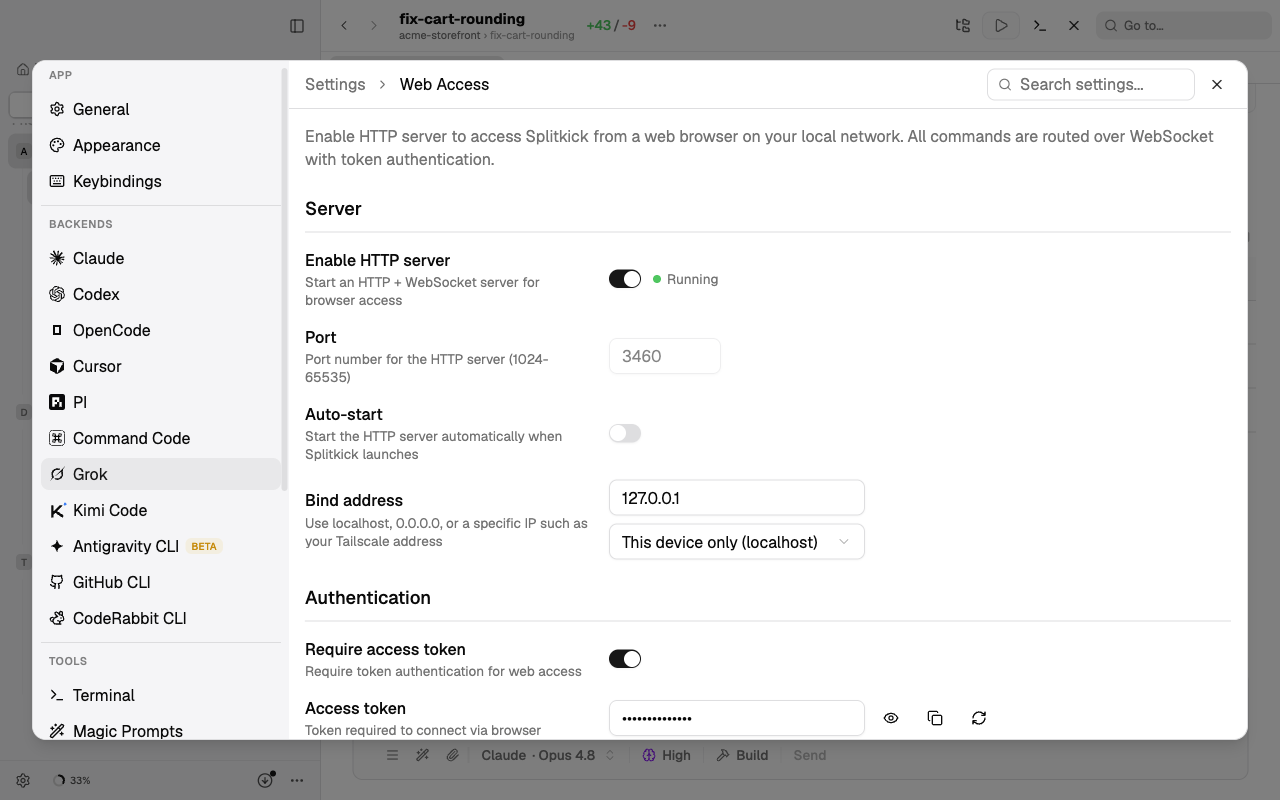
Enable HTTP server
Default: off
What it does: starts or stops the web server of Splitkick. A dot shows Running or Stopped. This switch is not kept: after a restart of Splitkick, the server is off unless Auto-start is on.
Why change it: turn it on to use Splitkick from a browser or your phone.
Cost: whoever has the token can do everything that you can do in Splitkick: read the project files, run agents and commands on this computer. A Web Access browser also gets the app settings, with the Linear key and the Sentry token.
Port
Default: 3460
What it does: the port of the server (1024 to 65535). You can change it only while the server is stopped.
Why change it: when another program uses the port.
Auto-start
Default: off
What it does: starts the server each time Splitkick starts.
Why change it: turn it on when you use your phone often, so the server is always ready.
Cost: the server is reachable whenever Splitkick runs.
Bind address
Default: This device only (localhost)
What it does: which network can reach the server. This device only (127.0.0.1): only this computer. All interfaces (0.0.0.0): every network that the computer is on. The list also shows the addresses that Splitkick finds, Tailscale first, then the local network. When the server runs, it restarts with the new address.
Why change it: select your Tailscale address to reach Splitkick from your phone in your tailnet only.
Cost: All interfaces also opens the server on a public Wi-Fi.
Require access token
Default: on
What it does: every request needs the token. When it is off, anyone who can reach the address can use Splitkick. Splitkick shows a warning.
Why change it: keep it on. Turn it off only on a network that you fully trust.
Access token
What it does: the token that a browser must send. Splitkick makes it on the first start of the server. You can show, copy and regenerate it. The same token protects the Splitkick MCP server.
Cost: when you regenerate the token, CLI configurations that you set up with the old token stop working, until you set them up again. The token is kept in plain text in the settings file.
Access URLs
Shown while the server runs: the addresses to open, with Open in browser and Copy URL. The token is part of the URL. For an address that is not localhost, Splitkick notes that a browser treats plain http:// as not secure: copy to the clipboard and some other functions do not work. Use tailscale serve or a reverse proxy with HTTPS.
This device
Shown only in a Web Access browser, for that browser:
- Reloads by the system: a log of the page starts in the last 24 hours and 7 days. On an iPhone, iOS ends a Home Screen app in the background, and the next open loads it again. Copy log and Clear log. Only for diagnosis.
- App cache: keeps the app on the device, so it starts fast and also opens when the server cannot be reached. It needs HTTPS. Reset app cache loads everything again from the server.
Web Browser
This pane holds every way an agent can use a web browser. Before this version, Browser for agents was in MCP Servers and Chrome browser integration was in the Claude pane.
Browser for agents
Default: Agent Browser
What it does: the browser that your agents can use: Off, Agent Browser, Playwright or Playwright with your Chrome. Splitkick adds it as an MCP server to every installed CLI. In a Web Access browser this section is read-only. The full guide is Browser for agents.
Cost: browser tools add tokens to each turn, and page text and screenshots go to the model provider. With "Playwright with your Chrome", agents act in your real browser, where you are logged in.
Claude in Chrome
Default: off
What it does: the switch Chrome browser integration. Splitkick starts Claude with --chrome, so Claude Code can use Anthropic's "Claude in Chrome" extension (beta). Only Claude uses it. It applies to the next message in every Claude session. It needs the extension and a running Chrome. If you turned it on in an older version, it stays on.
Why change it: turn it on only when you want to use that extension. For most work, use Browser for agents: it works for every CLI.
Cost: the browser tools add tokens to each turn. The agent acts in your real Chrome profile, where you are logged in.
MCP Servers
Enable Splitkick MCP
Default: on
What it does: the agents that Splitkick starts can call Splitkick through MCP: make worktrees and sessions, list issues, send messages, commit, open pull requests. When you turn it on, Splitkick asks if it must add itself to your CLI configurations. When it is off, these tools give an error. Questions, plan approvals and permission prompts of Claude still work. The full guide is MCP server.
Why change it: turn it off when agents must not act on other sessions or projects.
Cost: an agent can archive, commit, push and merge across all your projects.
Max recursion depth
Default: 3
What it does: a session that you start has depth 1. A session that an agent starts through MCP has the depth of its parent plus 1. When the depth is higher than this value, the tools that make or change things (sessions, worktrees, commits, pull requests, schedules) give an error. 0 blocks these tools for all sessions.
Why change it: a lower value stops agents that start agents that start agents.
Spawn rate limit (per minute)
Default: 20
What it does: how often one caller can use one of these tools in 60 seconds. 0 means no limit. The count starts again when Splitkick restarts.
Why change it: raise it for large orchestration workflows. Keep it low to stop a loop.
Add Splitkick MCP automatically
A button: Splitkick adds itself to the user configuration of each installed CLI (Claude, Codex, OpenCode, Cursor, Grok, Kimi Code, Antigravity). It makes a backup of each file first. Manual setup gives you the snippet to copy for each CLI. Both contain the access token in plain text.
Default MCP Servers
Default: all servers that Splitkick finds are on
What it does: the MCP servers from your CLI configurations, with a check box each. Checked servers are on in new sessions. You can change it per session in the toolbar, and per project in project settings. A new server is on the first time Splitkick sees it. A server that you turned off stays off. Antigravity always loads its own servers. Each time the pane opens, Splitkick checks if each server is reachable or needs a login.
Why change it: turn off the servers that you rarely use.
Cost: each server that is on adds its tool descriptions to every turn.
Integrations
Linear: Personal API Key
Default: none
What it does: Splitkick uses this key to load Linear issues, for example in the New Worktree dialog and in the MCP tool list_linear_issues. A project can use its own key (project Integrations). Splitkick does not test the key when you save it.
Why change it: add it when you plan your work in Linear.
Cost: the key is kept in plain text in the settings file. Issue text goes to the AI provider when you add an issue to a session.
Sentry: Auth Token
Default: none
What it does: Splitkick uses this token to load Sentry issues. Save & Test saves the token only when it can list your Sentry projects. The token needs org:read and event:read. Then select the Sentry project in each Splitkick project's settings. Only sentry.io works, not a self-hosted Sentry.
Why change it: add it when you want to start work from a Sentry error.
Cost: the token is kept in plain text in the settings file. Stack traces can contain user data, and they go to the AI provider when you investigate an issue.