
Session tools
What you have at hand in a session, next to the chat itself.
The side panel New
The side panel is left of the chat. It has four tabs about the session on screen:
| Tab | What it shows |
|---|---|
| Files | The file tree of the worktree. |
| Network | Which session started which, for the session on screen. It updates live. Click a row to open that session. See Cross-session workflows. |
| Graph | The graph card of the session, or Link to Graph… for a session without a link. See Graphs and agents. |
| Artifacts | The files and links the session produced. See Artifacts. |
Open a tab:
- Files: click the Files button in the title bar, or press ⇧⌘B.
- Graph: click the Graph button, run Toggle Graph Panel in ⌘K, or press ⇧⌘G.
- Network: choose Show Session Network in the session menu, or click the Started by banner or a Network link in the chat.
- Artifacts: click the artifacts button next to the follow-ups button.
The panel keeps its width and remembers the last tab. Without an open session, the Network, Graph and Artifacts tabs stay visible but disabled. The panel then says why, for example "Open a session to see its network."
On a phone the side panel is a drawer from the left, with the same tabs.
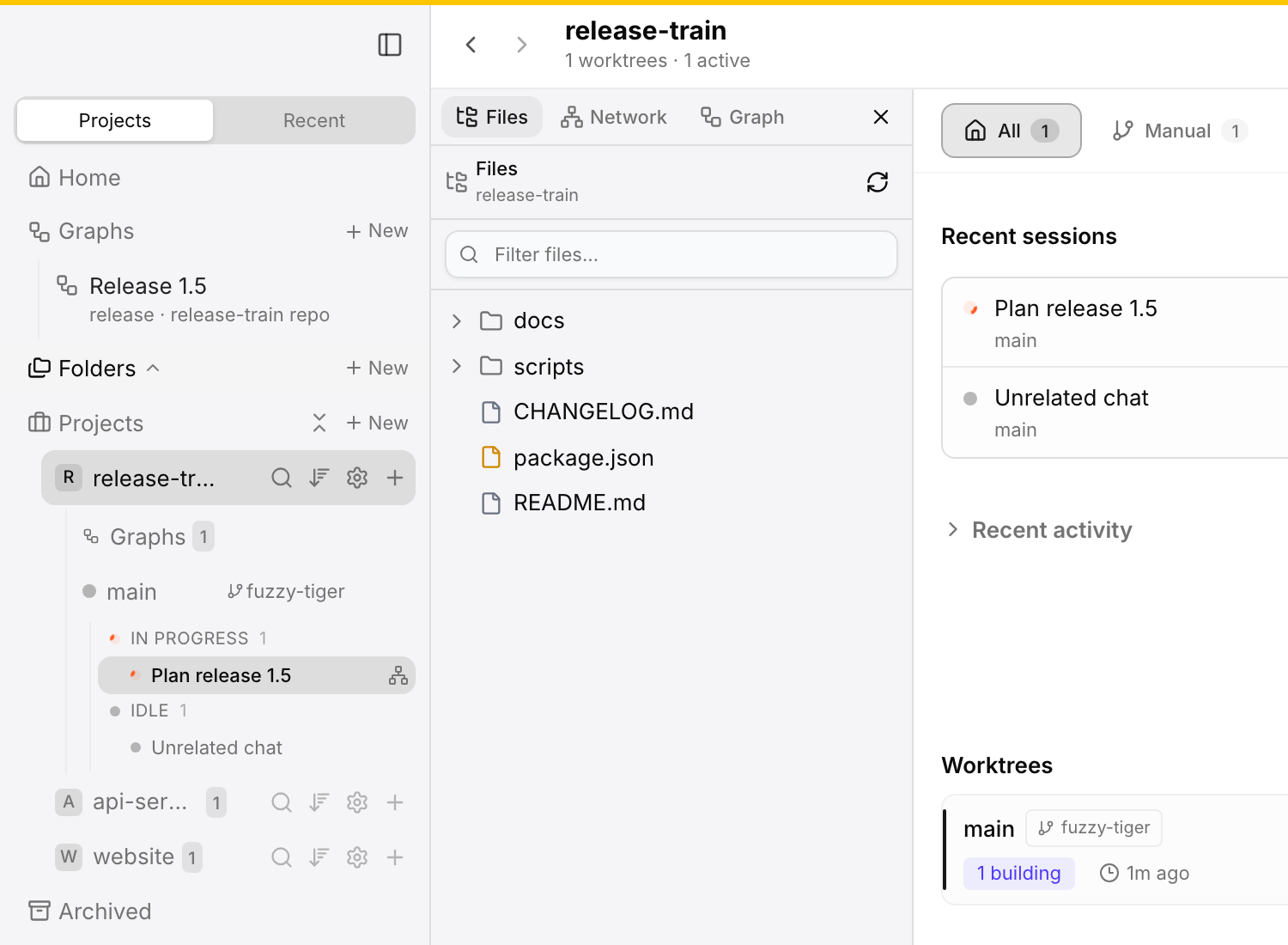
The side panel left of the content, on the Files tab. This picture is from 1.5.2, before the Artifacts tab.
Mark a session as To-Do 1.5.7
Mark a session as To-Do when you want to come back to it later. Use one of these:
- Mark as To-Do in the session menu.
- The To-Do button in the chat header (tooltip Mark as To-Do). It stays pressed while the session is marked.
- On the phone: Mark as To-Do in the gear menu of the composer.
- ⇧⌘L in the desktop app (Ctrl+Shift+L on Windows).
Do the same again to clear the mark (Clear To-Do).
The To-Do tab of the sidebar and the To-Do list on Home show the marked sessions of every project, newest first, with the time of the mark. Click the check on a row to clear the mark. See Sidebar and navigation.
The mark is on the session, so Web Access, remote instances and agents see it too:
- A move keeps the mark. A fork does not copy it.
- An archived session leaves the list until you unarchive it.
- Agents set or clear the mark with the MCP tool
set_session_todo.list_all_sessionsreturns the time of the mark astodoAt. See MCP server.
Queued messages and questions 1.5.4
A message that you send while the agent works waits in the queue. When the agent asks you a question (AskUserQuestion), the queue waits too. The queued messages run when one of these happens:
- You answer the question.
- You dismiss the question.
- You choose Send now on a queued message.
A queued message still skips a plan approval.
When a question fails, it shows its error and the form stays open. Your answer then goes to the agent as a new message. 1.5.15
See the output
The pane next to the chat shows what the agent produces:
- Markdown and text render in the pane.
- Images open inline in the answer and in a zoom viewer (pinch, double-tap or scroll to zoom).
- PDFs and video open in the pane.
- HTML and SVG files open rendered in the file viewer. See HTML and SVG preview.
- Web pages open in the embedded browser. An agent can open a page itself with the MCP tool
open_in_browser. - Mermaid diagrams and Vega-Lite charts in a code block show as a picture. See below.
- Every file path an agent writes in an answer is a link, including
~/,../and paths with spaces. Reveal in Finder is one click away. See File references.
Mermaid diagrams
A ```mermaid code block shows as a diagram in chat messages, plans and Markdown file previews. The diagram follows the light or dark theme. While a message streams, the block shows its code until the block is complete.
The toolbar of a diagram can:
- show its source,
- open it full screen, with zoom and pan,
- copy its source, an SVG or a PNG.
Invalid Mermaid code shows the source with the error.
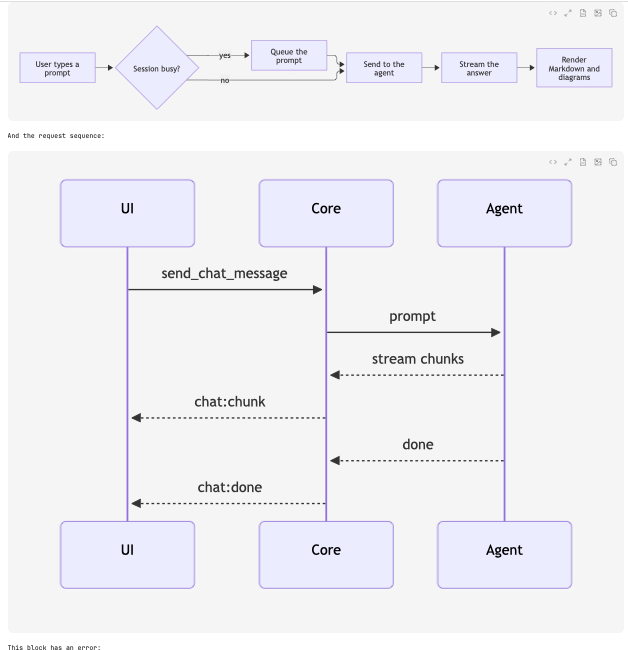
Mermaid flowcharts and sequence diagrams render in place in a chat message. The toolbar is in the top-right corner.
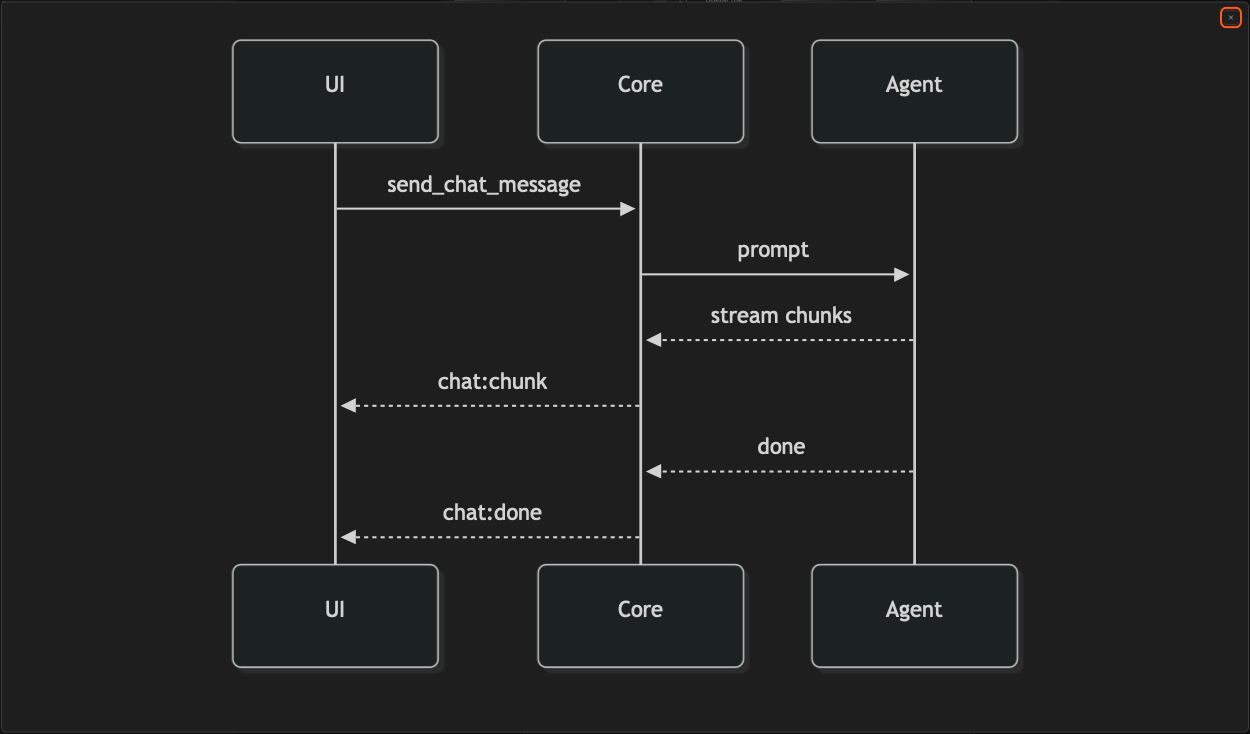
Full screen opens the diagram in a dialog. Zoom with pinch, the mouse wheel or a double-click, and drag to pan.
Vega-Lite charts
A ```vega-lite code block shows as a chart. The block holds a Vega-Lite JSON spec with inline data. Bar, line, area, scatter and the other Vega-Lite marks work. The chart follows the light or dark theme.
The toolbar shows the source, opens the chart full screen and copies the source, an SVG or a PNG. An invalid spec shows the source and the error.
Charts never load data from the network. Put the data in the spec.
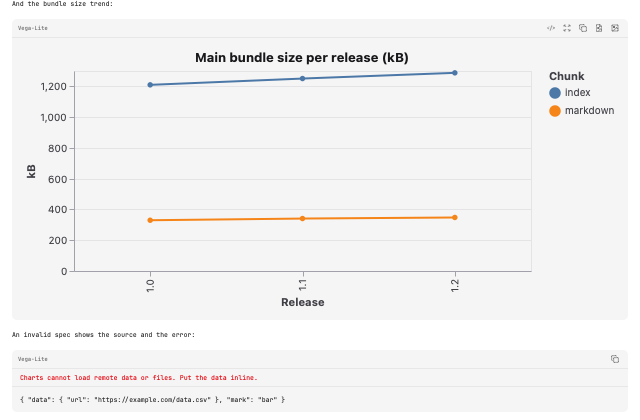
A chart in the light theme. Below it, a spec that asks for remote data is refused and shows the error above its source.
HTML and SVG preview
.html and .svg files that agents write open rendered in the file viewer. This works from tool calls, the file browser, file links and attached files. The viewer has three buttons:
- Source shows the code. Preview goes back to the rendered page.
- Reload loads the file again.
- Open in Browser opens the file outside Splitkick.
A ```html or ```svg code block in the chat gets a Preview button. Nothing renders until you click it. A pasted .html or .svg file also gets a preview.
The preview is a sandbox:
- HTML runs with no network, no app storage and no access to Splitkick.
- SVG shows as an image, so scripts in an SVG never run.
The preview works in the app, in Web Access and on the phone. Open in Browser has no sandbox: there the page runs like any local file.
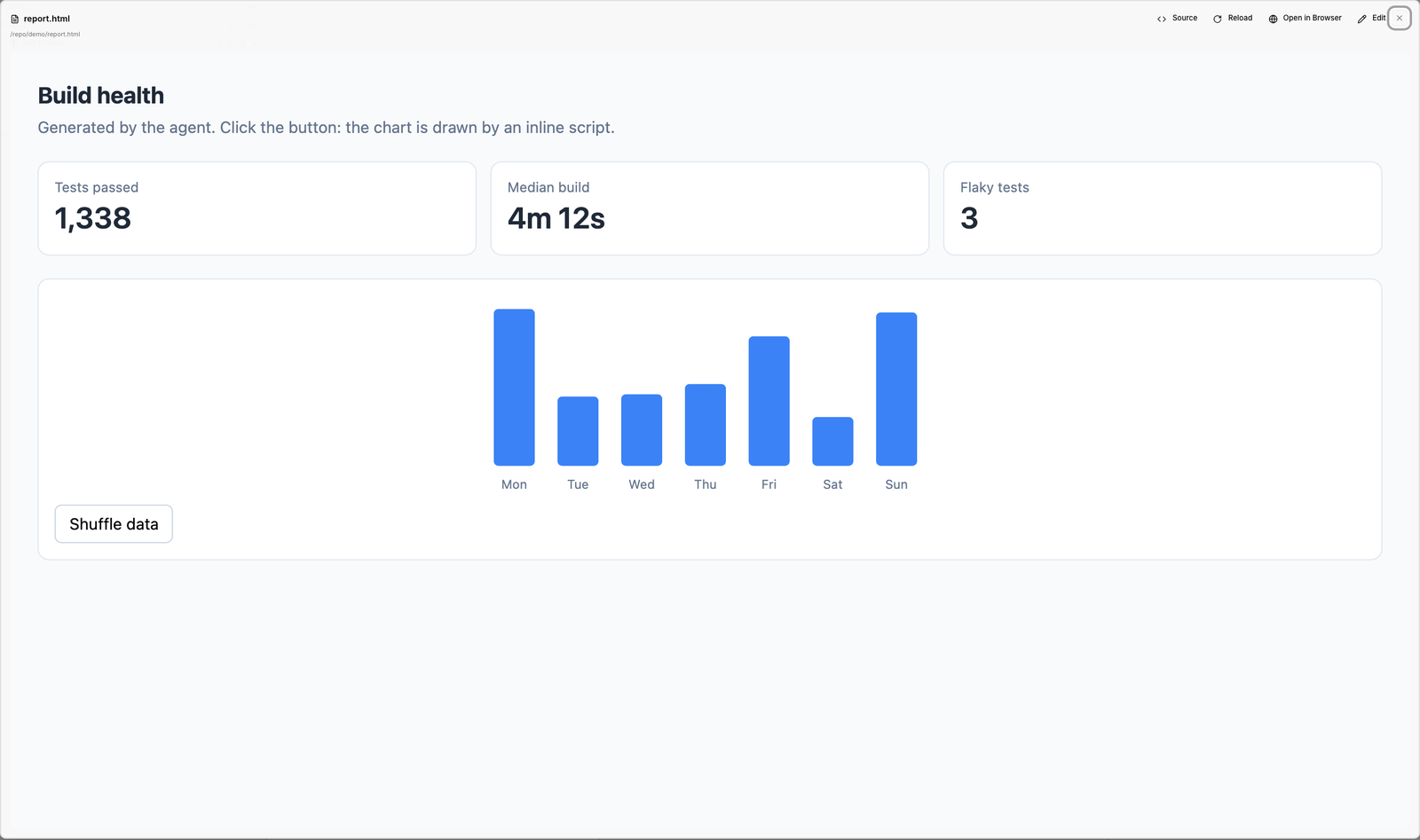
An HTML report that an agent wrote opens rendered in the file viewer, in a sandbox with no network.
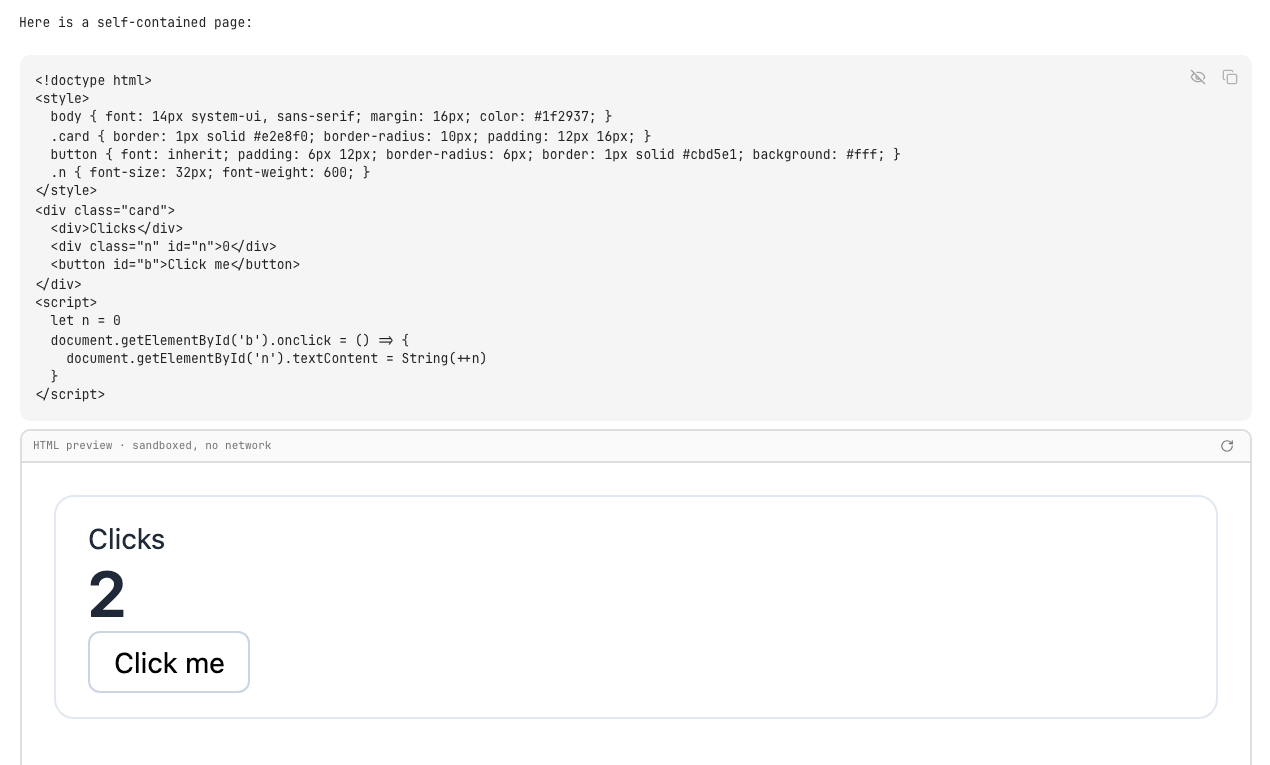
The Preview button on an html or svg code block opens the page under the block, in the sandbox, only after a click.
File references
A file path in an answer opens the file it names:
- One file found: the link opens it.
- Several files found: a click opens a picker. It lists the files and where each one is.
- No file found: there is no link. The path shows with a dotted line and a "?". Its tooltip says where Splitkick looked.
When the agent writes the file later in the turn, the link appears at the end of the turn.
Images
- Right-click an image in a chat message and choose Copy image to copy the picture itself, not its path. The image viewer and the file viewer have a Copy image button too. When the copy fails, an error message says why.
- Right-click an image in a chat message and choose Mention in chat to attach it to the composer of the same session, like a pasted image.
- In a local session the image viewer has Reveal in Finder. In a remote session and in Web Access the file is on the other machine, so the viewer shows Open in browser instead: it opens the image that the other machine serves.
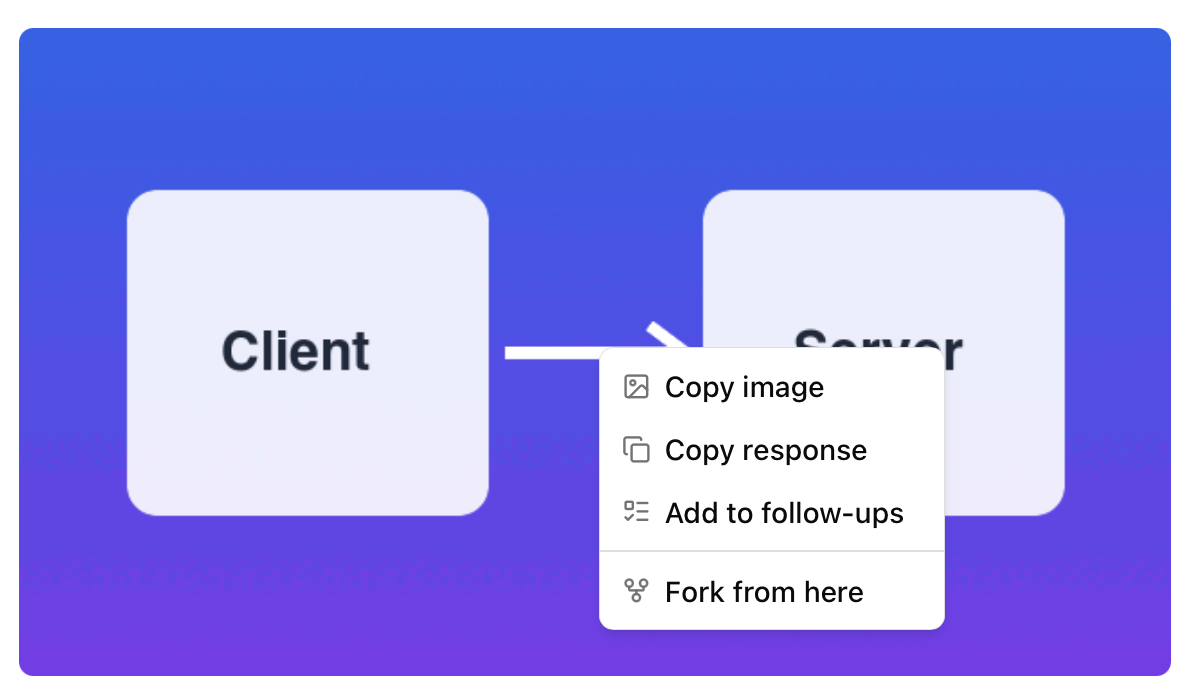
Right-click an image in a chat message and choose Copy image to copy the picture itself.
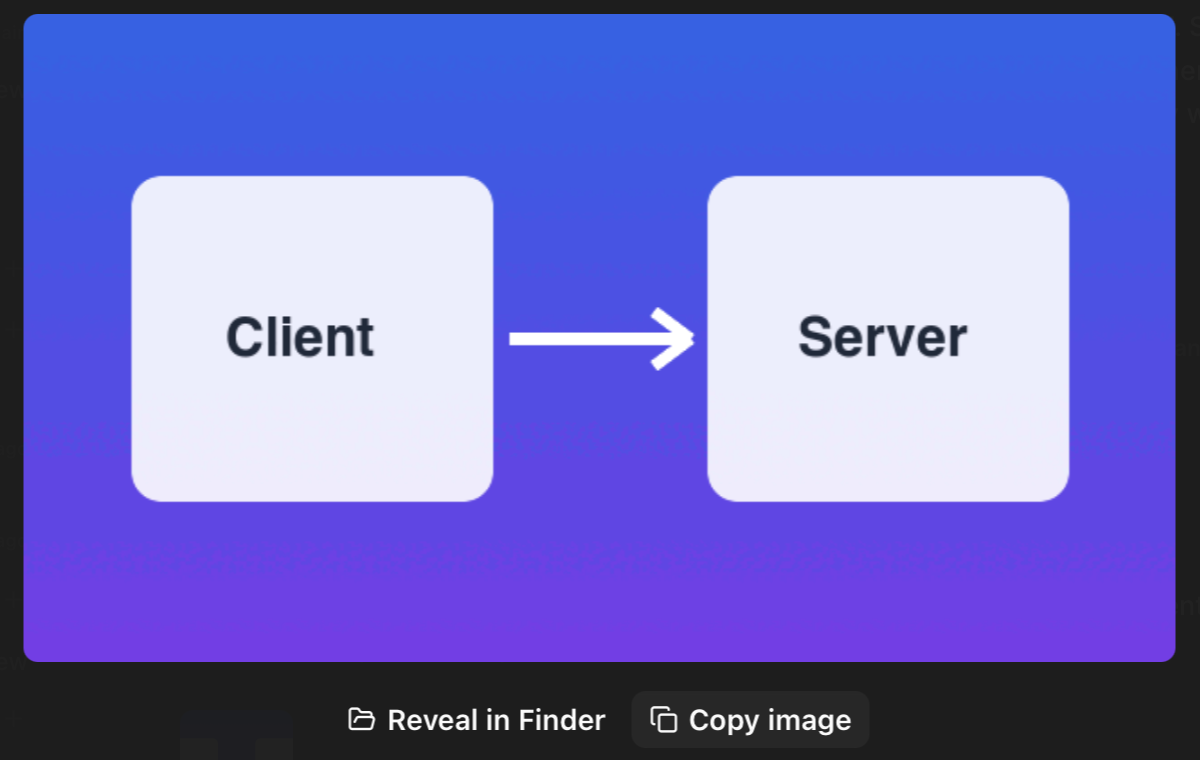
In a local session the image viewer shows Reveal in Finder and Copy image.
In a remote session the image viewer shows Open in browser instead of Reveal in Finder; it opens the image URL that the remote Splitkick serves.
The message menu
Right-click a message in the chat:
- Copy response copies the agent's answer.
- Add to follow-ups puts the selected text, or the whole message, on the session's follow-up list.
- Fork from here starts a new session from this point of the conversation; see Fork a session.
- On an image: Reveal in Finder, Mention in chat and Copy image. Mention in chat attaches the image to the composer.
Grab an element from a web page
In the embedded browser you can send a part of a web page to the chat:
- Click Grab DOM element in the browser toolbar.
- Select an element on the page.
- Choose Send to Splitkick Chat.
Splitkick adds the element to the message you are writing in the active session. Grab works in the desktop app only, not in Web Access.
Find in chat
Press ⌘F (Ctrl+F on Windows and Linux) to find text in the messages of the session. Enter goes to the next match, ⇧Enter to the previous one; the arrow keys and the buttons in the bar do the same. The match shows in the middle of the chat, also inside a long paragraph or a code block.
The chat stays on the match while a turn streams, while new messages arrive and while older messages load. It does not jump back to the first match or to the bottom.
Since 1.5.15, each session keeps its own find bar. When you switch to another session, the bar goes away. When you come back, it shows the same search on the same match. Esc or × closes the bar for this session only.
More in a session
- Try another direction: Fork a session.
- When something fails: Errors and logs.
- Notes for the next turns: Follow-up list.
- Prompts that run later: Scheduled jobs.
- Files and links the session produced: Artifacts.
- Sessions that start and read other sessions: Cross-session workflows.
- Take a session to another worktree or machine: Move and transfer sessions.