
Cross-session workflows
In Splitkick, a session is not alone. Through the built-in MCP server, an agent can find other sessions, read them, start new ones and send them work, in any project and with any agent. Splitkick records who started whom and shows it in both chats, so you can follow the work from one session to the next.
This makes real multi-agent workflows possible on your own machine: one session plans and hands out the work, other sessions do it in their own worktrees, and you watch, answer and step in where you want.
What an agent can do with other sessions
| To … | the agent uses |
|---|---|
| Find sessions | list_all_sessions (all projects, with status, labels, pins and stars, linked issue or PR), search_sessions (by topic, in names and messages) |
| Read a session | read_session_messages (only the prompts, without tool calls, or cut to a length, to keep it short) |
| Start work | create_worktree, then create_session (with the agent of your choice), then send_chat_message |
| Follow the work | get_session_status (idle, running, error, …), then read_session_messages for the result |
| Steer | send_chat_message again, set_session_model, cancel_session_run, set_session_status |
| Leave it to you | add_follow_up puts a note on a session's follow-up list; it is never sent on its own |
send_chat_message does not wait: the other session starts to work and the agent continues. A mode given with the message (for example yolo) becomes that session's mode; a model given with it applies to that one turn only.
Patterns
Orchestrator
One session is the orchestrator. It splits a task, starts one worker session per part, each in its own worktree so they never touch each other's files, and collects the results.
A prompt for the orchestrator can be as simple as:
Split issue #42 into three parts that can run in parallel.
For each part, create a worktree and a session,
and send it a clear brief. Check their status
every few minutes. When all three are done,
read their last answers and give me a summary
with links to the sessions.
The workers are normal sessions: they show in the sidebar, on your phone and in notifications, and, except in Yolo mode, they ask you questions. You can open any of them, answer, or take over.
Hand-off
One session finishes its part and sends the next step to another session, for example from a planning session to a build session, or from a build session to a session that reviews with a different agent.
Find earlier work
Before it starts, an agent searches for sessions on the same topic with search_sessions and reads what was done there, instead of you pasting it in. In its answer it links to those sessions.
Notes for later
An agent that notices work outside its task puts it on your follow-up list with add_follow_up, in its own session or in another one. Nothing runs until you decide.
See who started whom
When an agent starts a session, both chats say so:
- The parent chat shows Started session '…' View → where the agent started it, and Sent to session '…' View → where it sent a message into a session that it did not start. The rows stay visible when the turn is collapsed.
- The started session shows Started by '…' View → at the top of its chat. A fork shows Forked from '…'.
View → opens the other session. The names follow renames, and an archived or deleted session is marked as such.
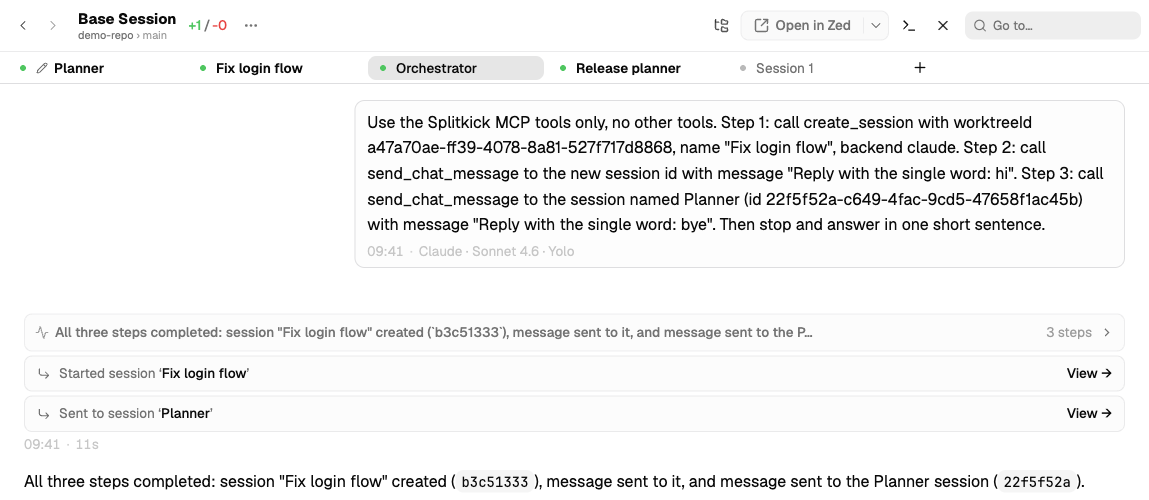
The parent chat shows "Started session '…' View →" for a session that the agent started, and "Sent to session '…' View →" for a message into a session that it did not start.
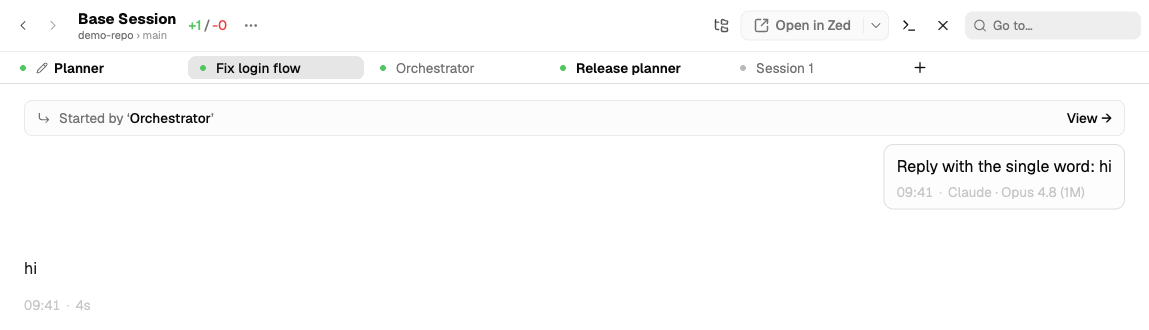
The started session shows "Started by '…' View →" at the top of its chat; "View →" opens the parent session.
The Network tab 1.5.2
The Network tab of the side panel left of the chat shows which session started which. It shows the tree around the session on screen: its root and every session started from there, also in other worktrees and projects. Each row shows the name, project › worktree, the agent and the live status. An archived session is greyed out. Click a row to open that session.
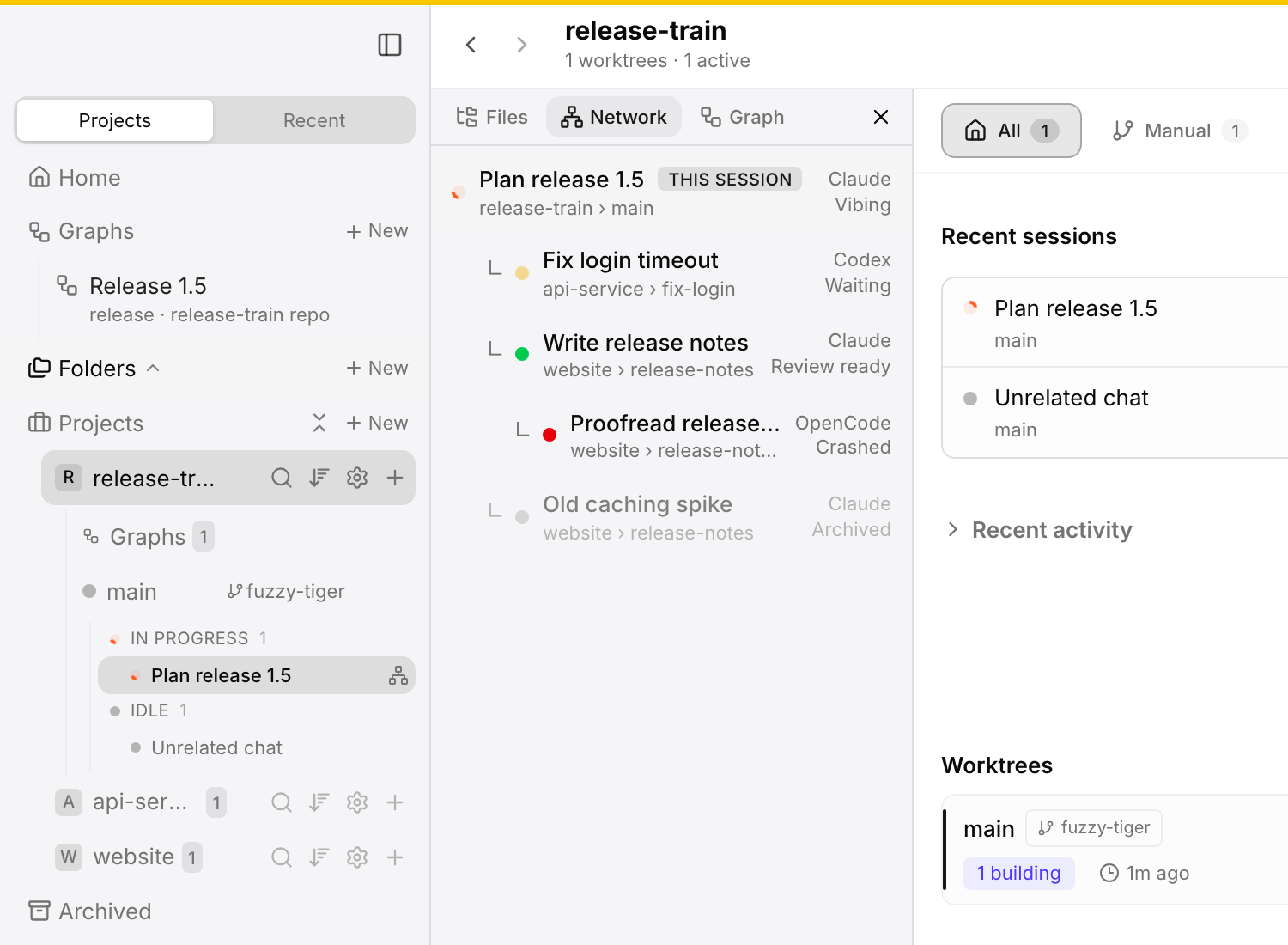
The Network tab shows which session started which, with agent and status. Click a row to open that session.
To open the Network tab:
- right-click a session and choose Show Session Network,
- click Network in the "Started by" row at the top of a chat,
- or click Network in a "Started session" row in the parent chat.
A small network icon marks sessions that have a parent or a child session: in the sidebar, on the canvas tabs and on the Pinned and Starred rows.
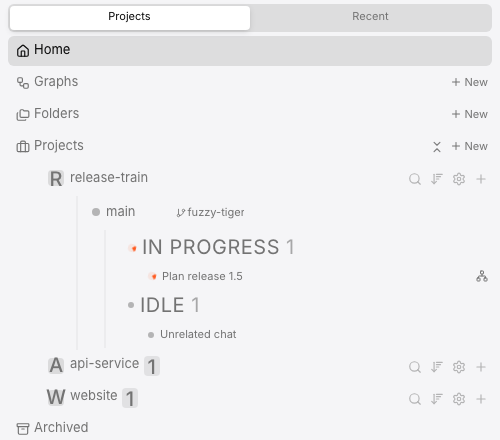
The network icon marks a session that started other sessions or was started by one.
The tab does not show sessions on other devices. When the parent of the root is not on this Mac, the tab says so.
On the phone, the side panel opens as a drawer with the same tabs.
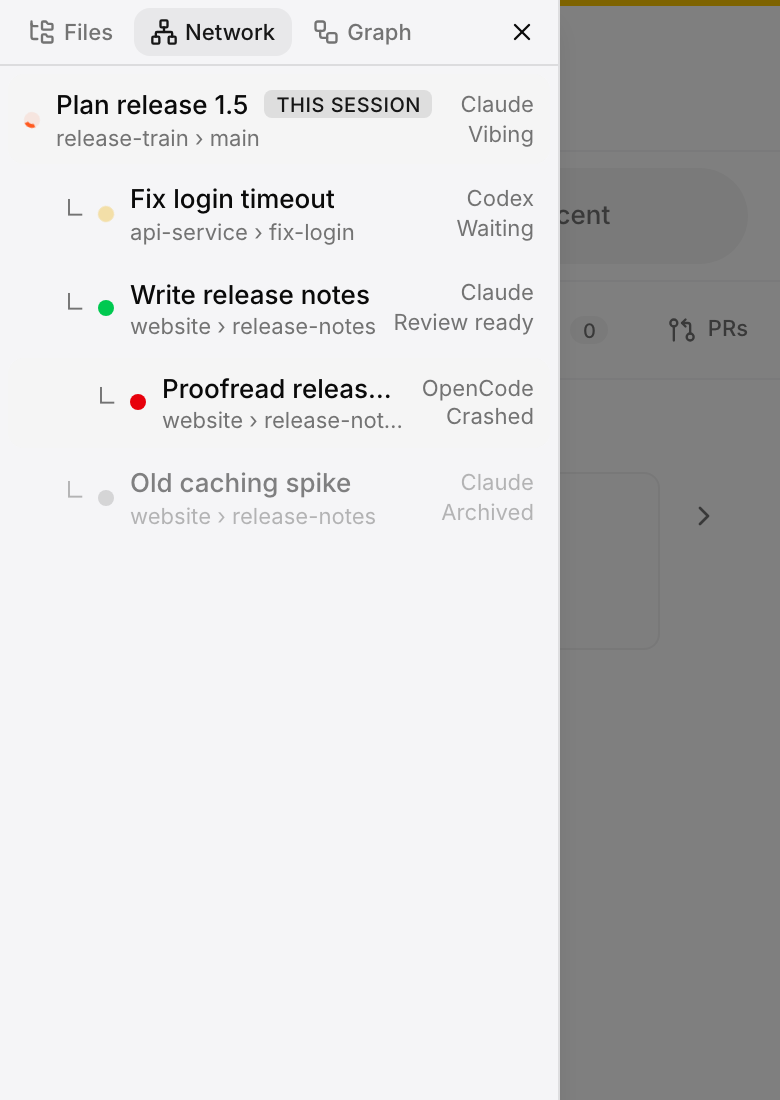
On a phone, the side panel is a drawer with the same tabs, here on Network.
The side panel has more tabs: Files, Graph (see The Graph tab in a session) and, since 1.5.3, Artifacts (see Artifacts).
Links to sessions, worktrees and projects
A link such as [Fix redirects](splitkick://session/<id>) in a chat shows the target's name with an icon and opens it on click:
- a session opens in its project, also when that is another project, and the sidebar goes to the session row;
- a worktree or a project opens on its canvas.
A link to an archived target is marked archived; a link to a target that does not exist is marked not found.
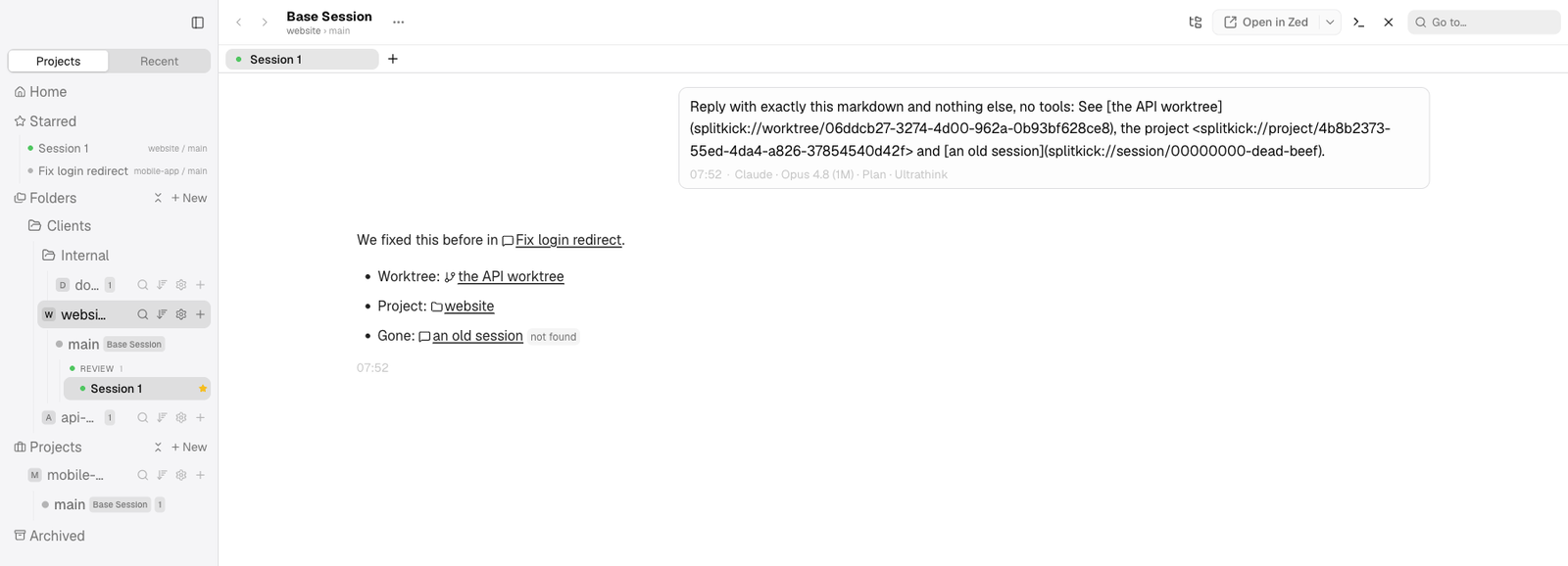
In a chat, splitkick:// links show the target's name and an icon (session, worktree, project), and a link to a session that no longer exists carries a "not found" badge.
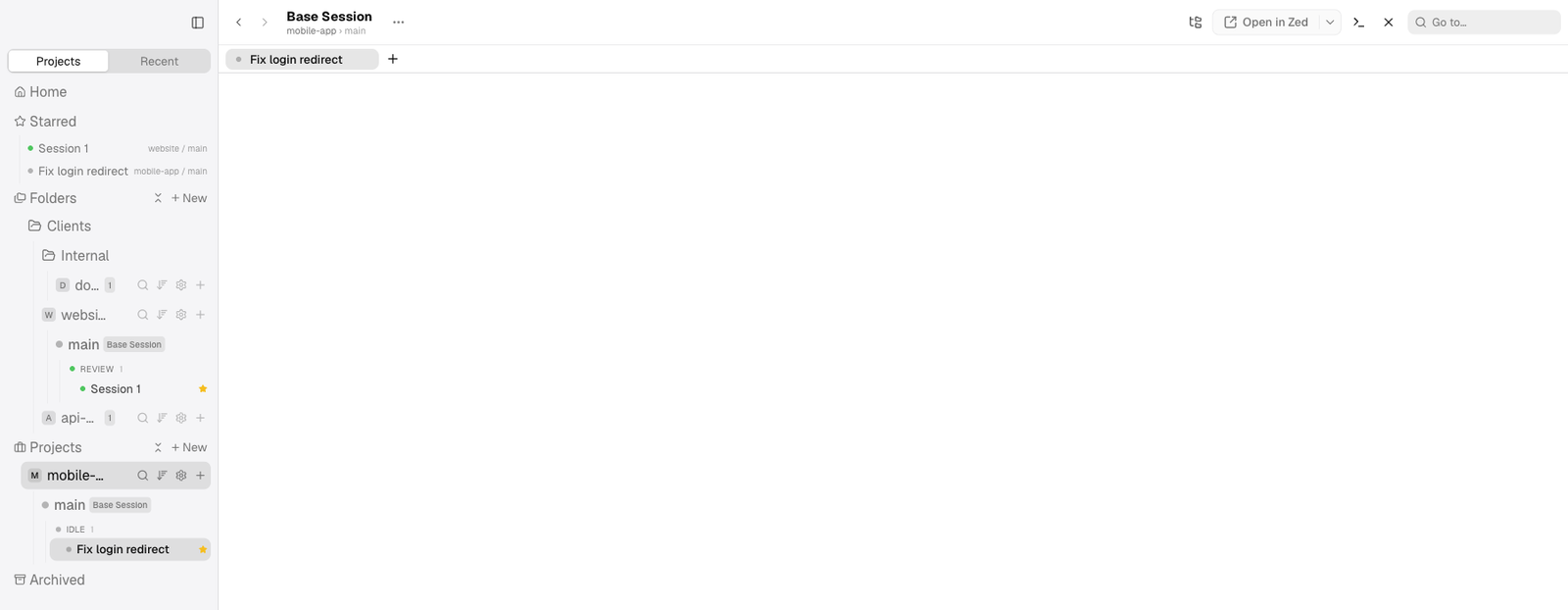
A click on a session link opens that session in its project, even in another project, and the sidebar follows to the session row.
Agents get the link of each session from list_all_sessions, search_sessions and get_current_context. You copy one with Copy Link in the menu of a session, a worktree or a project.
Work on your other Splitkick instances 1.5.1
An agent can also use the other Splitkick instances that you connected, for example the Mac in your studio. Tell it "start a session on studio-mac in project backend, give it this task and bring me the result", and it does that through two MCP tools:
| Tool | What it does |
|---|---|
list_instances | The instances you connected: name, id, URL, whether it is reachable now, and its Splitkick version. Never a token. |
remote_tool | Runs one Splitkick MCP tool on one instance: instance (name or id from list_instances), tool (for example list_projects) and arguments (as that tool expects them). The result comes back unchanged, with a note in front that names the instance. |
Connect the other instance first, in the Server connections dialog: click the server icon in the sidebar footer, then Add remote, then Existing URL or Install via SSH. See Run it on a server.
Example: a task on studio-mac
For "start a session on studio-mac in project backend, give it a task, and get the result", the agent does these steps. Each step after the first is a remote_tool call with instance: "studio-mac":
list_instances: finds studio-mac and sees that it is reachable.list_projects: finds the project backend and its id.list_worktreeswith that project id: picks a worktree, for example main.create_sessionwith that worktree id: gets the id of the new session.send_chat_messagewith the session id, the task and anexecutionMode, for examplebuild. The message does not wait for the answer.get_session_statusagain and again, until the session is idle.read_session_messages: reads the answer and gives you the result.
The new session is a normal session on studio-mac. You see it there in the sidebar and can open it, answer it or take over.
Limits
- Both instances need Splitkick 1.5.1 or later. The other instance answers these calls through
POST /api/mcp/call, which came in 1.5.1. An older instance gives the error "too old for remote MCP calls". The other instance must also have its Splitkick MCP server on. - Ids and links belong to the other instance. Session, worktree and project ids from a result are valid only there: the agent gives them back through
remote_toolwith the same instance, never to a local tool. Asplitkick://link from the result opens only in a window that is connected to that instance. - No graph changes. The other instance refuses
create_node,update_node,set_node_state,send_request,set_servesandcreate_graph. Graph reads work. - One hop only. The other instance cannot send the call on to a third one:
remote_toolandlist_instancesare refused there. - No calling session there. Tools that act on the calling session, such as
get_current_contextorset_session_statuswithout asessionId, have no session on the other side and give an error. - The work runs on the other machine. It uses that machine's projects, files, CLI logins and data, not yours.
- The same rate limit applies on both sides.
remote_toolcounts as a write tool here, and the tool counts again on the other instance. See MCP server limits.
Where the connections are kept
Since 1.5.1, Splitkick's backend keeps the list of connections, so its agents can use them. The access tokens are in the macOS Keychain, not in a file. The first start of 1.5.1 moves your old list from the app's browser storage to the backend, one time. Web Access never gets the tokens.
Good practice
- One worktree per worker. Sessions in the same worktree share its files. Give parallel workers their own worktrees.
- Say when the work is done. A worker can mark its own session as done with
set_session_status, so it leaves your list of sessions that need you. - Keep reads short. Ask the orchestrator to read only the last messages, or only the prompts, of a worker; long sessions cost tokens.
- Archive and delete only after you agree. Splitkick's MCP server tells agents to ask you first.